Appearance
Action Basics
Our Cat Herder allows portals members to be assigned actions as part of a meeting or 'standalone' actions outside of a meeting.
These actions are visible to assignees on their 'Dashboard' under 'My Actions' and also in the Actions area accessible from the left hand menu.
Tip
There is a limit of 10 'My Actions' actions on the 'Dashboard'.
Portal users can also navigate to the 'Actions' page by clicking the menu icon on the top left and selecting the 'Actions' tab.
In both places, you can quickly update the status of your actions.
Update Action Status
Via Dashboard
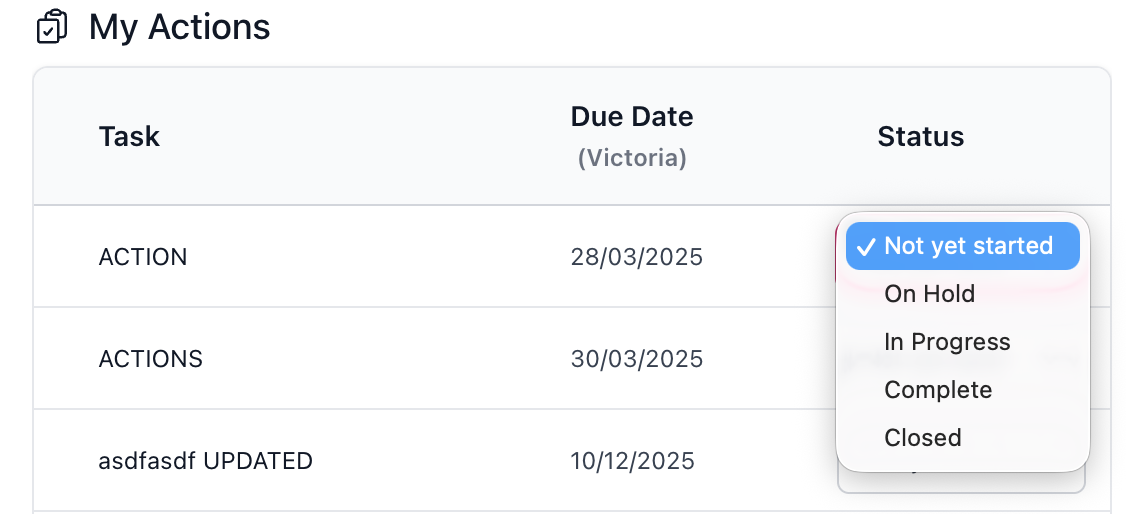
From the 'My Actions' area on the 'Dashboard', click the drop-down menu under the status column and choose between: Not yet started, On Hold, In Progress, Complete, or Closed.
Via Actions page
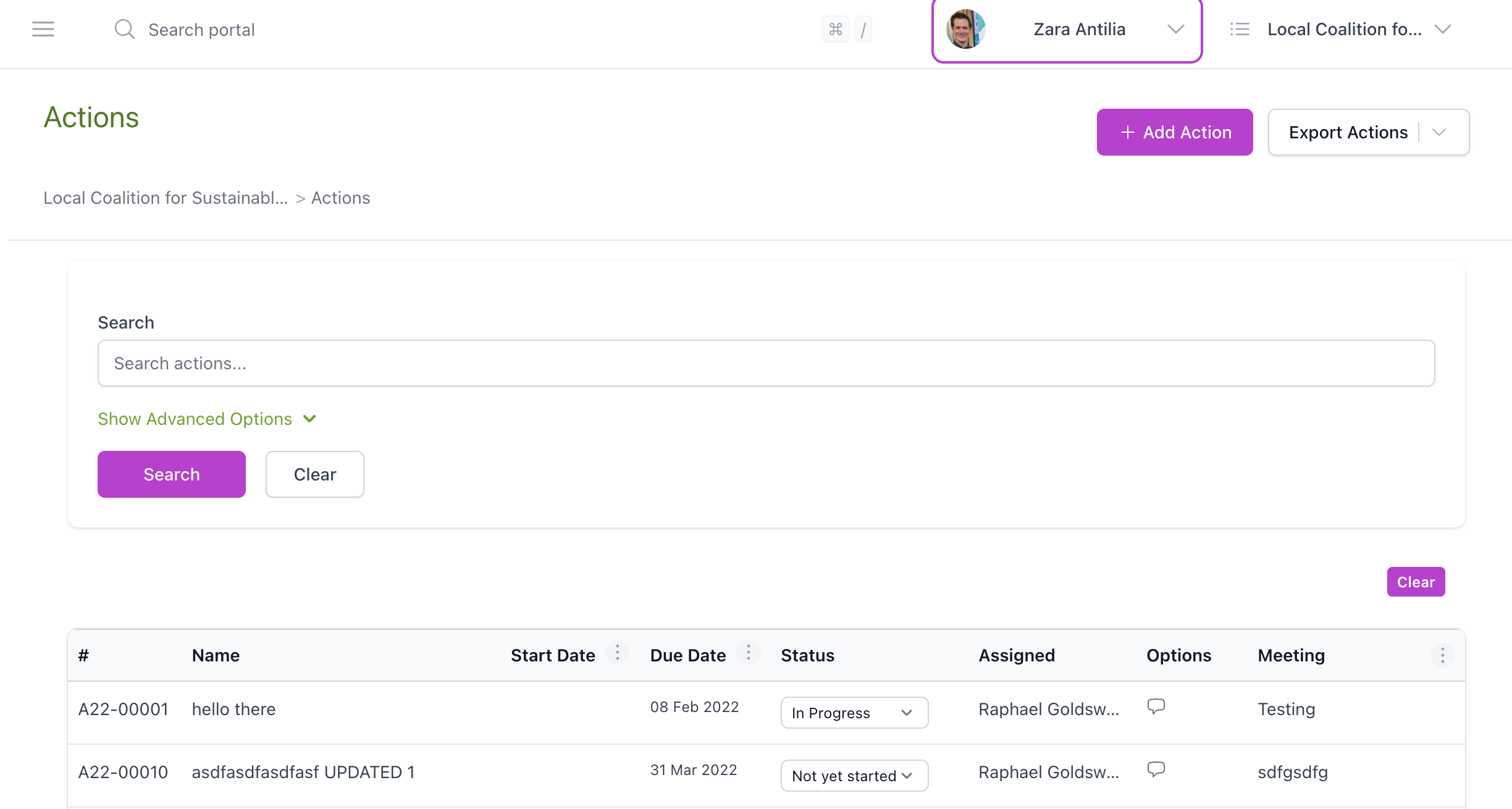
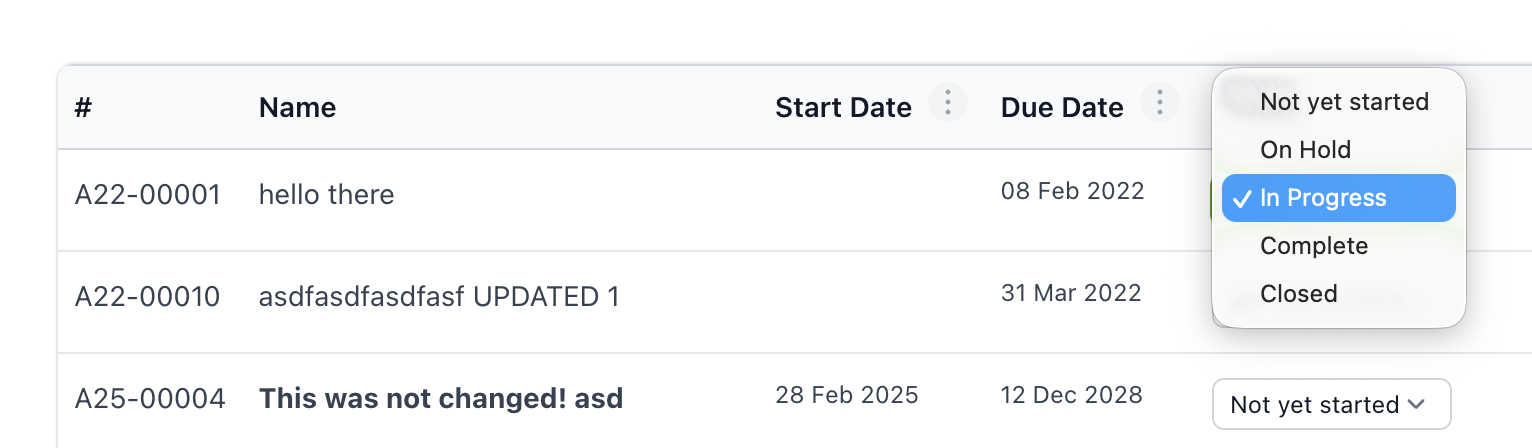
From the 'Actions' page, scroll down to the list of actions. To update the status of a specific action item, go to the 'Status' column and select the dropdown menu next. Select one of the available options: Not yet started, On Hold, In Progress, Complete, or Closed.
Further right for each action, there will be a similar drop down plus an icon (speech bubble) that allows you to add comments (private or 'public' to other portal users assigned the action or portal Admins).
Action Details
To see more details about individual actions, click on the action name. A new window will open, describing the action name, status, due date, start state, and assignee.
To add a comment, click the 'Add Comment' button and write and save your text. It will then appear in the 'Action Details' window.
From the 'Actions' page, any actions assigned to the portal user will be visible.
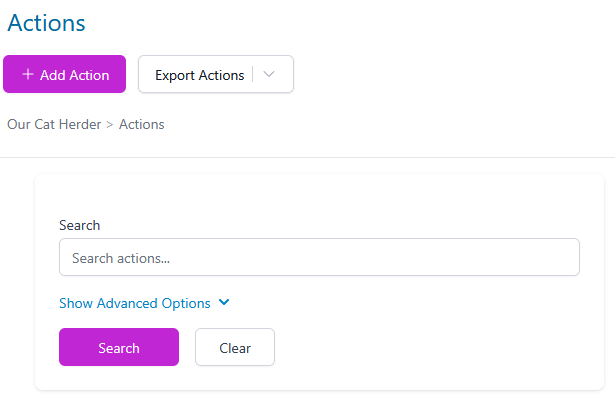
Individual items can be found using the search box or by scrolling down to find the action.
Members can add actions or export a list of actions in PDF or CSV.
Types of Actions
Meeting Actions
Meeting actions are created within a meeting's minute taker or agenda builder and are linked to a specific agenda item. They can also be added from the main Actions area in the left-hand menu. When you assign an action against a meeting item:
- The action is tied to that meeting and agenda item
- It automatically carries forward to the next meeting of the same type until it is Closed. Actions marked Complete are still carried forward (so they remain visible on the next meeting's Open Actions list) until they are Closed.
- It appears in the meeting's action list and in the portal-wide Actions area
This is the most common way to create actions during or after a board meeting.
Standalone Actions
Standalone actions exist outside the meeting cycle. To create one, click Add Action from the Actions page and choose the standalone option.
Use standalone actions for:
- Policy review reminders
- Ongoing tasks not tied to a specific meeting
- Follow-ups that don't relate to a particular agenda item
- Any task you want to track in the portal without linking it to a meeting
Standalone actions appear in the Actions area and on the assignee's Dashboard just like meeting actions, but they are not linked to any meeting.
Filtering and Exporting Actions
Admin users can use the Show Advanced Options button on the Actions page to filter actions by:
- Specific user (assignee)
- Meeting type
- Status (Not Yet Started, In Progress, On Hold, Complete, Closed)
- Date range
Once filtered, click Export to download the results as PDF or CSV. You can also choose to include action comments in the export (private comments are excluded).
Actions can also be exported and attached directly to an upcoming meeting agenda item without needing to download and re-upload. For a full step-by-step guide, see Export Custom Action Reports.