Appearance
Discussions
Discussions let you create topics and communicate with other portal members between meetings. You can access Discussions in two ways:
- Click Discussions from the left menu to see all discussion groups you have access to
- Click a discussion listed in the Discussions area on the Dashboard

Joining a Discussion
From the Discussions page, select a discussion group from the list. Click the topic name to open it. Comments are displayed in chronological order.
You can jump to different points in the conversation using the navigation options: The Very Beginning, Newest Reply, or a specific date.
Review the conversation before posting a comment to avoid repetition. Type your comment in the text box and click the arrow button to publish your post. To get a better view of the discussion, click the downward arrow to hide the message box.
Creating a Discussion Topic
To create a new discussion topic, go to the Discussions page and click the + New Topic button.

A panel will open allowing you to add a topic name and write your description. Click Create Topic to save it. The topic will now appear in the discussion list.
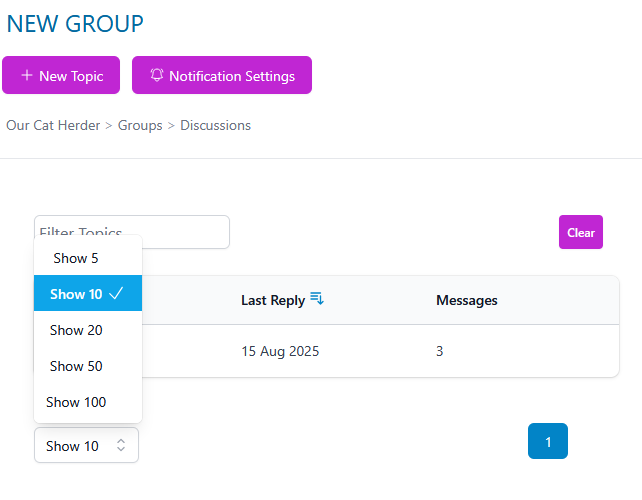
As more topics are added, you can use the Filter Topics box to search by keyword. You can also change the number of topics displayed per page.
Notifications
Discussion groups can email you when someone posts a new comment. You control this per topic — there is no single on/off switch for an entire group.
Turn off notifications for specific topics
- Click Discussions in the left menu.
- Open the discussion group that is sending you emails.
- Click Notification Settings at the top right of the page.
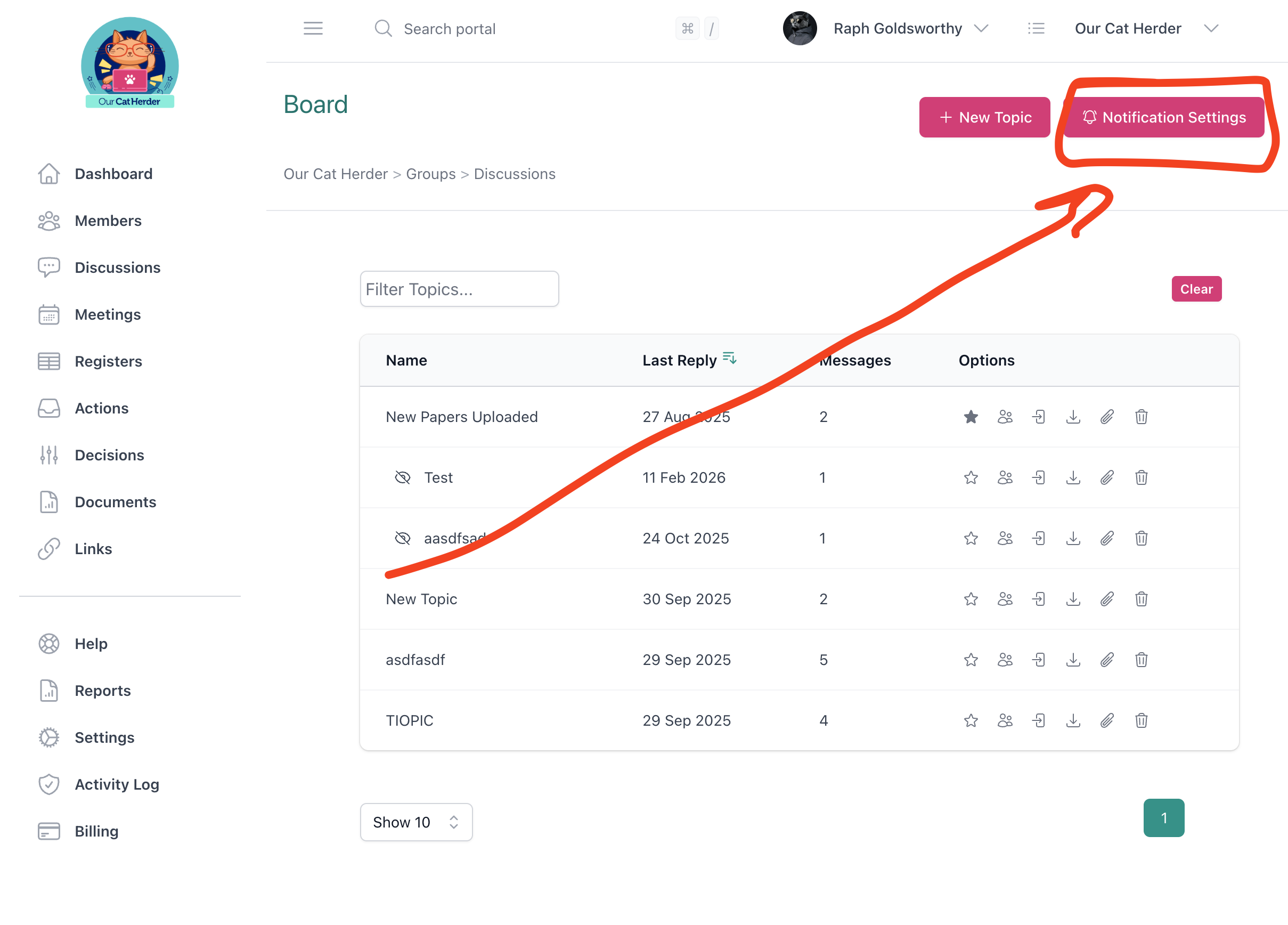
- In the Edit Notifications panel, switch notifications off for each topic you no longer want emails about.
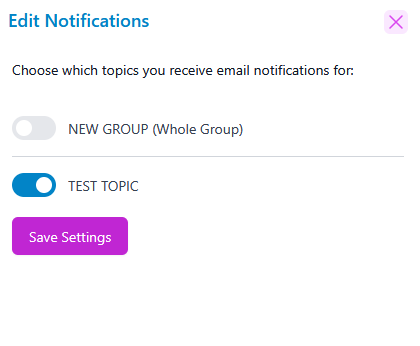
- Close the panel when you are finished. You will not receive further emails for the topics you turned off.
New topics
When a new topic is added to a group, it may appear in your notification list with notifications turned on. Open Notification Settings again and turn off notifications for any new topics you do not want emails about.
Turn off all notifications in a group
To stop all emails from one group while staying a member, switch notifications off for every topic in the Notification Settings panel. Check back when new topics are added.
Permissions
- All discussion groups set to Open are visible to you
- Closed groups are only visible and accessible if you have been invited
- Members can create new discussion topics
- You can post, edit, and delete your own comments
- If you created a discussion group, you can also edit or delete it
- Topics created by other members cannot be deleted by you
Leaving a Discussion Group
Leaving a group stops all discussion emails from that group and removes your access to its topics until you rejoin.
Open groups
Open groups show an unlocked padlock icon and are visible to all portal members.
- Click Discussions in the left menu.
- Find the group in the list. If you have joined it, the padlock icon appears filled/coloured.
- Click the padlock icon to leave the group. The icon becomes an unfilled outline, which means you are no longer a member.
- You can rejoin at any time by clicking the padlock icon again — open groups always remain visible in your list.
Closed groups
Closed groups show a locked padlock icon and are only visible if you have been invited.
If you leave a closed group, it disappears from your Discussions list and you will not be able to find or rejoin it on your own. You will need to ask your Admin or the group owner to invite you again.
Before leaving a closed group, consider turning off notifications for individual topics instead (see Notifications above) if you still need access to the conversation.
Not Seeing a Discussion Group?
If you cannot see a discussion group that you expect to have access to, it may be set to Closed. Contact your Admin to request access. If you previously left a Closed group, you will need someone to re-invite you.