Appearance
Meetings
The Meetings page lists all your past and upcoming meetings. Click Meetings from the left menu to access it.
The page defaults to Upcoming Meetings. To view previous meetings, click the Past Meetings tab.
Meeting Details Page
Click on any meeting to open the Meeting Details page. This shows the meeting name, date, start and end times, location, type, chairperson, and a description if one has been added.
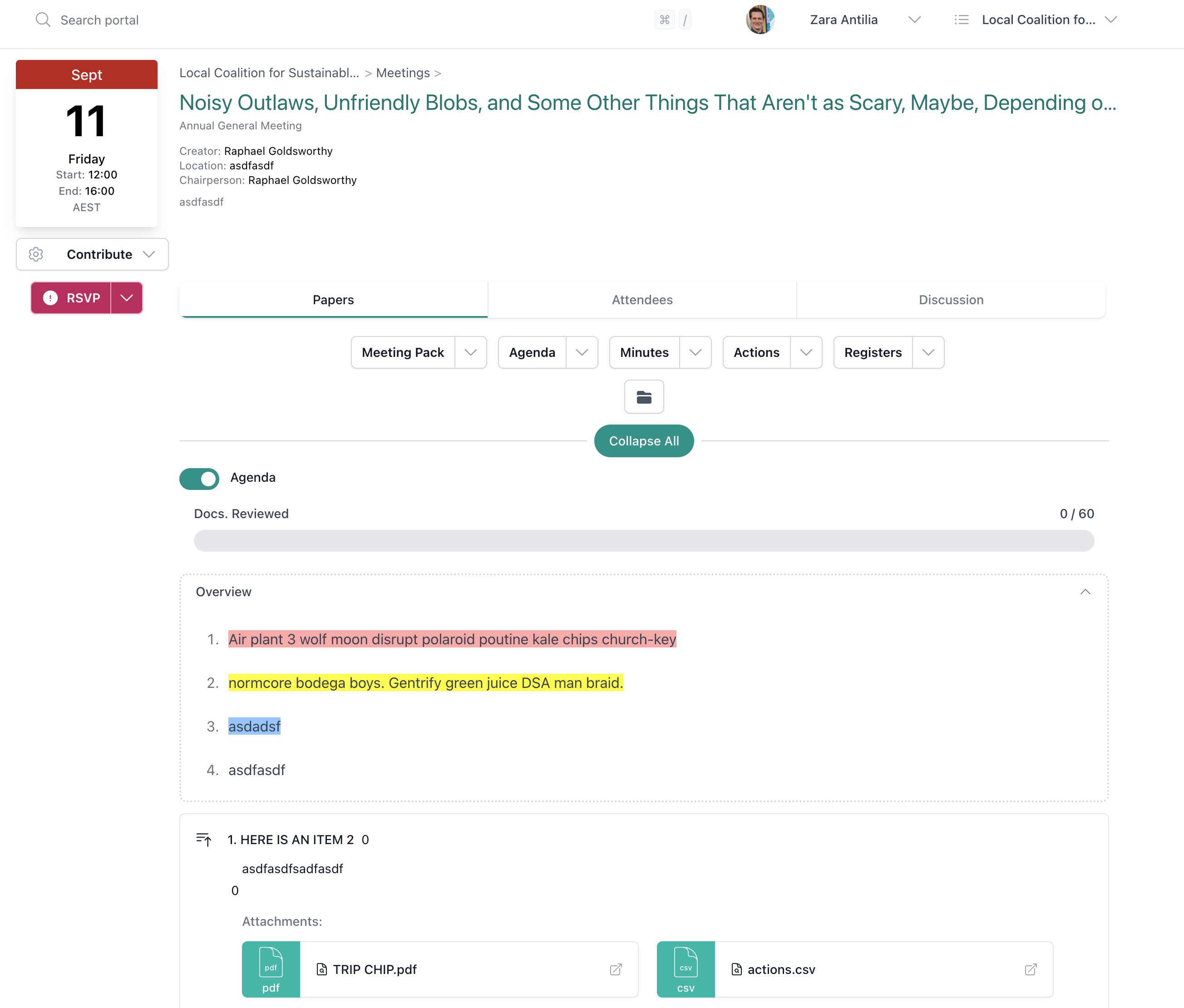
The Meeting Details page has several tabs:
Papers
The default tab. It shows the agenda, attachments, and relevant documents for the meeting. You can:
- Expand and collapse agenda items to focus on specific sections
- Open attachments by clicking on them
- Mark documents as read — a progress indicator shows how many you have reviewed
- View the agenda as a PDF — print or download if your Admin has enabled this
You can also view documents in different ways:
- Agenda view — the default, showing agenda items with descriptions and attachments
- Document list — a simpler list of just the attached documents
- Meeting Pack — a single integrated view of the agenda and all documents together, where you can also take notes
Meeting Pack Notes
When taking notes in the Meeting Pack view, remember to click Submit to save them. Notes are not saved automatically.
Attendees
Shows who has been invited to the meeting, grouped into:
- Minute Takers — can take minutes and modify parts of the meeting
- Attendees — regular meeting participants
- Viewers — can view meeting documents but are not attending
As a regular member, you can view the attendee list but cannot invite or remove people. Only the meeting creator, chairperson, minute taker, or a portal Admin can manage attendees.
Discussion
A space for meeting participants to leave comments or questions about the meeting. Adding a comment sends a notification to all attendees. You can edit or delete your own comments.
Minutes
Shows the minutes from the previous meeting of the same type, so you can review them before the current meeting. You can choose to include or exclude actions in the minutes view.
Minutes Tab Greyed Out?
If the Minutes tab is greyed out, it is most likely because a meeting setting is restricting who can view minutes. The setting "Show 'Minutes this Meeting' button only to Meeting Creator, Admin, Meeting Chair & Minute Takers" may be enabled for this meeting type. Ask your Admin to check this setting — they can update it by opening the meeting, clicking Manage > Edit Details, and changing the "Show Minutes this Meeting" option.
Actions
Shows the outstanding actions report for this meeting type, so you can quickly see what is still open.
Meeting Folder
A link to the meeting's folder in Documents, where you can browse the agenda, minutes, action tracker, and attachments as files.
Can't See a Meeting?
You can only see meetings you have been invited to. If you expect to attend a meeting but cannot see it, ask your Admin or the meeting creator to check the attendee list.
RSVP to a Meeting
When you are invited to a meeting, you receive an email with the meeting details and a calendar (.ics) file attached, which you can use to add the event to your Outlook, Gmail, or other calendar app.
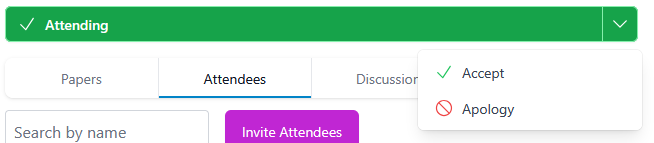
To RSVP, click the link in the email or navigate to the meeting in Our Cat Herder. On the Meeting Details page, click the RSVP button and select Accept or Apology. You can update your RSVP at any time before the meeting.
Creating a Meeting
All portal members can create a meeting. Click the + New Meeting button on the Meetings page and enter:
- Meeting Type
- Meeting Title
- Location
- Date and Time
- Chairperson
- Description
When you create a meeting, you become its meeting admin — you can edit the agenda, invite attendees, and manage the meeting.
Meeting Types
Meeting types connect agendas, actions, documents, and minutes together. Our Cat Herder comes with default types (e.g. Annual General Meeting, Committee Meeting, Finance Committee Meeting), and your Admin can create additional types as needed. For more details, see the Meetings admin guide.
Permissions
- You can view and RSVP to any meeting you are invited to
- You can view meeting documents, take notes in the meeting pack, and participate in the meeting discussion
- If you created the meeting or are set as the chairperson, you can edit meeting details and manage attendees
- Printing and downloading documents depends on your portal's settings — contact your Admin if these options are not available