Appearance
Discussions
Discussions let you create topics and communicate with other portal members between meetings. You can access Discussions in two ways:
- Click Discussions from the left menu to see all discussion groups you have access to
- Click a discussion listed in the Discussions area on the Dashboard

Joining a Discussion
From the Discussions page, select a discussion group from the list. Click the topic name to open it. Comments are displayed in chronological order.
You can jump to different points in the conversation using the navigation options: The Very Beginning, Newest Reply, or a specific date.
Review the conversation before posting a comment to avoid repetition. Type your comment in the text box and click the arrow button to publish your post. To get a better view of the discussion, click the downward arrow to hide the message box.
Creating a Discussion Topic
To create a new discussion topic, go to the Discussions page and click the + New Topic button.

A panel will open allowing you to add a topic name and write your description. Click Create Topic to save it. The topic will now appear in the discussion list.
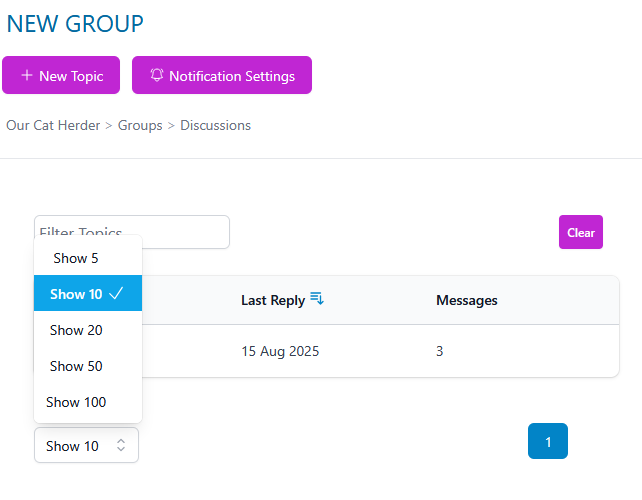
As more topics are added, you can use the Filter Topics box to search by keyword. You can also change the number of topics displayed per page.
Notifications
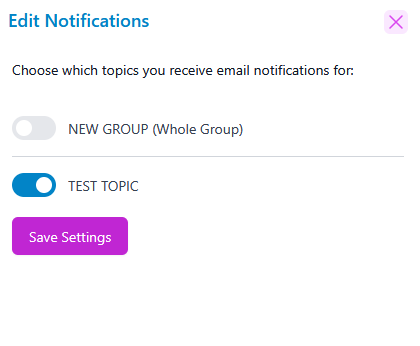
You can choose whether to receive email notifications for specific discussion topics. Click the Notification Settings button at the top right of the Discussions page.

When the panel opens, turn notifications on or off for each topic to control which discussion emails you receive.
Permissions
- All discussion groups set to Open are visible to you
- Closed groups are only visible and accessible if you have been invited
- Members can create new discussion topics
- You can post, edit, and delete your own comments
- If you created a discussion group, you can also edit or delete it
- Topics created by other members cannot be deleted by you
Not Seeing a Discussion Group?
If you cannot see a discussion group that you expect to have access to, it may be set to Closed. Contact your Admin to request access.