Appearance
Documents
The Documents area is where your board papers, reports, strategic plans, meeting minutes, and agendas are stored. Click Documents from the left menu to access them.
Finding Documents
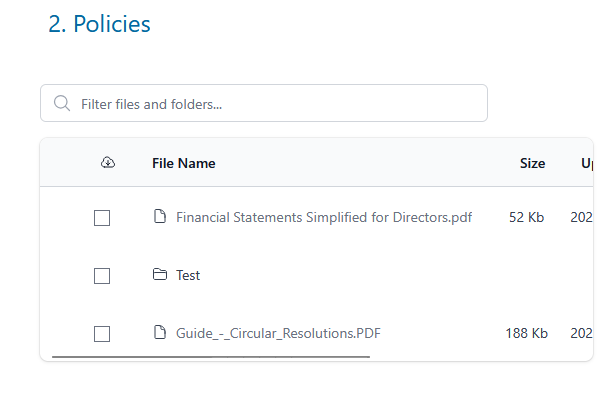
Navigate the folder structure on the Documents page to find what you need. You can also use the Filter files and folders search box to search by keyword or file name.
Naming Conventions
Work with your board to establish naming standards for documents. For example, naming a file "Strategic Plan 2025-2027_Approved" makes it easy to find later using the search filter.
Folder Access
The Documents area is permissioned — you will only see the folders and files your Admin has granted you access to.
- Files at the top level of Documents (not inside a folder) are accessible to all portal members
- Files inside folders are only accessible if you have been granted access to that folder
- The Meetings Archive folder is automatically managed — you will see meeting folders for meetings you have been invited to

Can't Access a Document?
If you cannot access a file or folder, contact your Admin to check that you have been granted access to the relevant folder. Even if you have a direct link to a file, you will not be able to access it unless you have permission on the folder it is in.
Downloading Documents
Your portal Admin may have disabled document downloads. If the download option is not available, contact your Admin.
- Tick the checkbox next to the file(s) you want to download — this activates the Download button.
- Click Download and confirm.
- A single file or up to 5 files will download immediately.
- For larger selections or entire folders, a zip file will be generated and a download link emailed to you.
Creating Folders and Uploading Files
You can create folders and upload files within the Documents area.
Creating a folder:
- Navigate to where you want the new folder.
- Click Create Folder and give it a name.
Uploading a file:
- Navigate to the folder where you want to upload.
- Click the Upload File button at the top of the page.
- Browse your device or drag and drop files into the upload area.
Troubleshooting File Uploads
If a file upload fails or seems to hang, there are two common causes.
Network or Cloud Drive Locations
The most common cause is that the file is being selected or dragged from a network drive, mapped drive, or SharePoint/OneDrive location rather than from your local device.
Web browsers run in a secure sandbox that limits their access to your file system. When you select a file from a network drive (e.g. a mapped Z:\ drive) or a SharePoint/OneDrive synced folder, the browser may not be able to read the file from that location. This can cause the upload to fail silently, time out, or appear to hang indefinitely.
Files marked as "cloud-only" in OneDrive or SharePoint (shown with a cloud icon) are particularly problematic — they are not physically stored on your device, so the browser cannot access them at all until they are downloaded.
This is a browser limitation that affects all web applications, not just Our Cat Herder.
How to fix it:
- Copy the file to your local device first — save it to your Desktop, Downloads folder, or Documents folder
- Then upload from that local location using the Upload File button or drag and drop
Quick Check
If your file is on a path that starts with \\, a drive letter mapped to a server (e.g. S:\, Z:\), or is in a SharePoint/OneDrive folder with a cloud icon, copy it to your Desktop first and upload from there.
Duplicate Meeting Names
If you are uploading files to a meeting and the upload fails, check whether you have two meetings with the same name and date. When meetings share the same name and date/time, the system tries to create identical Meeting Archive folders, which causes a conflict and prevents uploads from completing.
How to fix it: Rename one of the duplicate meetings — even a small change such as adding a number to the end of the name (e.g. "Board Meeting 2") is enough to resolve the conflict.
Other Upload Issues
If uploading from a local location still does not work:
- Check the file type — some file types are not supported (see below)
- Check the file size — very large files may time out on slower connections
- Try a different browser — if the issue persists, try uploading in Chrome, Edge, or Firefox
- Clear your browser cache — stale browser data can occasionally interfere with uploads
Supported File Types
The following file types can be uploaded to the Documents area:
| Category | Extensions |
|---|---|
| Images | All image types |
| Documents | .pdf, .doc, .docx, .dotx, .odt, .txt, .rtf, .rtfd, .wpd, .md, .epub, .mobi, .azw, .pages |
| Spreadsheets | .xls, .xlsx, .xlsm, .ods, .csv, .dbf, .numbers |
| Presentations | .ppt, .pptx, .odp, .key |
| Archives | .zip, .rar, .7z, .tar, .gz, .bz2 |
| Audio/Video | .mp3, .wav, .m4a, .mp4, .mov, .flac, .avi, .wmv |
| Project/Design | .mpp, .vsd, .vsdx, .ganttproject, .drawio, .dwg, .dxf |
Email message files (.eml and .msg) are not supported. If you need to store an email in Our Cat Herder, save it as a PDF first and upload the PDF instead.
Saving an Email as PDF
Most email applications allow you to save or print a message as a PDF. In Outlook, use File > Save As > PDF or File > Print > Save as PDF. In Gmail, open the email, click the three-dot menu, and select Print, then choose Save as PDF as the destination.
Managing Your Own Files and Folders
You can manage files and folders that you have created:
- Edit the name of your files or folders
- Set access permissions on folders you created
- Replace files you uploaded with an updated version
- Delete files or folders you created
- Move files and folders you created (cut and paste)
Admin-Only Actions
Some actions are restricted to Admins, such as reordering files and folders, and managing access on folders created by others.