Appearance
My Details
You can manage your personal account details in Our Cat Herder by logging in and heading to the dashboard. Then click the dropdown menu next to your name on the top right. Select 'My Details'.
Dashboard view
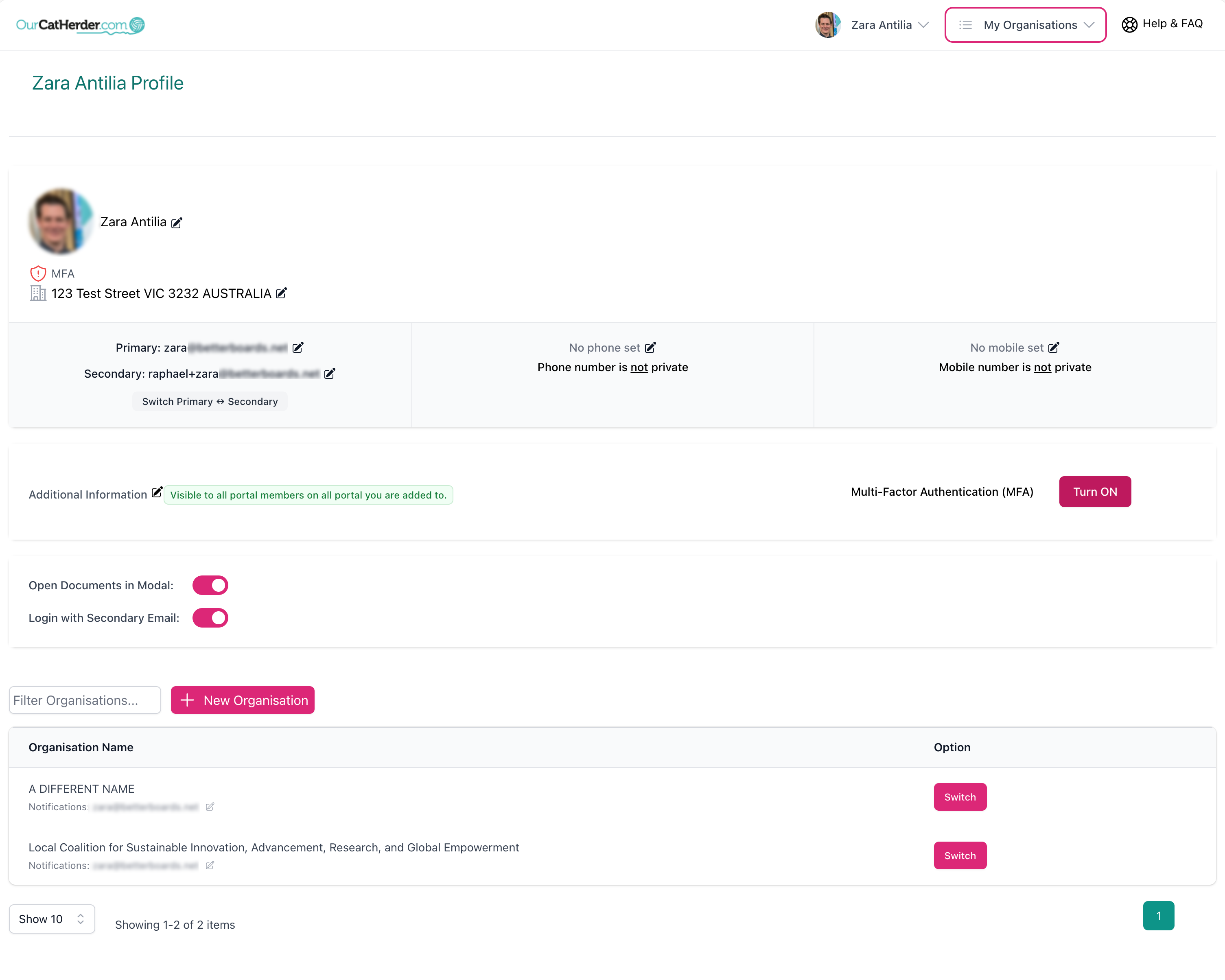
The 'My Details' page is where you can update your personal details, manage the viewing settings, enable multi-factor authentication on your account, and access all of the portals you belong to.
Applies to all your portals
The changes you make on your my details page will be applied across all your connected portals.
Update Your Details
'My Details' has information about your organisations, your name, email, and address and many of your portal settings.
Update your name
- Next to your name, you should see a 'Change' icon/link. Click this, and it will open a modal.
- In the modal, you can add or update your Title, First Name and Last Name.
- After making the changes, click the 'Submit' button to save the details.
Update your address
- Underneath your profile image, click the 'Change' link next to the
 icon.
icon. - Add or change your information and click the 'Save' button to update the portal.
Update your email(s)
- Click the 'Change' link next to your current email. This will open a modal.
- Add your new email and/or secondary email and confirm the change by clicking the 'Submit' button.
- You will receive an email confirming the change at your new email address. Click the link in the email and enter your password to confirm the change.
- You will then be asked to log in with your new email address and existing password.
Updating your primary email address changes the email you use to log in and receive notifications.
Secondary email
In addition to your primary email, you can add a secondary email address to your account. Your secondary email can be used to:
- Log in to your account as an alternative to your primary email, if you choose to enable this option.
- Receive notifications instead of your primary email.
If you are a member of multiple portals, you can also choose which email address receives notifications from each portal. This allows you to keep notifications from different organisations separate. Once a secondary email has been added, you will see the option to assign it to any of your connected portals from the 'My Details' page.
Update your phone numbers
- Head to the 'Change' icon/links in one of three sections: "Primary", "Phone", or "Mobile". Click the link to open a modal and update your information.
- Once you make your changes, click the 'Submit' button.
As an option, you can mark your phone numbers as private to hide them from other members on your portal.
Additional Information
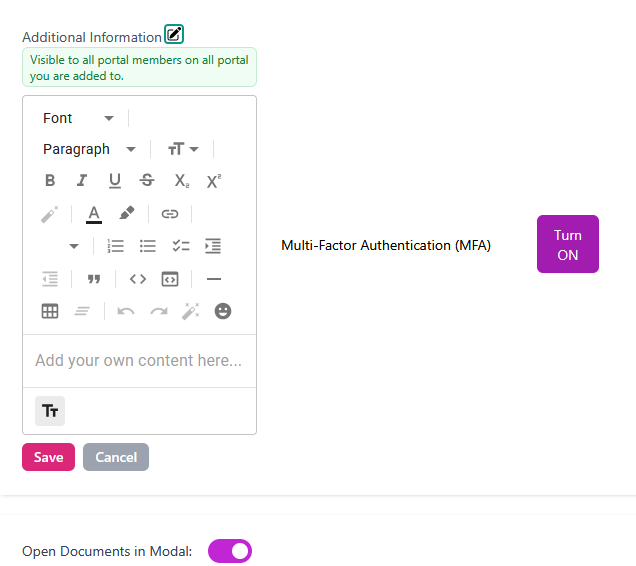
The 'Additional Information' section lets you add personalised text to your profile.
- Click the 'Change' link/icon next to 'Additional Information'. A modal will open with a text box and editing options.
- Add your text and click the 'Save' button to update your profile.
The information you add here will be visible to all portal members and on portals you have been added to.
Multi-Factor Authentication (MFA)
You can turn Multi-Factor Authentication (MFA) on using the 'Turn ON' button. When switched on, you will be required to enter MFA codes as part of login. MFA enhances your organisation's security and makes your data less vulnerable.
Open Documents in Modal
The 'Open Documents in Modal' switch sets OCH to open PDFs in 'Modal' mode instead of opening them in a new window. Modals allow you to interact with information without navigating away from a page. Switching this option off (left side) will set OCH to open a new window when viewing documents.
Switch between organisations
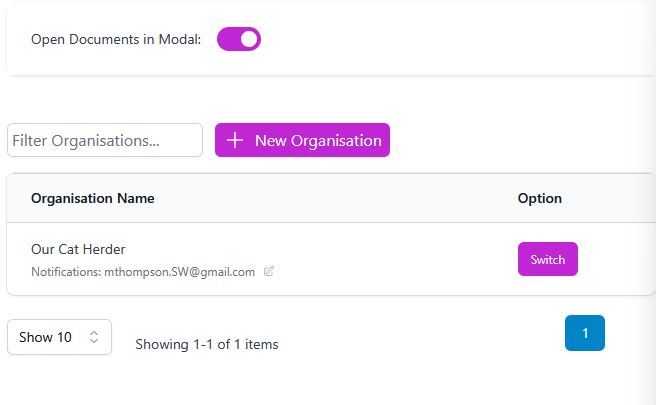
The bottom part of the 'My Details' page allows you to view the organisations you are able to access.
Click the 'Switch' button on the right side of the organisation you want to access. This allows you to navigate from one account to another.
If you have more than 10 organisations on your list, use the 'Filter' organisations to search and find your portal.
Can my portal admin edit details for me?
Yes, but only if your individual account is linked to one Our Cat Herder portal.
If your account is connected to more than one Our Cat Herder portal, the admin cannot update your details. At this point, you are responsible for managing your details.