Appearance
Before the Meeting
Our Cat Herder gives you access to all board papers and meeting materials ahead of the meeting so you can arrive prepared.
RSVP to the Meeting
When a meeting is created and you are invited, you will receive an email notification. Confirm your attendance as early as possible so the chairperson and Admin can plan accordingly.
- Click Meetings in the left menu and open the meeting.
- Click the RSVP button and select Accept or Apology to confirm your attendance.
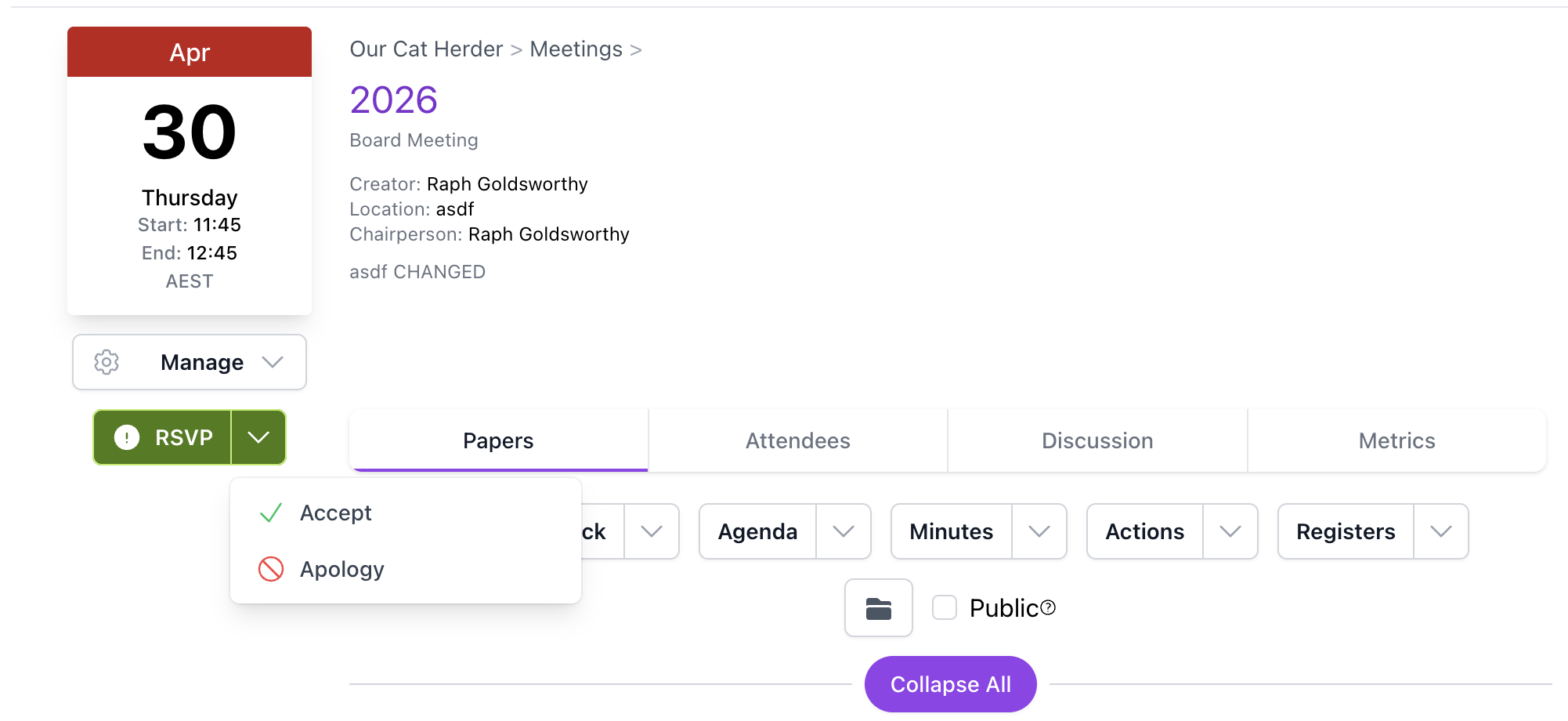
If your availability changes, you can update your RSVP at any time before the meeting. We also recommend using the Discussion tab on the meeting to add further information about your response.
Can't See the Meeting?
If you have been told about a meeting but cannot see it in the portal, contact your Admin. You may need to be added as an attendee. See Members Can't See Meetings for common causes.
Review Board Papers and Attachments
Once the agenda and board papers have been distributed, you should review them before the meeting. Your meeting Admin may use the meeting Discussion area to let you know papers are ready — you will receive an email notification when they do.
- Click Meetings in the left menu and open the meeting.
- The Papers tab is the default view. Expand agenda items to see descriptions and attachments.
- Click on any attachment to open it in the side panel.
- As you open each document, it is marked as read. The Docs Reviewed progress bar tracks your progress.
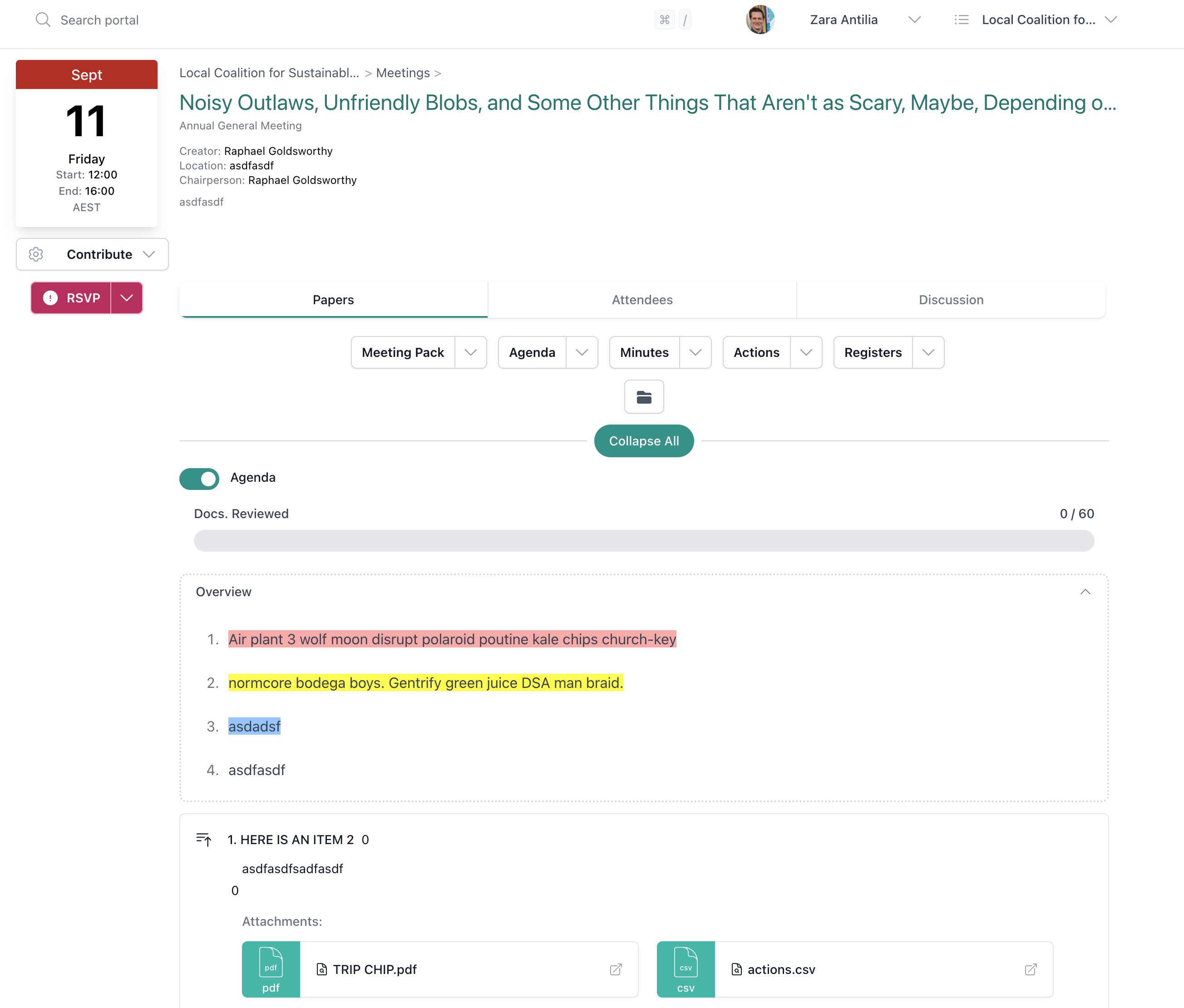
Three Ways to Read
You can review documents in different ways depending on your preference:
- Agenda view — the default, showing documents grouped under agenda items
- Document list — toggle from Agenda to Attachments for a flat list of all documents
- Meeting Pack — click Meeting Pack for a single integrated view of the agenda and all documents together
See How to View Board Papers and Meeting Attachments for a detailed walkthrough of all the ways to view documents.
Use the Meeting Pack for Deep Reading
The Meeting Pack is especially useful for pre-meeting preparation. It presents the full agenda with all documents inline, so you can read through everything in order — just like a traditional board pack.
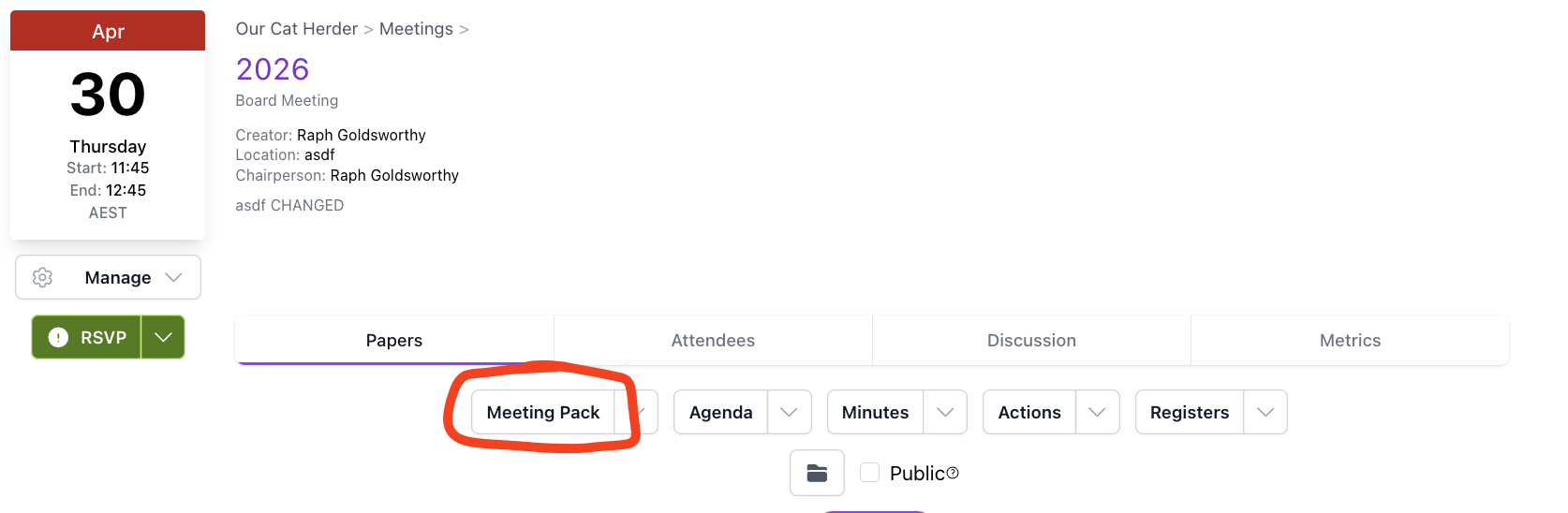
- On the Papers tab, click Meeting Pack.
- Scroll through or jump to specific agenda items.
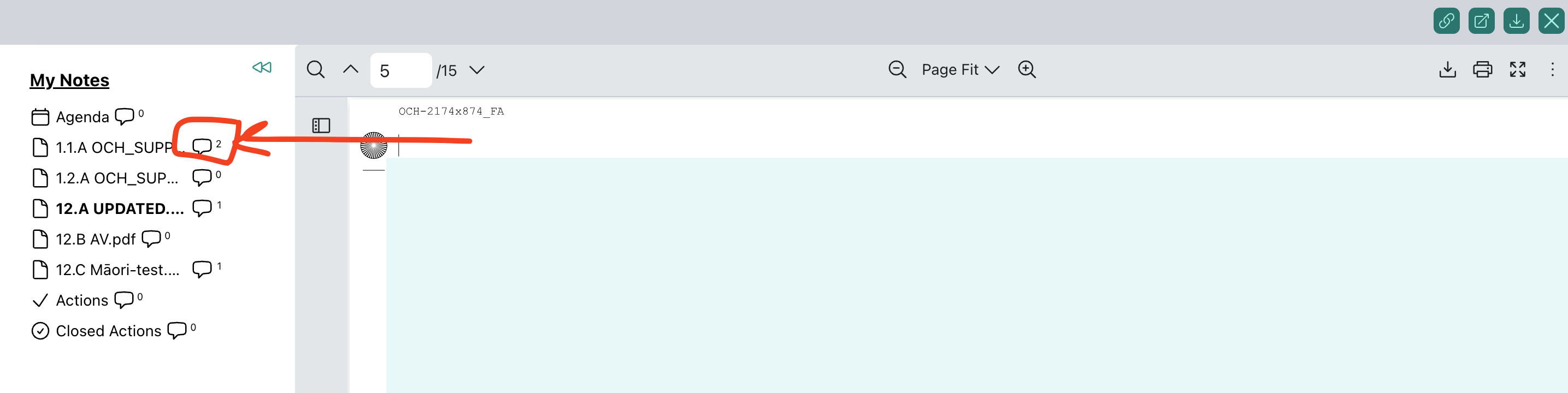
- To take notes, click the speech bubble icon on the left side of the meeting pack to open the notes panel.
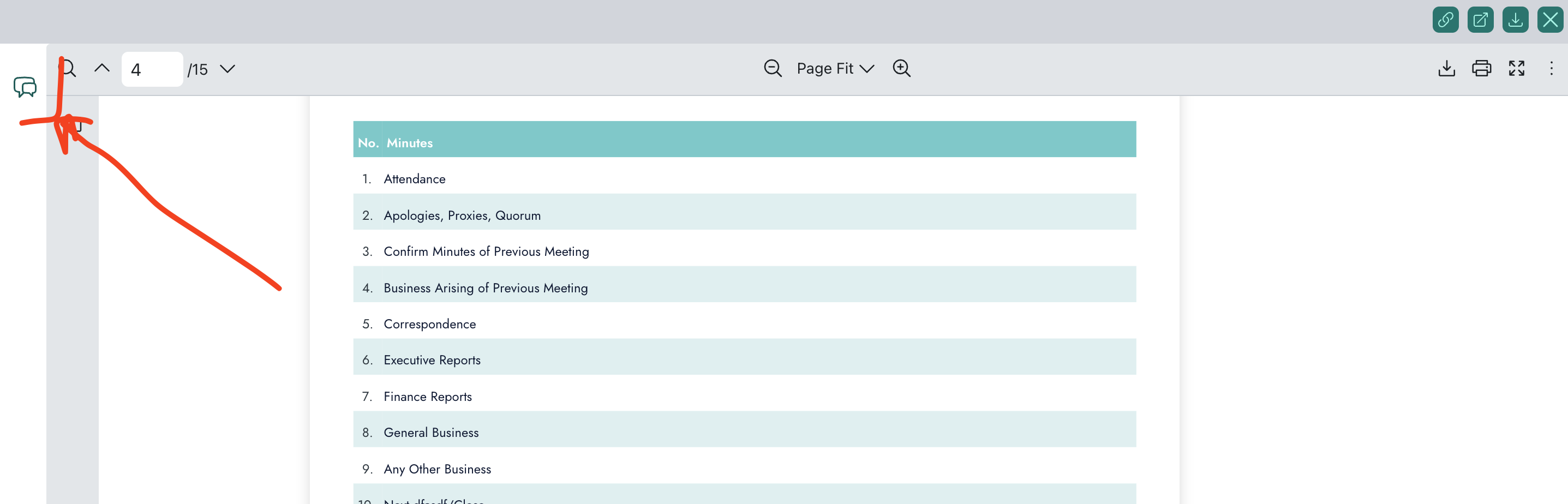
- Next to the document name, click the speech bubble icon to open the notes area for that document. Type your notes and click Submit to save.
- Click Submit to save your notes. Notes are not saved automatically.
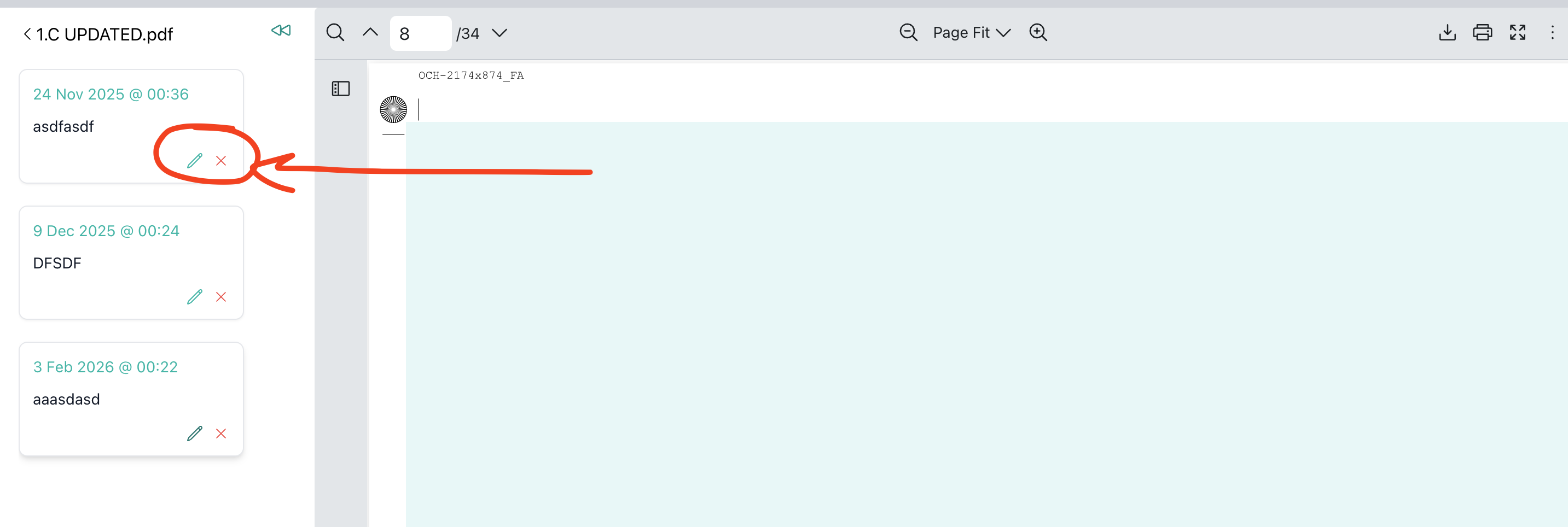
You can edit or delete individual notes using the pencil and cross icons on each note.
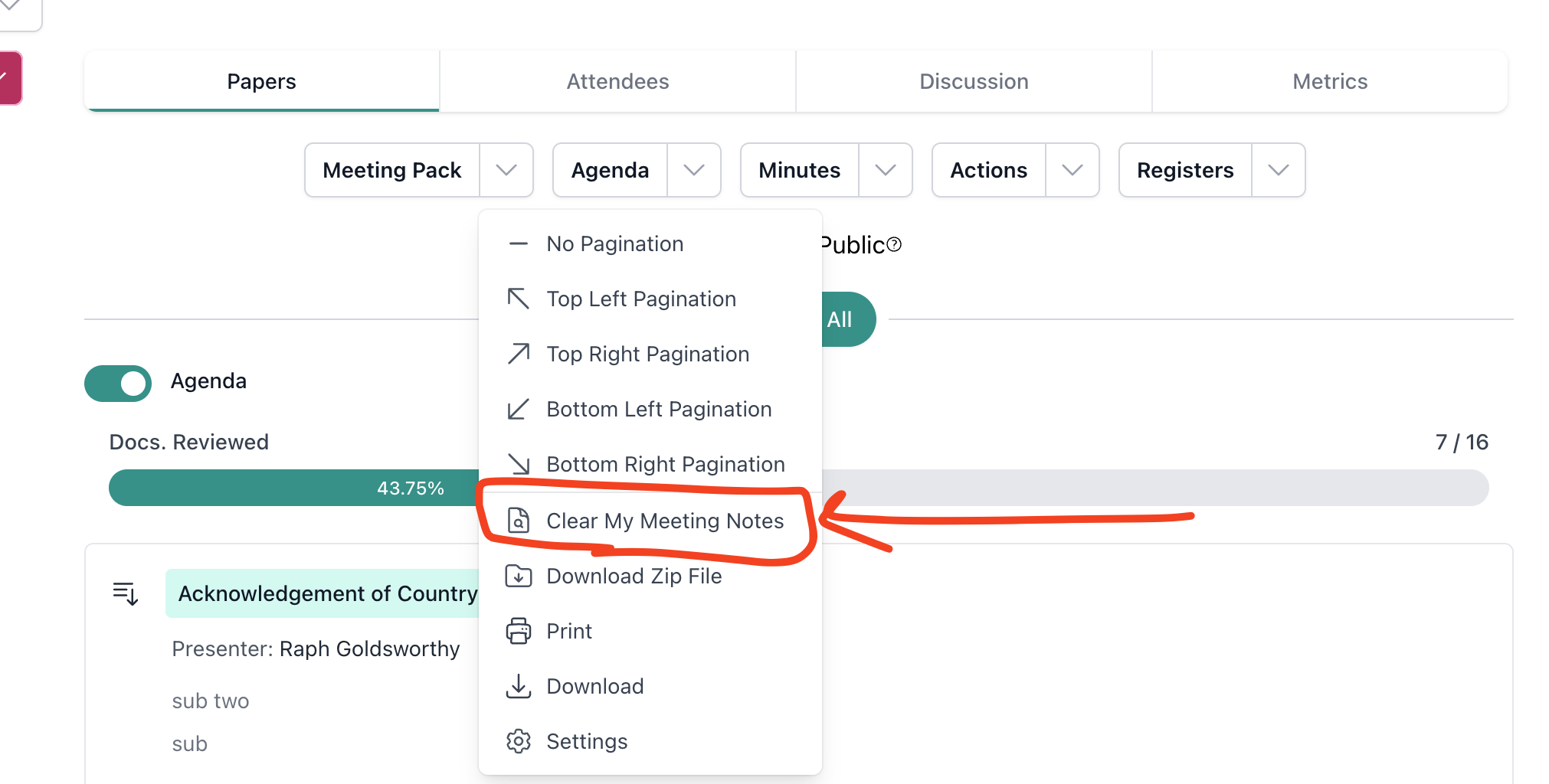
To clear all your meeting notes at once, click the Meeting Pack dropdown and select Clear My Meeting Notes.
Your notes are private and saved against the meeting for your reference.
Review Outstanding Actions
Before the meeting, check whether you have any outstanding actions from previous meetings that may be discussed.
- Click Actions in the left menu to see all actions assigned to you.
- Update the status of any actions you have completed.
- Be prepared to report on any actions that are still in progress.
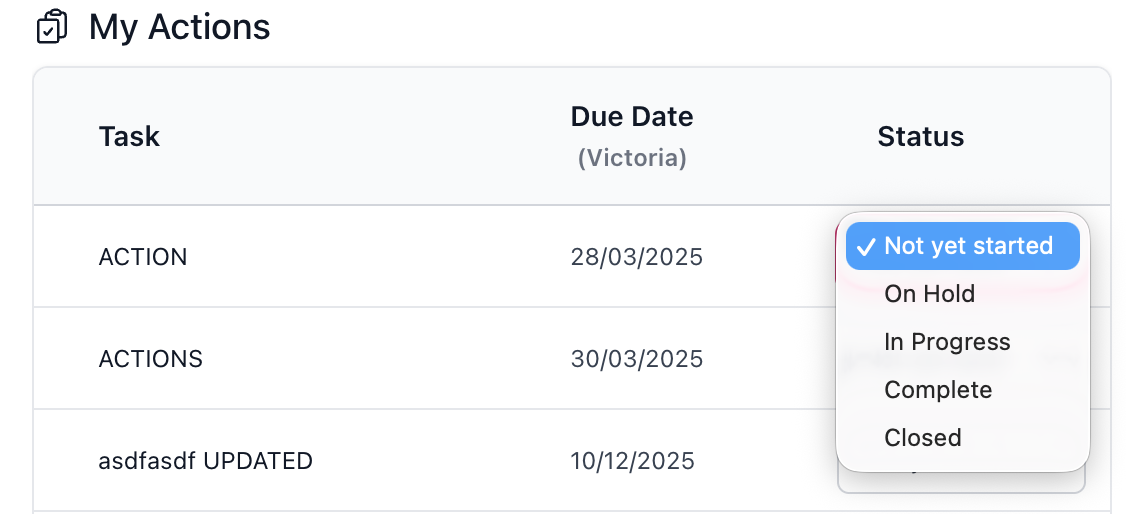
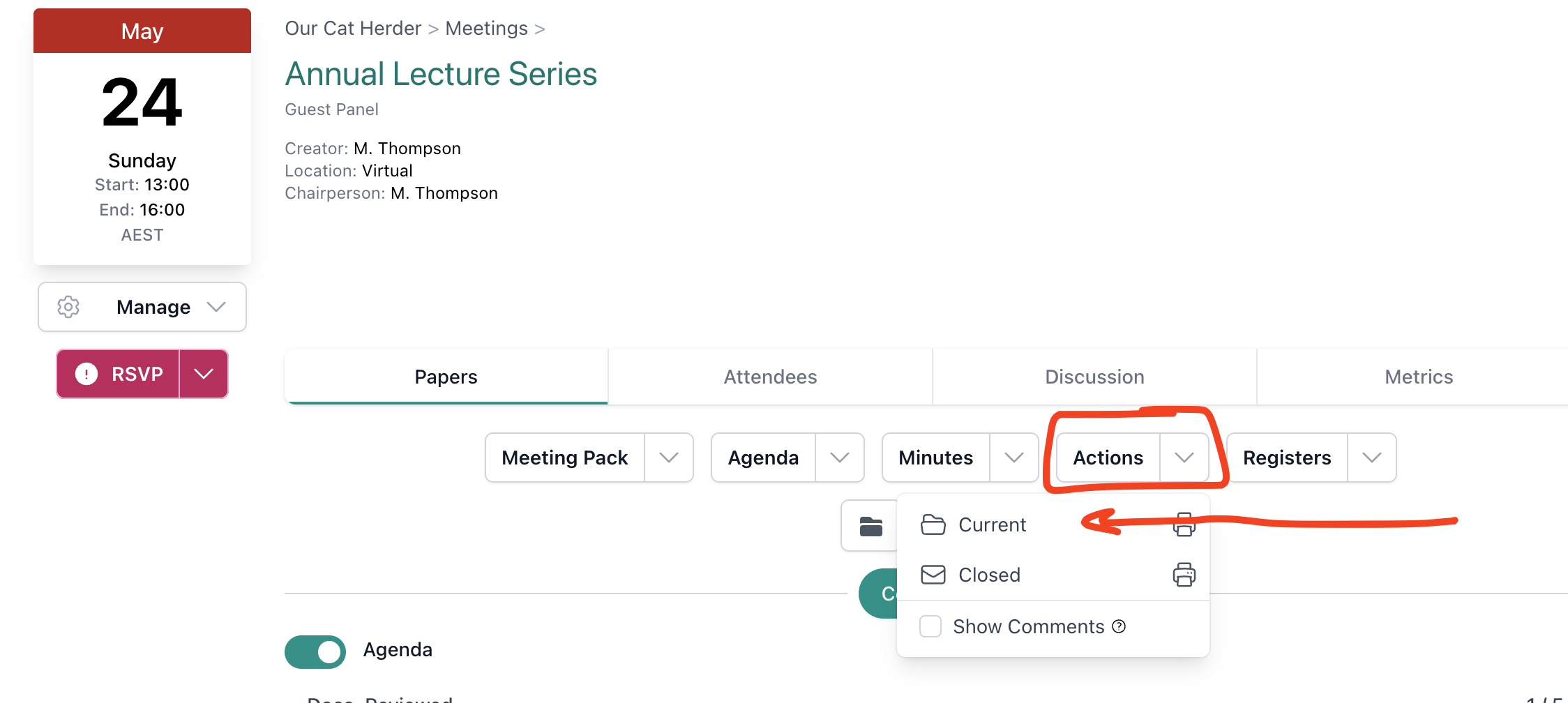
You can also review outstanding actions in the Actions PDF included in the meeting pack. Click the Actions dropdown on the Papers tab to access current and closed action PDFs.
Check if You Are Presenting
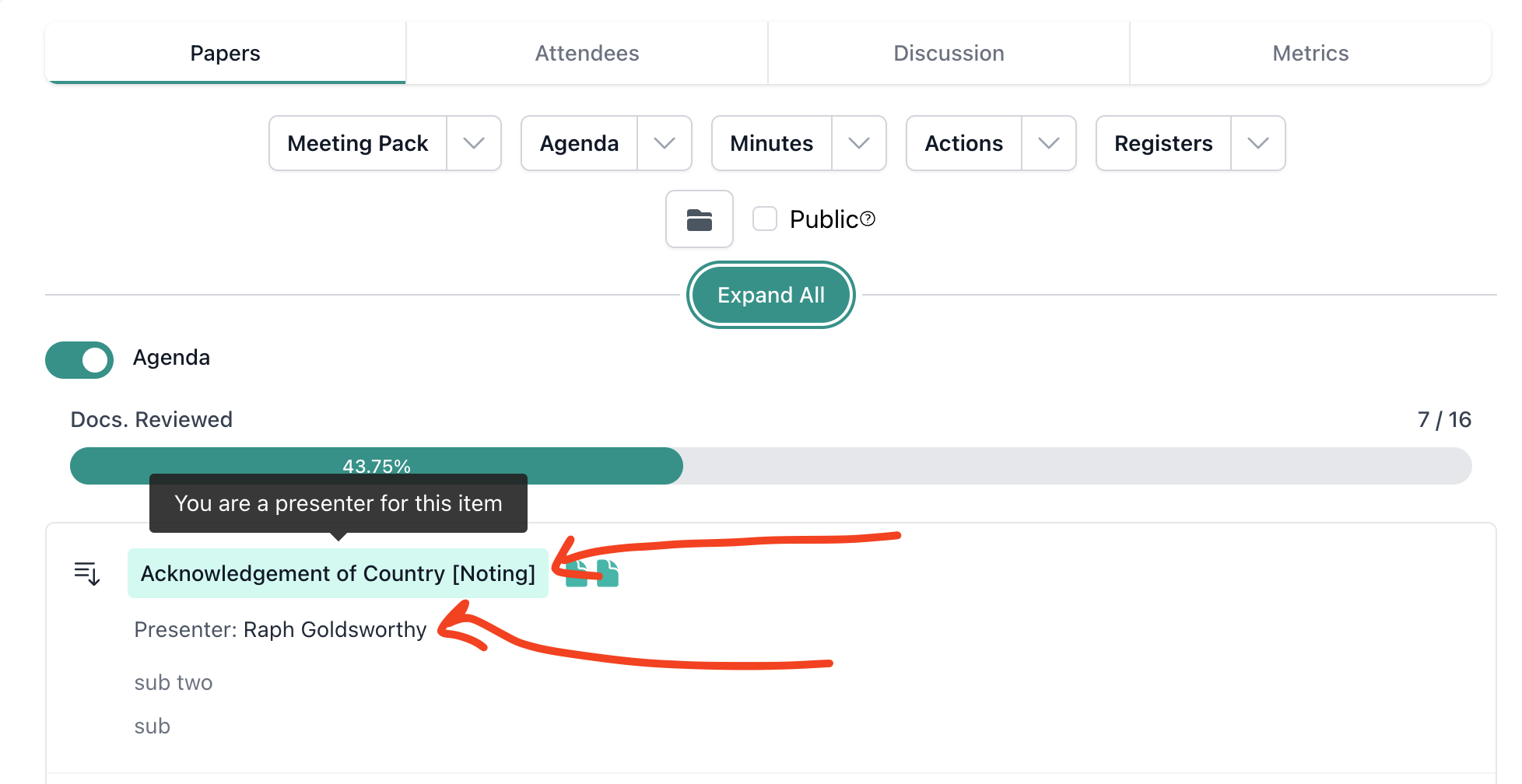
If you have been assigned as the presenter on an agenda item, your name will appear next to the item in the agenda and the item will be highlighted with a coloured background on the Meeting Details page. Review the papers for any items you are presenting so you are fully prepared to lead the discussion.
Check the Discussion Tab
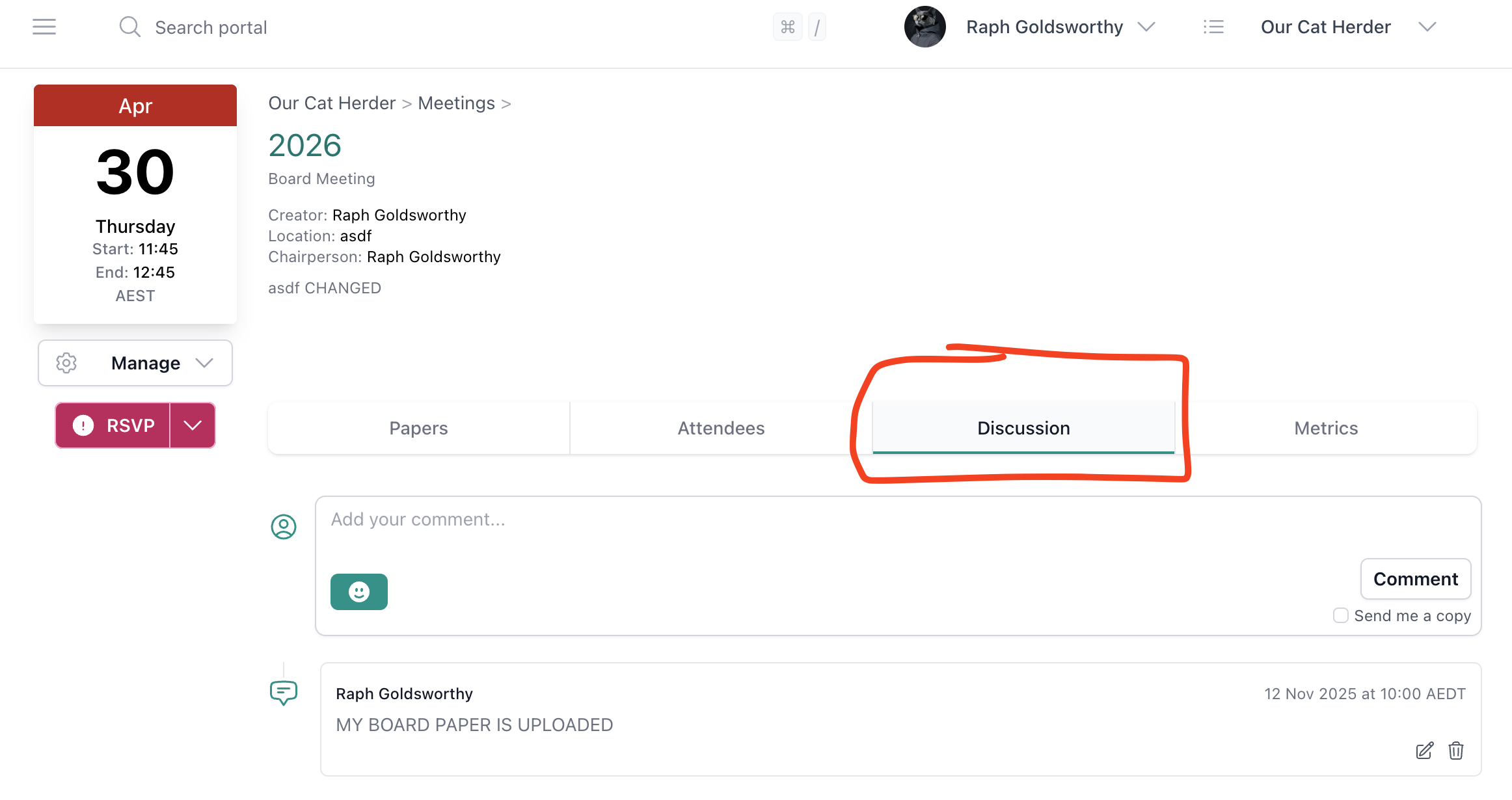
The chairperson or Admin may post pre-meeting communications on the meeting's Discussion tab. Check this for any updates, requests for pre-reading, or questions to consider.
Pre-Meeting Checklist
- RSVP confirmed
- Reviewed all board papers and attachments
- Read through the meeting pack
- Checked outstanding actions — updated status where needed
- Reviewed any pre-meeting discussion posts