Appearance
Between Meetings
Between meetings, Our Cat Herder helps you stay across your actions, communicate with other board members, and keep up with documents and decisions.
Manage Your Actions
Actions assigned to you during meetings should be progressed between meetings. Keeping your actions up to date helps the chairperson track progress.
- Click Actions in the left menu to see all actions assigned to you.
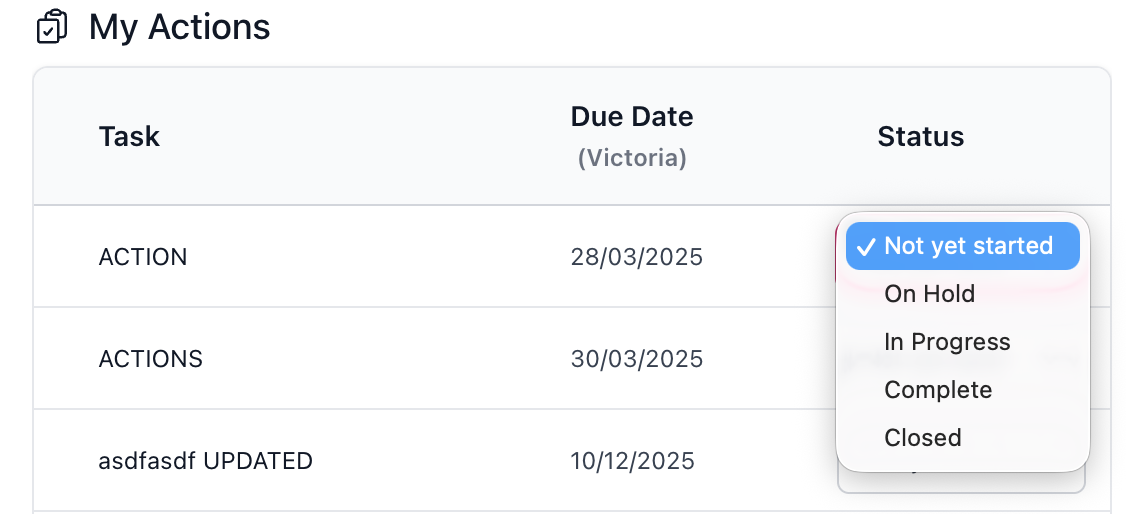
- Update the status of actions as you work on them — options include not yet started, in progress, on hold, complete, and closed.
- If you need to add a comment or note against an action, click into the action to view its details.
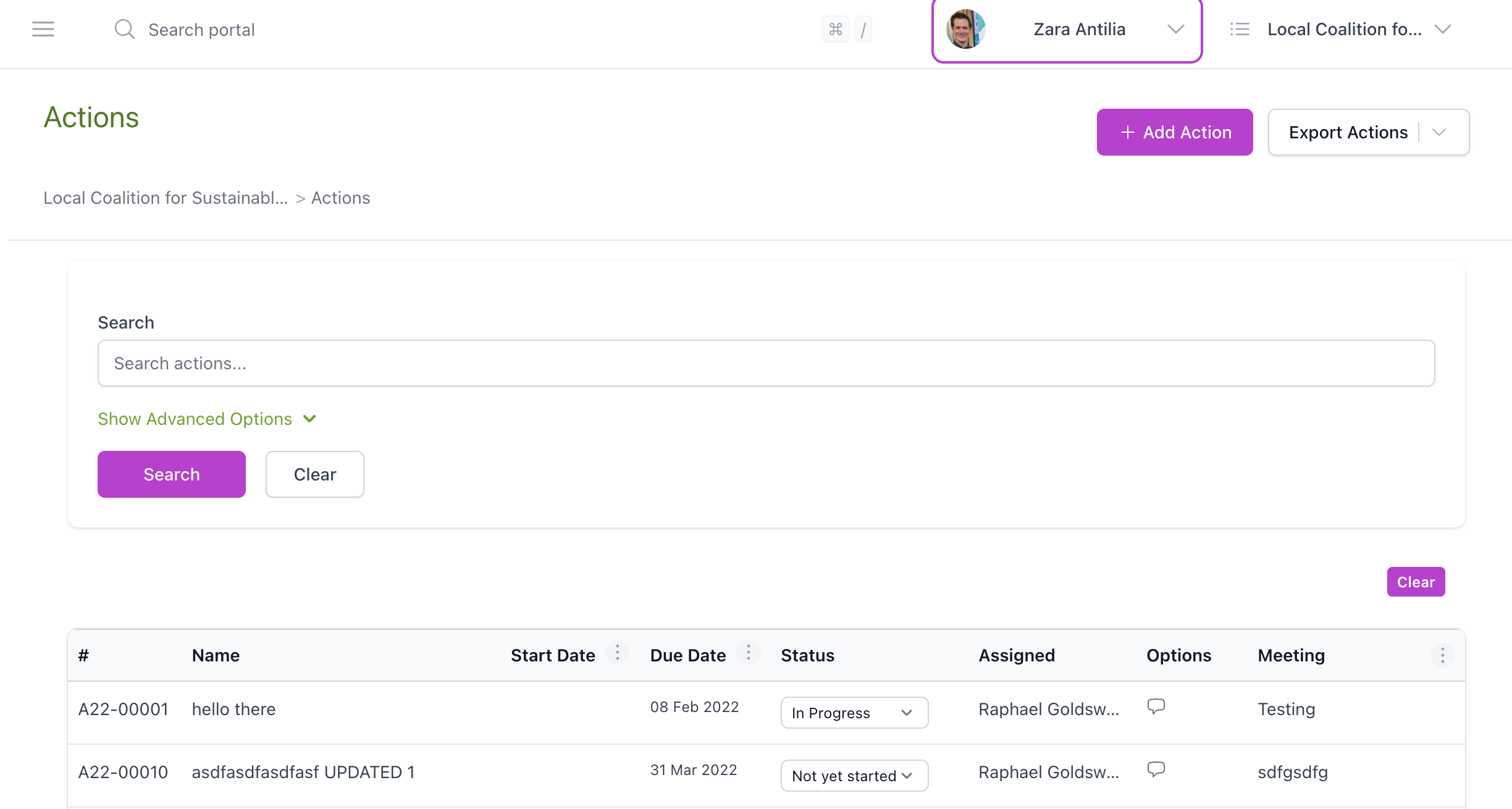
Dashboard Actions Widget
The Dashboard shows a summary of your outstanding actions. Check it regularly so nothing slips through the cracks.
Participate in Discussions
The Discussions area lets you communicate with other board members between meetings. Use it to share information, seek input, or raise matters that cannot wait until the next meeting.
- Check the Discussions page in the left menu for active threads.
- Contribute to discussions where your input is needed.
- Start a new discussion if you need to raise something with the board or committee.
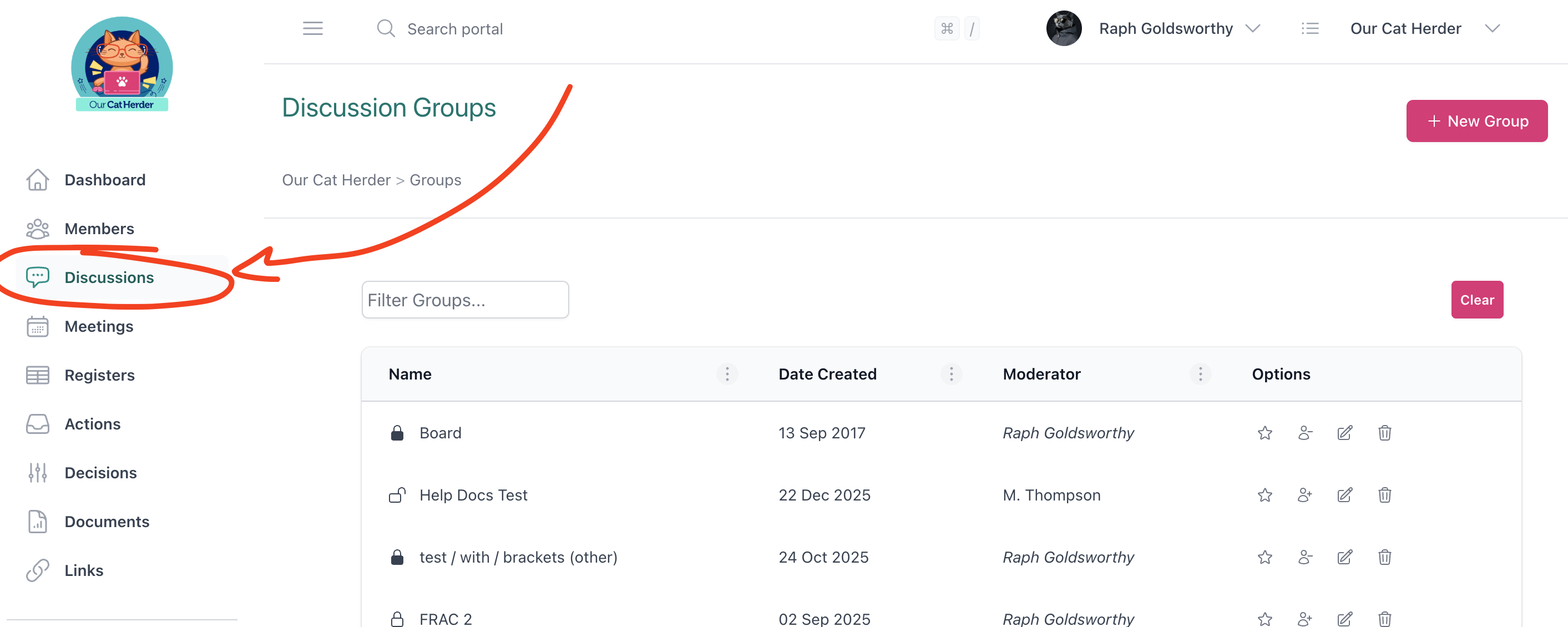
You can also use the Discussion tab on the next upcoming meeting to engage in pre-meeting conversations.
Stay Across Documents
New documents may be uploaded between meetings — policies for review, reports, or reference materials.
- Click Documents in the left menu to browse the document library.
- Check for any new or updated documents relevant to your role.
- Review any documents flagged for your attention.
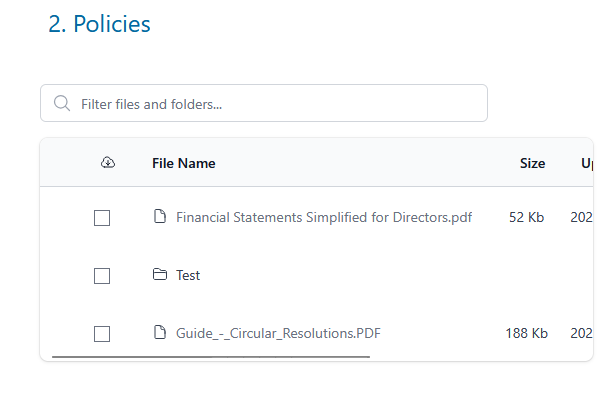
Circular Resolutions
INFO
Circular resolutions are also sometimes known as flying minutes.
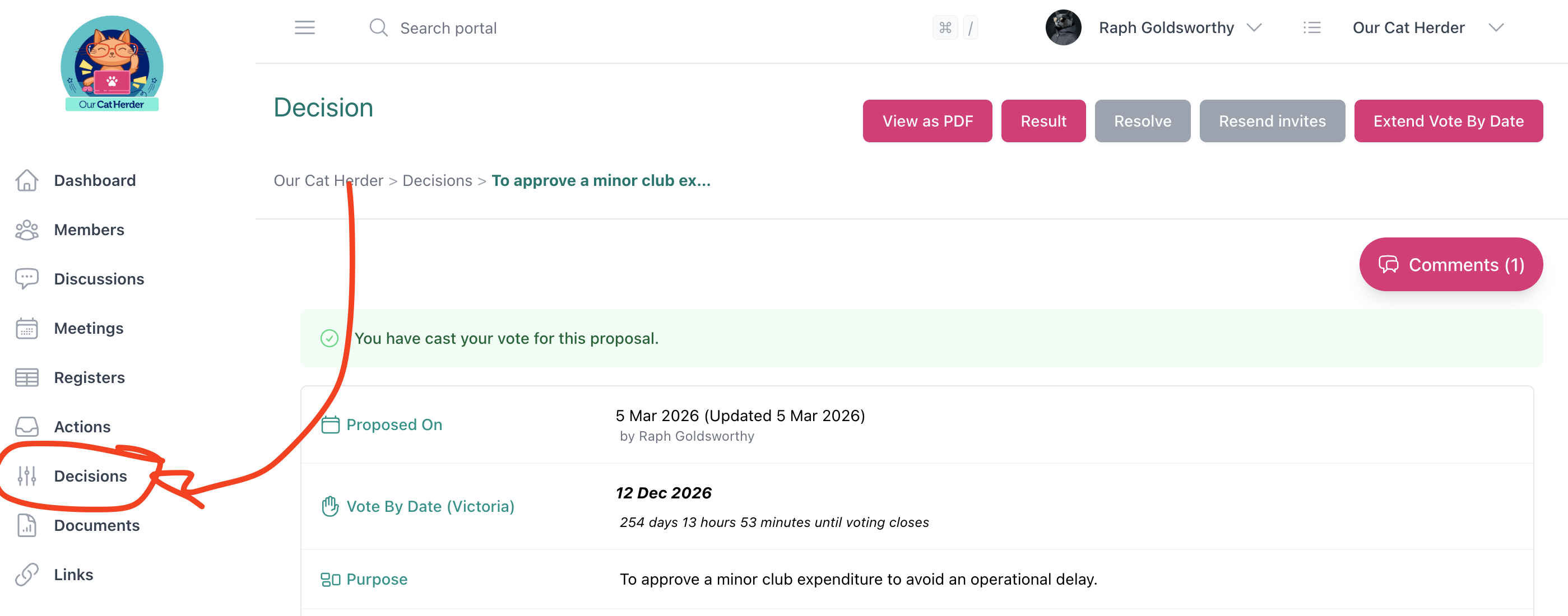
Between meetings, your organisation may use circular resolutions to make decisions that cannot wait until the next scheduled meeting. If a proposal is raised, you will receive an email notification inviting you to vote.
- Click Decisions in the left menu to see any open proposals.
- Review the proposal details, background, and any attachments.
- Cast your vote before the voting deadline.
Check Registers
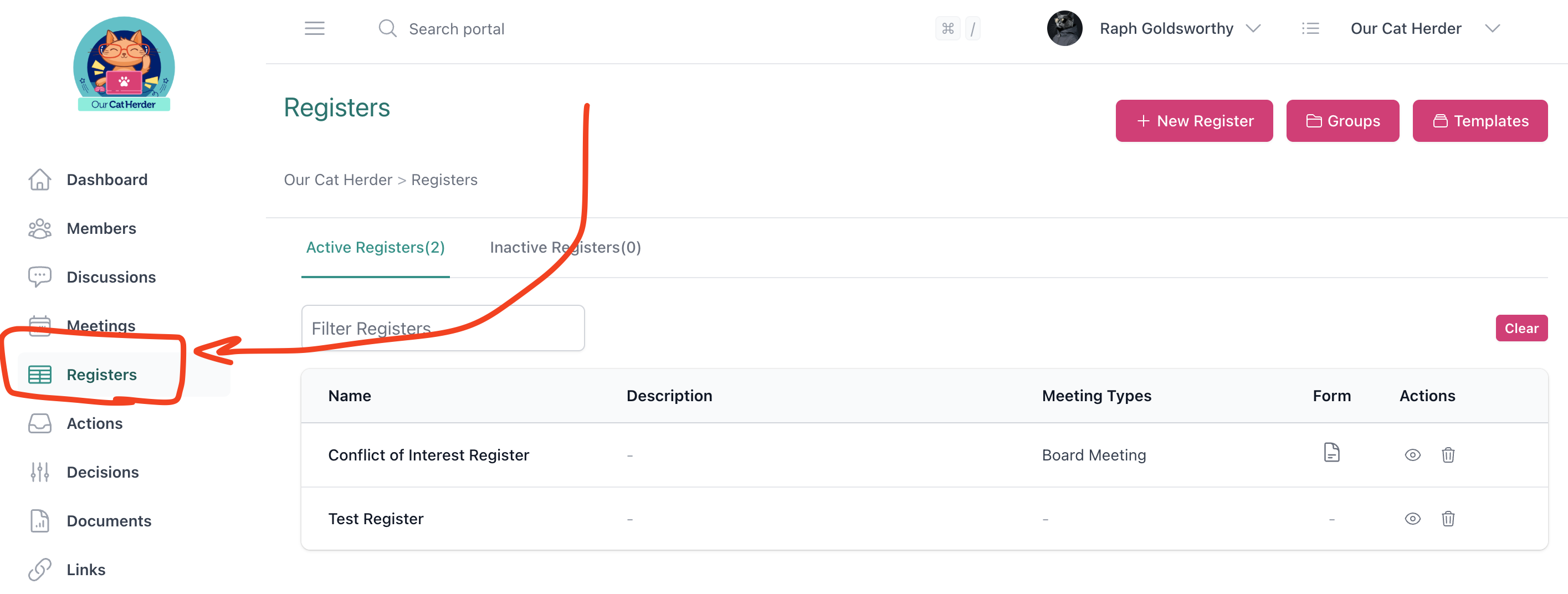
Registers such as conflict of interest, risk, or compliance registers may be updated between meetings. Stay across any changes that are relevant to your governance responsibilities.
- Click Registers in the left menu.
- Review any registers you are responsible for or that have been recently updated.
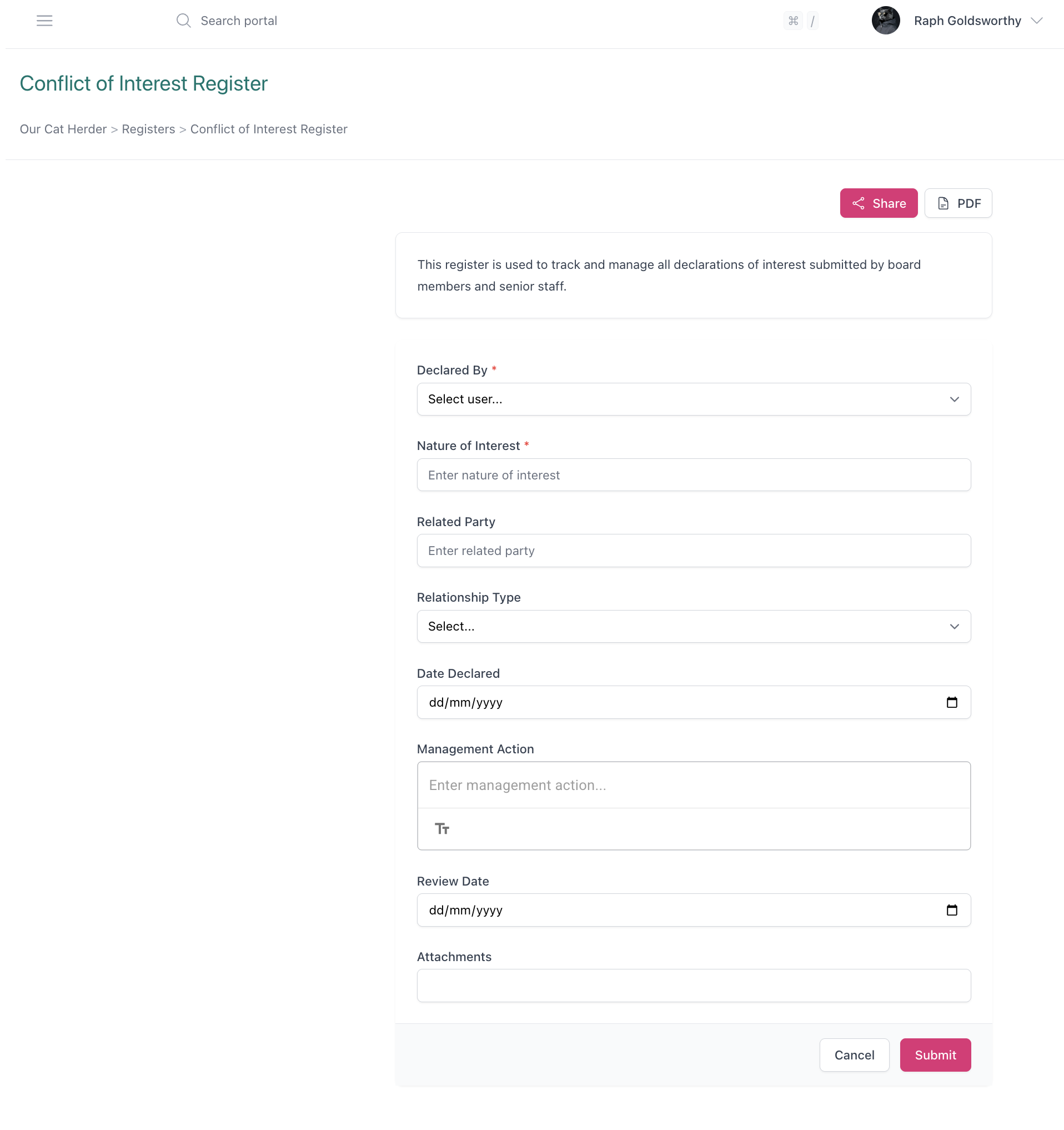
- If your own declarations need updating (e.g. conflict of interest), do so promptly.
Contributing to Registers
If your Admin has turned on forms or made you a contributor on a register, you can also add and update entries directly. Check with your Admin if you are unsure whether you have contributor access.
Between Meetings Checklist
- Actions updated — completed items marked as done, in-progress items noted
- Participated in any active discussions
- Checked for new documents or updates
- Reviewed recent decisions
- Updated any personal register declarations (e.g. conflict of interest)