Appearance
After the Meeting
After the meeting, review and sign off the minutes, check that actions are being tracked, and communicate any follow-ups to attendees.
Review and Sign Off Minutes
Once your minute taker has prepared the minutes, you will receive a sign-off request. Minutes sign-off requests are sent to whoever is set as the chairperson on the meeting, not to whoever holds the Chair role in the portal.
- You will receive an email notification when minutes are ready for sign-off.
- Open the meeting from the Meetings page.
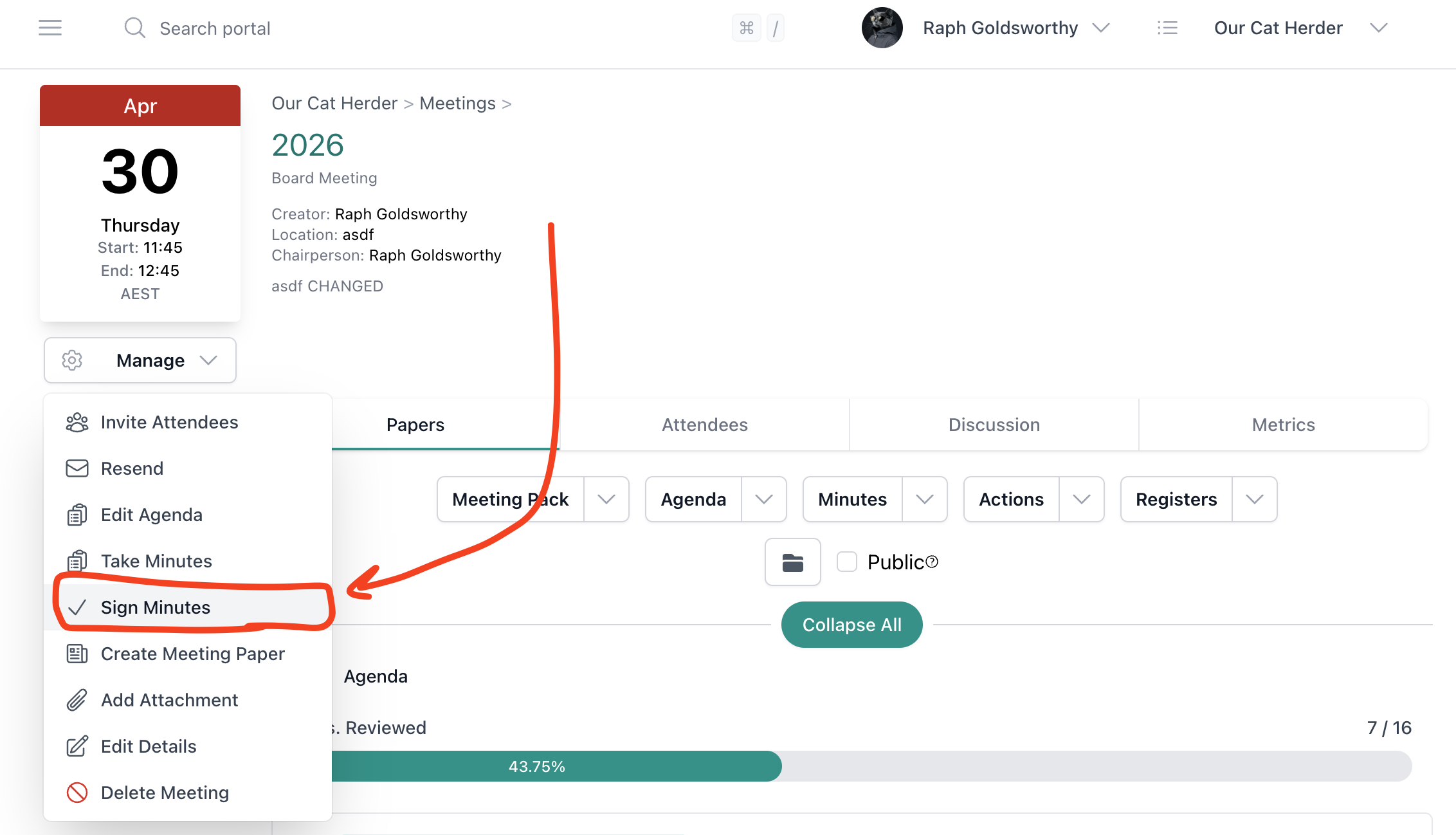
- Click Manage > Sign Minutes (or follow the link in the notification email).
- Review the minutes carefully — check that they accurately reflect what was discussed and decided.
- If changes are needed, you can reject the minutes with comments so the minute taker can make corrections.
- Once satisfied, click Sign Off Minutes.
Notify Attendees of Finalised Minutes
When you sign off the minutes, a dialog will ask you to select which attendees should be notified by email. You can select individual attendees or use Select All Attendees to notify everyone.
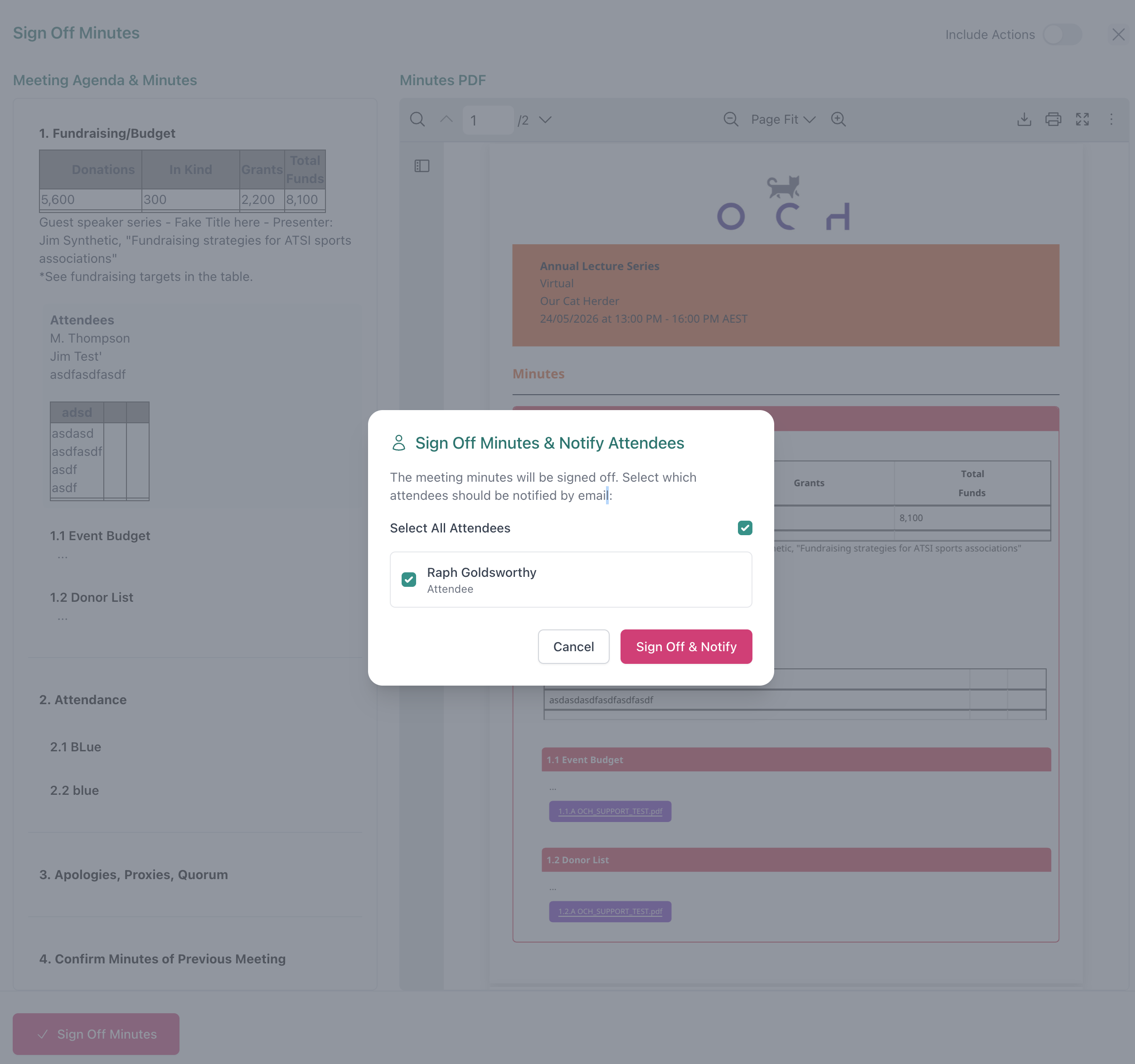
Click Sign Off & Notify to sign off the minutes and send the notification. If you click Cancel, the minutes will not be signed off.
If you chose not to notify attendees at the time of sign-off, or need to re-send the notification later, you can use the Re-notify button on the meeting page after the minutes have been signed off.
See Minutes Approval/Sign Off for the full step-by-step guide to the sign-off process.
Not Receiving Sign-Off Requests?
Minutes sign-off requests go to the person set as chairperson on the meeting, not to whoever has the Chair role in the Members area. If you are not receiving requests, ask your Admin to check the chairperson field on the meeting via Manage > Edit Details. See Signing Off Minutes for more detail.
Follow Up on Actions
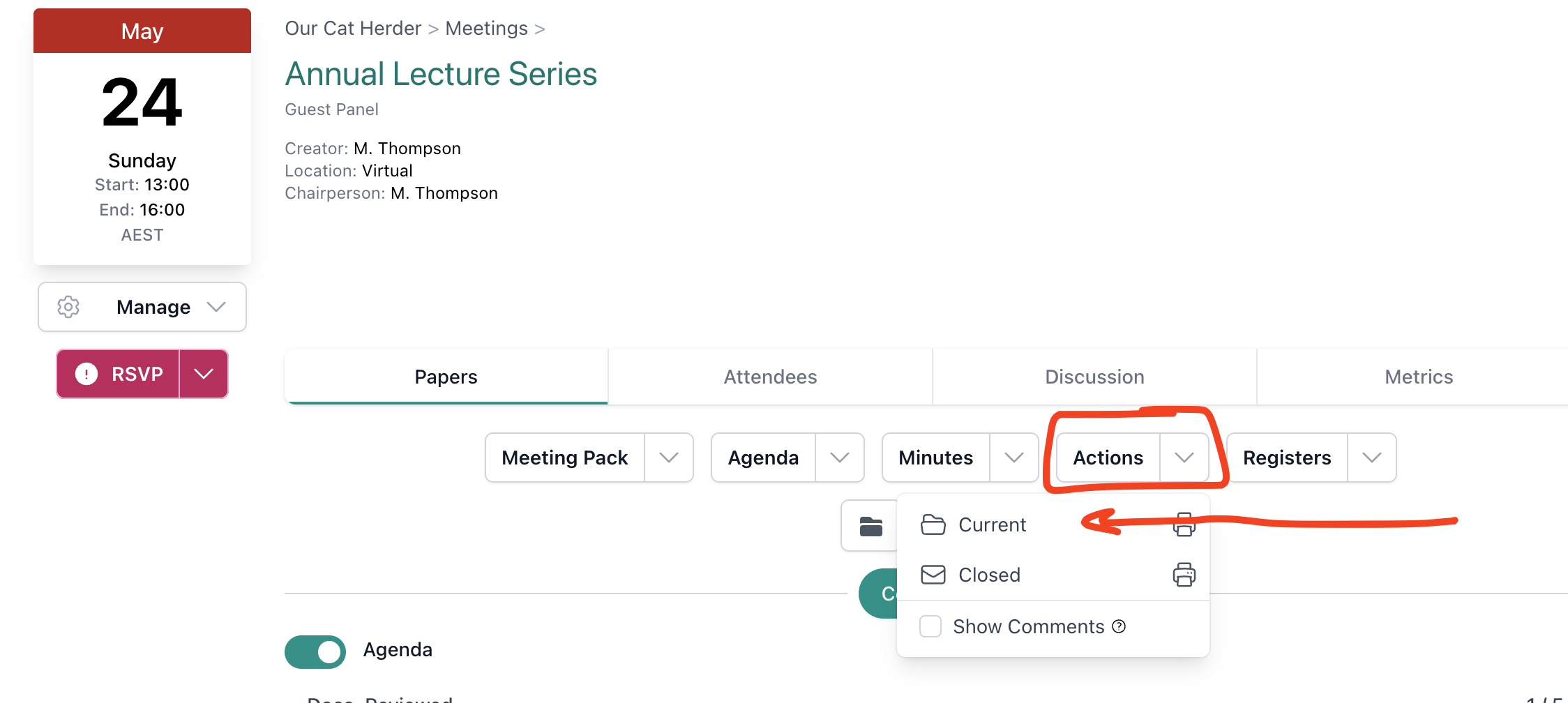
The Actions page in the left menu only shows actions assigned to you. To see all actions for the meeting, open the meeting and click the Actions dropdown on the Papers tab to view the current or closed actions PDF.
- Review which actions are open, in progress, or overdue.
- If action owners need a reminder, post on the Discussion tab or contact them directly.
Communicate Post-Meeting Follow-Ups
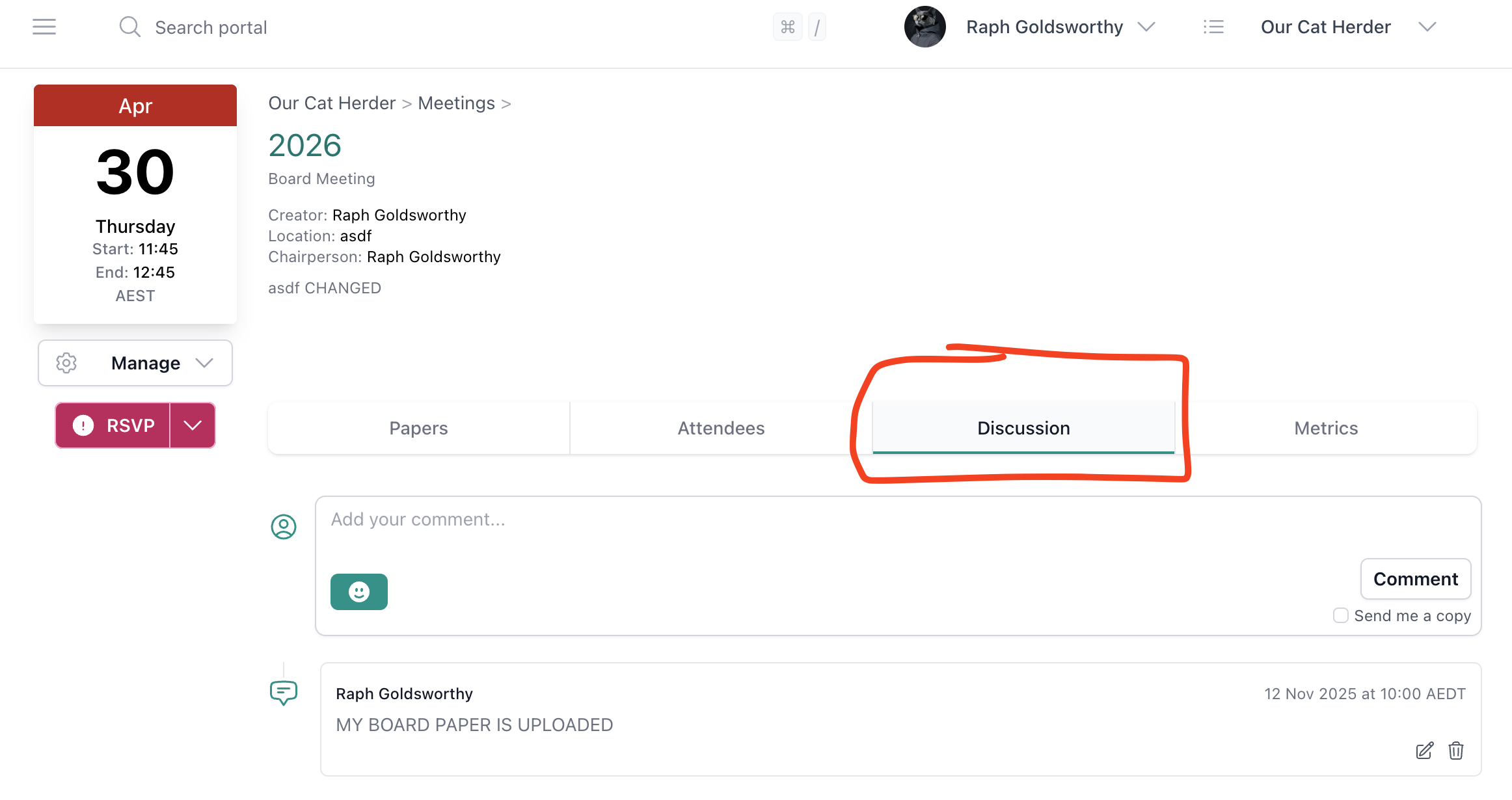
Use the Discussion tab on the meeting or the Discussions area in the left menu to share post-meeting communications:
- Highlight key decisions or outcomes
- Remind attendees of actions they have been assigned
- Share additional documents or follow-up materials
Any comment posted on the meeting's Discussion tab sends a notification to all meeting attendees. The Discussions area in the left menu can be used to reach broader groups beyond a single meeting's attendees.
Post-Meeting Checklist
- Minutes reviewed and signed off (or returned with feedback)
- Actions from the meeting are recorded and assigned
- Post-meeting communication sent to attendees (if needed)
Related
- Meetings Overview — Full guide to the Meeting Details page
- Minutes Approval/Sign Off — Detailed guide to the minutes sign-off process
- Actions — How to view and manage your actions