Appearance
After the Meeting
After the meeting, review the minutes, note any actions assigned to you, and follow up on what was discussed.
Review Minutes
Once the minute taker has prepared the minutes and the chairperson has signed them off, the minutes will be available for you to review.
- Open the meeting from the Meetings page.
- Click the Minutes dropdown on the Papers tab to access the minutes.
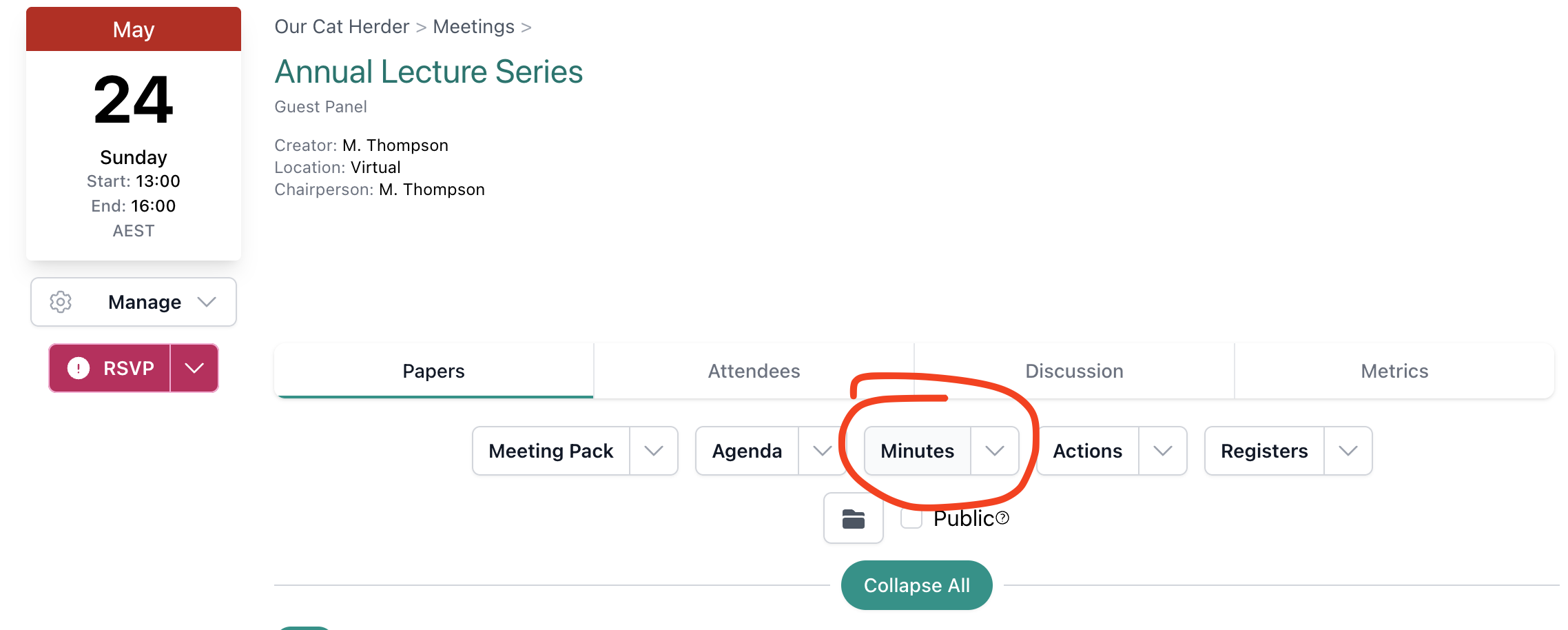
- Read through the minutes to confirm they accurately reflect what was discussed and decided.
Can't see the Minutes button, or it's greyed out?
Your Admin or Meeting Creator needs to update the meeting settings and uncheck "Show 'Minutes this Meeting' button only to Meeting Creator, Admin, Meeting Chair & Minute Takers".
Minutes Approval
Some organisations require directors to formally approve minutes at the next meeting. Review the minutes ahead of that meeting so you can confirm or raise any corrections.
Note Your Actions
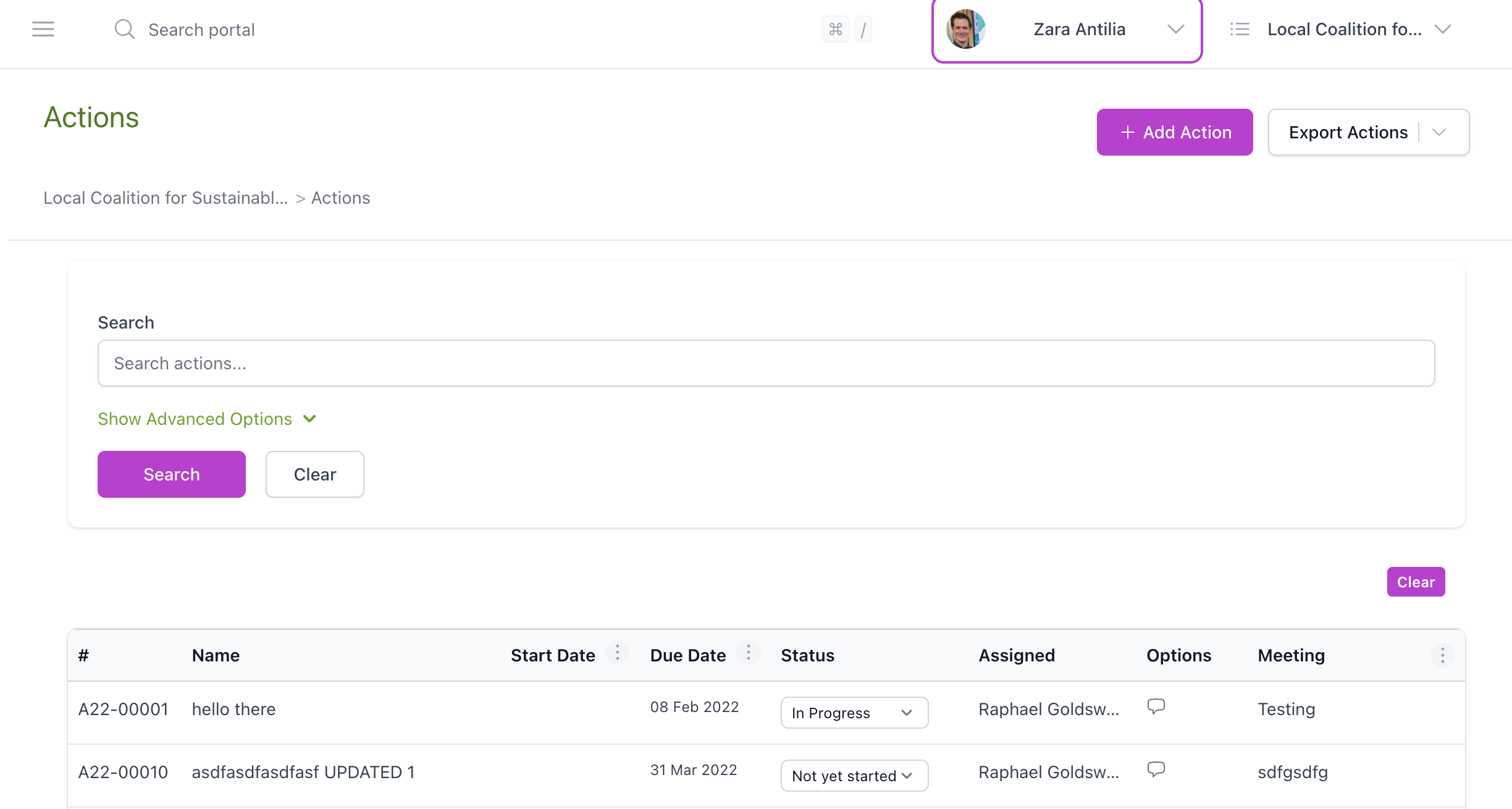
Any actions assigned to you during the meeting will appear in the Actions area.
- Click Actions in the left menu to see your assigned actions.
- Review any new actions from the meeting just held.
- Note the due dates and start planning how you will complete them.
Review Decisions
Decisions made during the meeting are typically recorded in the minutes. Review the minutes to confirm what was agreed.
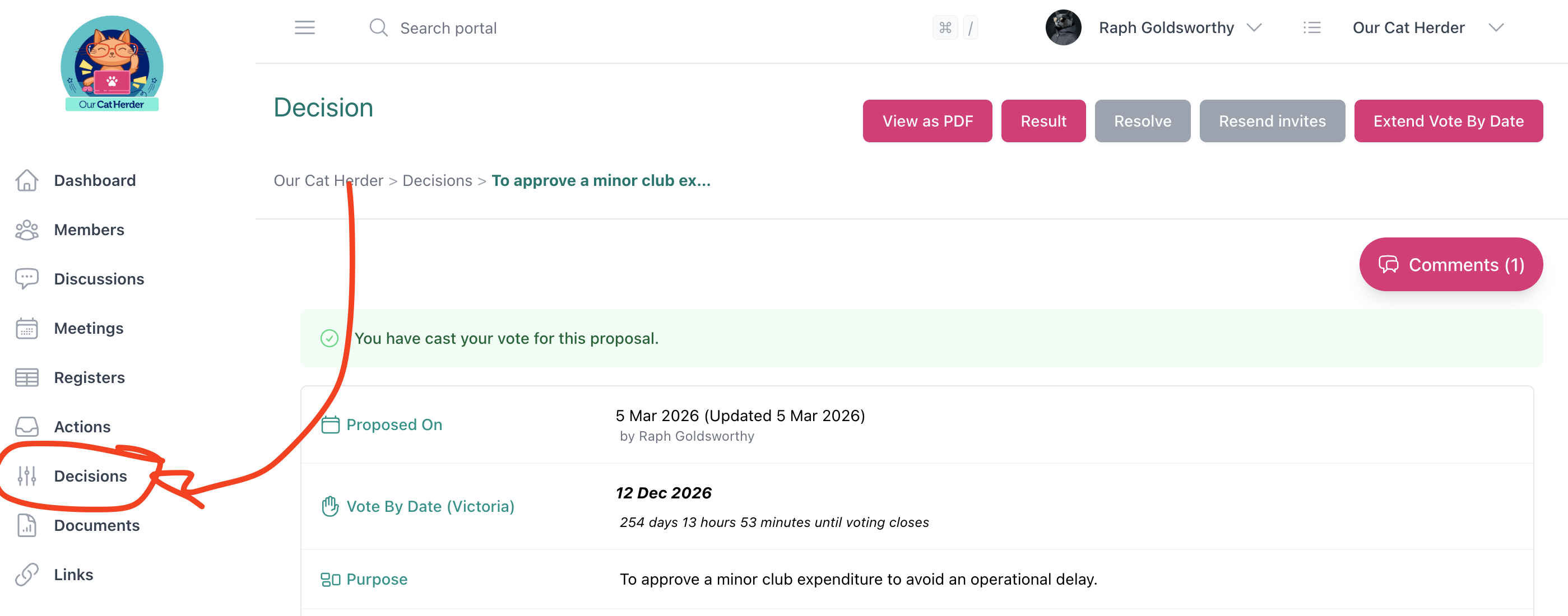
The Decisions page in the left menu is used for flying minutes and circular resolutions — decisions that are voted on between meetings rather than during a scheduled meeting. If your organisation uses this feature, check the Decisions page for any proposals that require your vote.
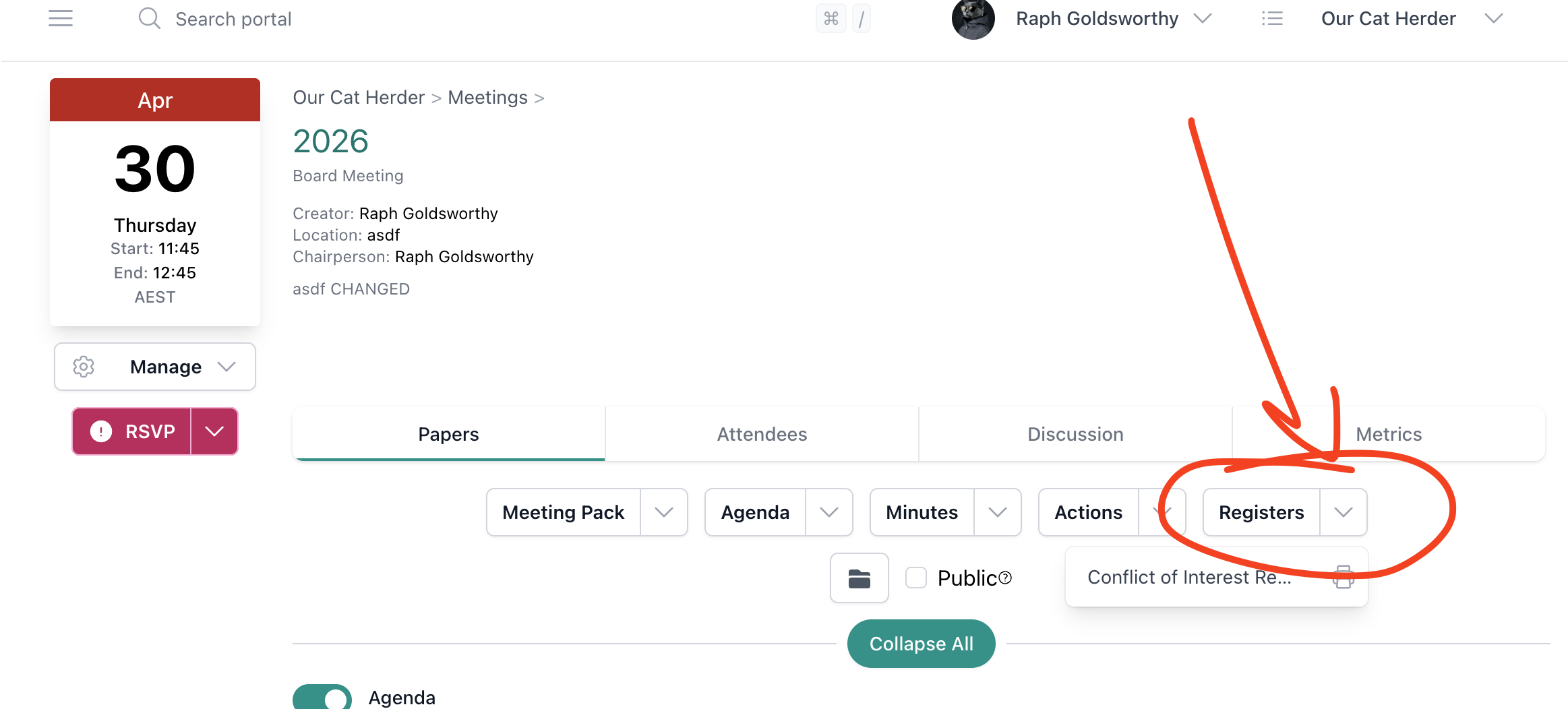
If your Admin has set up a decision register, you may also find decisions recorded under the Registers dropdown on the meeting's Papers tab.
Clear Your Meeting Notes
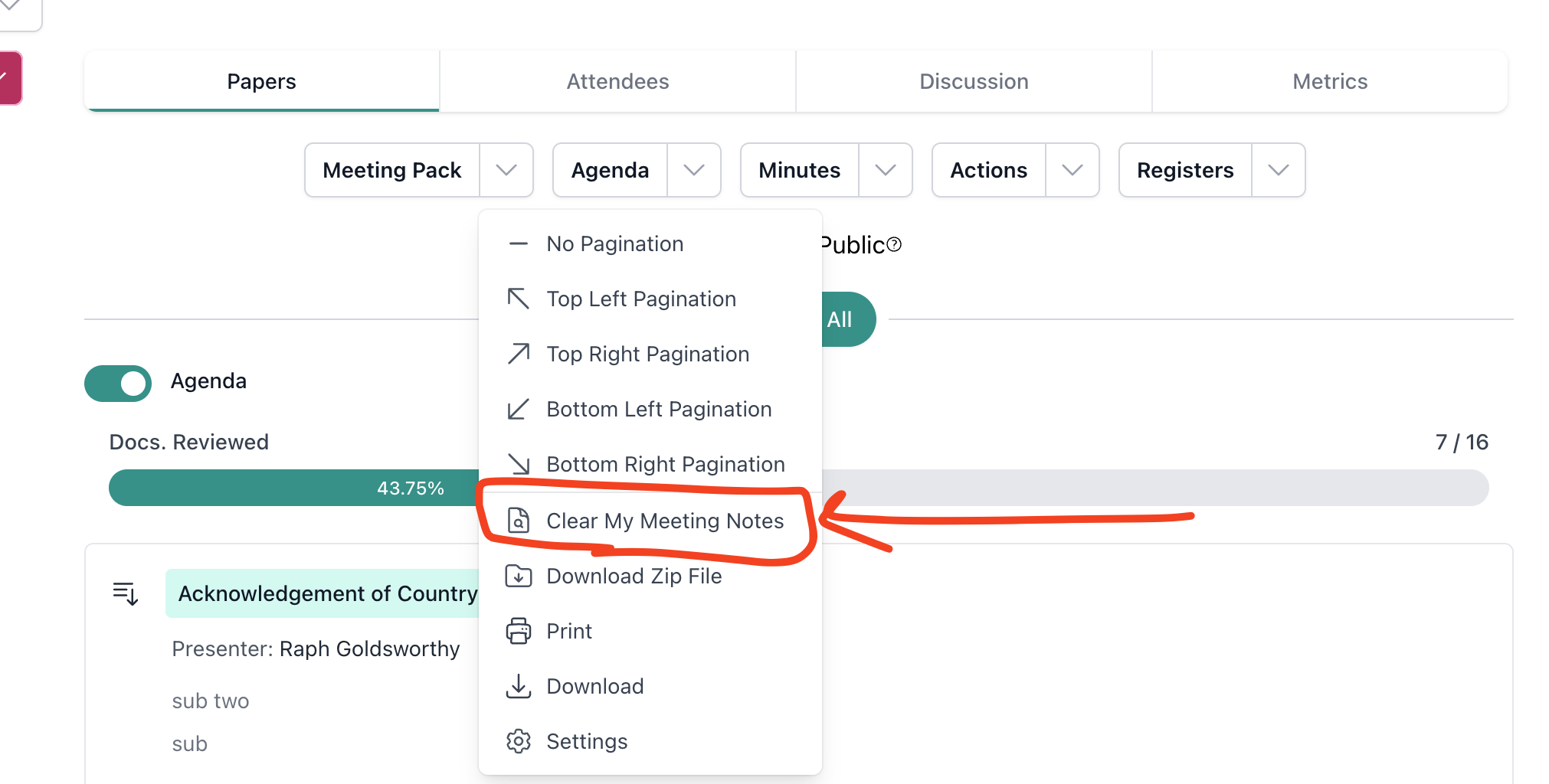
If you no longer need your personal notes from the meeting, you can clear them. Open the meeting, click the Meeting Pack dropdown, and select Clear My Meeting Notes.
Post-Meeting Checklist
- Minutes reviewed
- New actions noted and due dates recorded
- Decisions reviewed and understood
- Meeting folder checked for reference documents
Related
- Meetings Overview — Full guide to the Meeting Details page
- Actions — How to view and manage your actions
- Decisions — How to view decisions