Appearance
During the Meeting
Whether you are meeting in person or online, having the portal open during the meeting gives you access to the agenda, documents, and action tracking.
Use the Meeting Pack
The Meeting Pack presents the full agenda with all documents inline, so you can follow along item by item without switching between views.
- Open the meeting and click Meeting Pack on the Papers tab.
- Navigate to the current agenda item as you work through the meeting.
- Reference attached documents directly — they are displayed inline beneath each agenda item.
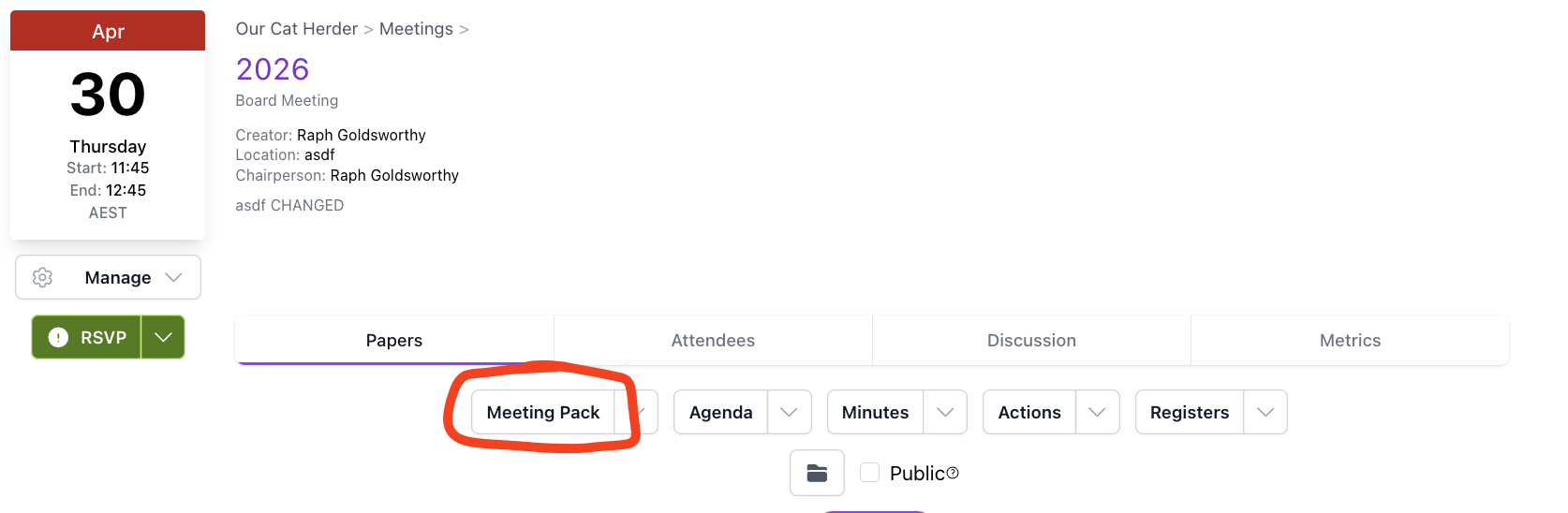
Meeting Pack on a Second Screen
If you are in a physical meeting room, consider opening the Meeting Pack on a tablet or second screen so you can follow the agenda while facing your attendees.
View/Take Notes
You can take personal notes against agenda items in the Meeting Pack view as the meeting progresses.
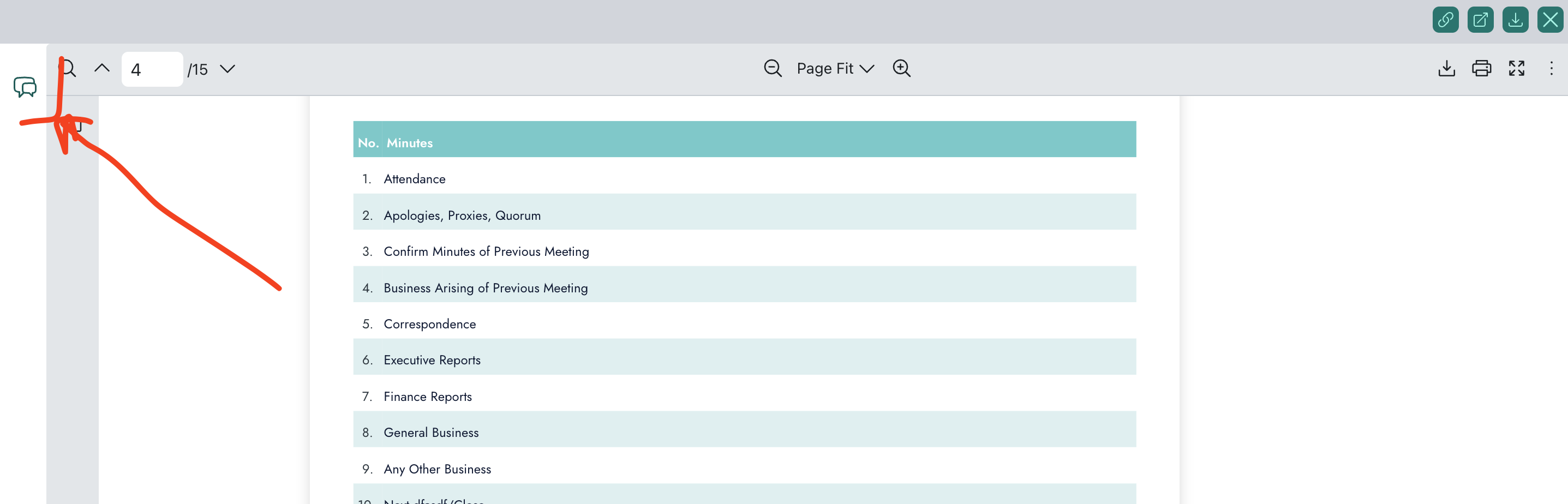
- Click the speech bubble icon on the left side of the meeting pack to open the notes panel.
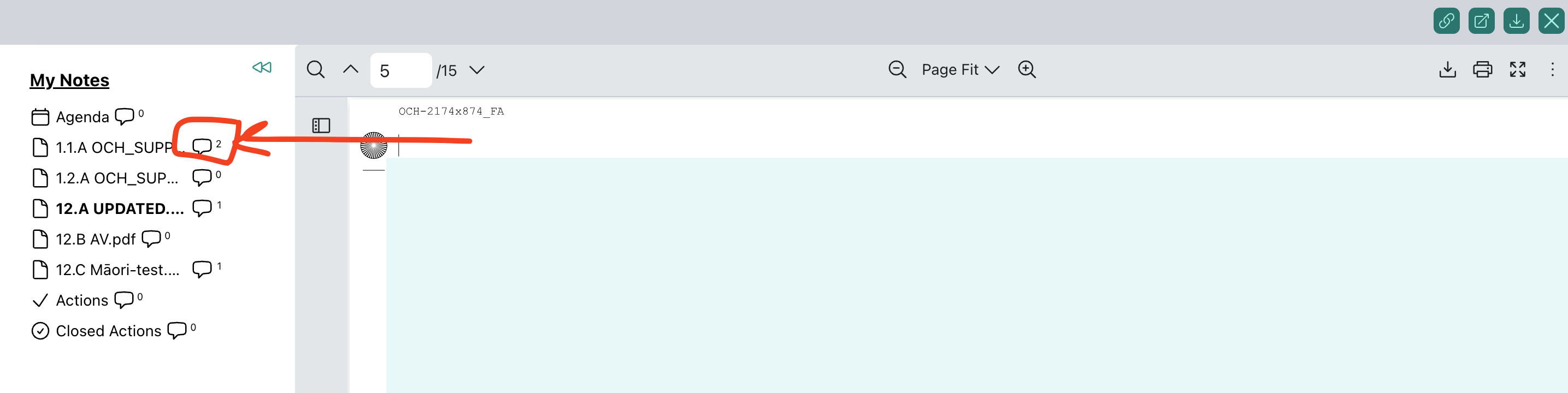
- Next to the document name, click the speech bubble icon to open the notes area for that document. Type your notes.
- Click Submit to save. Notes are not saved automatically, so remember to submit before moving to the next item.
You can edit or delete individual notes using the pencil and cross icons on each note.
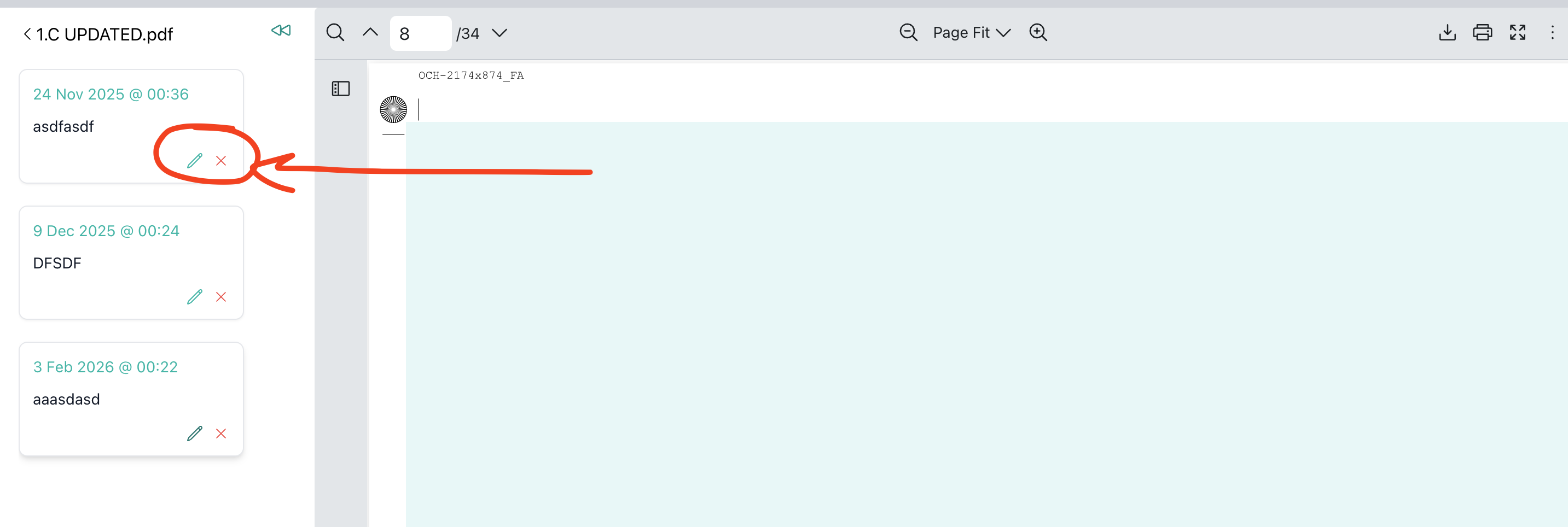
Your notes are private and only visible to you.
Reference Documents During Discussion
When discussion turns to a specific board paper or attachment:
- In Agenda view, expand the relevant agenda item and click the attachment to open it in the side panel.
- In Meeting Pack view, scroll or jump to the agenda item — the document is displayed inline.
Useful when attendees have questions about a specific section of a paper.
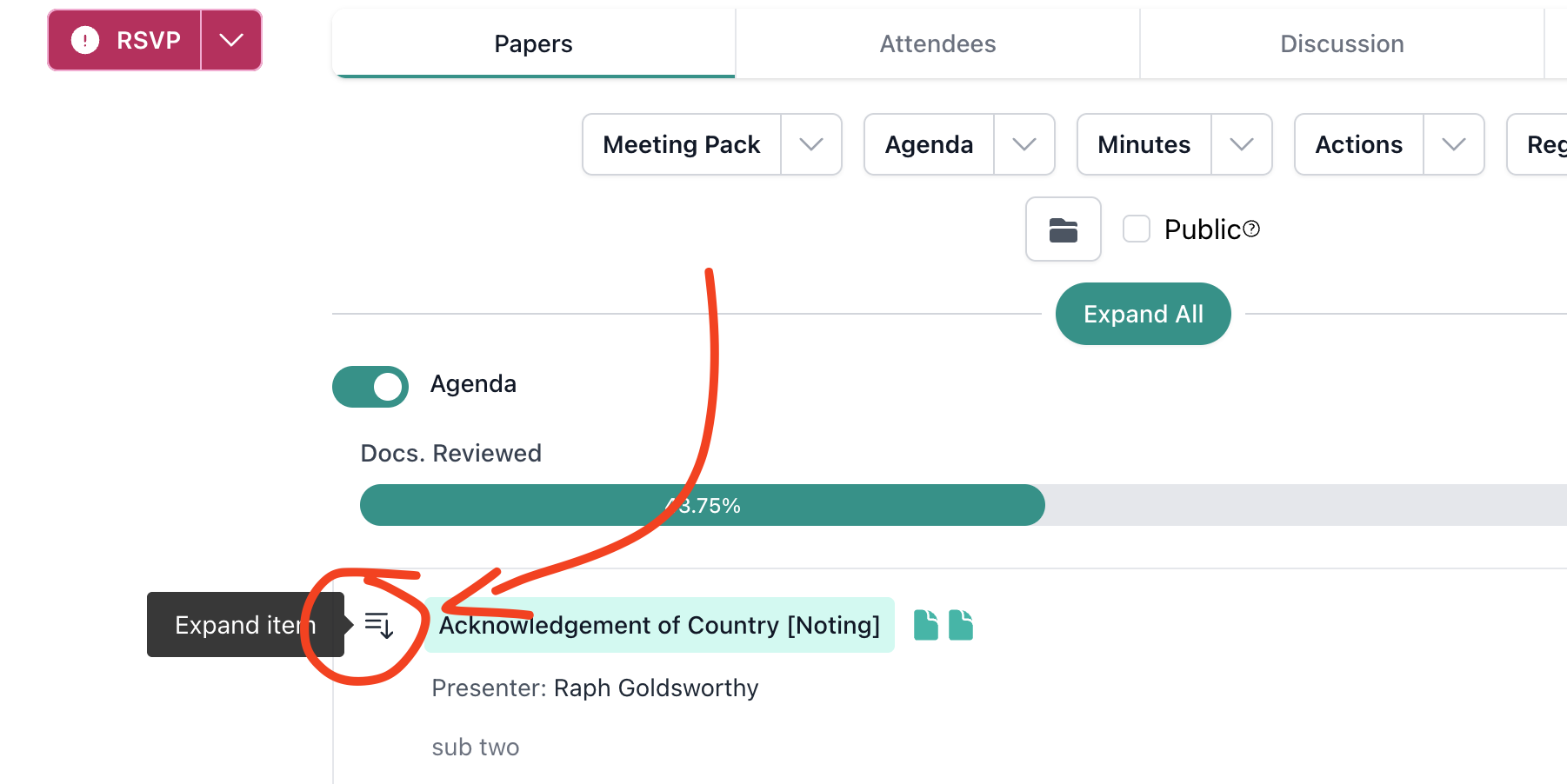
You can also expand and collapse individual agenda items by clicking the expand icon next to the agenda item name. Use Expand All or Collapse All to toggle all items at once.
Track Actions
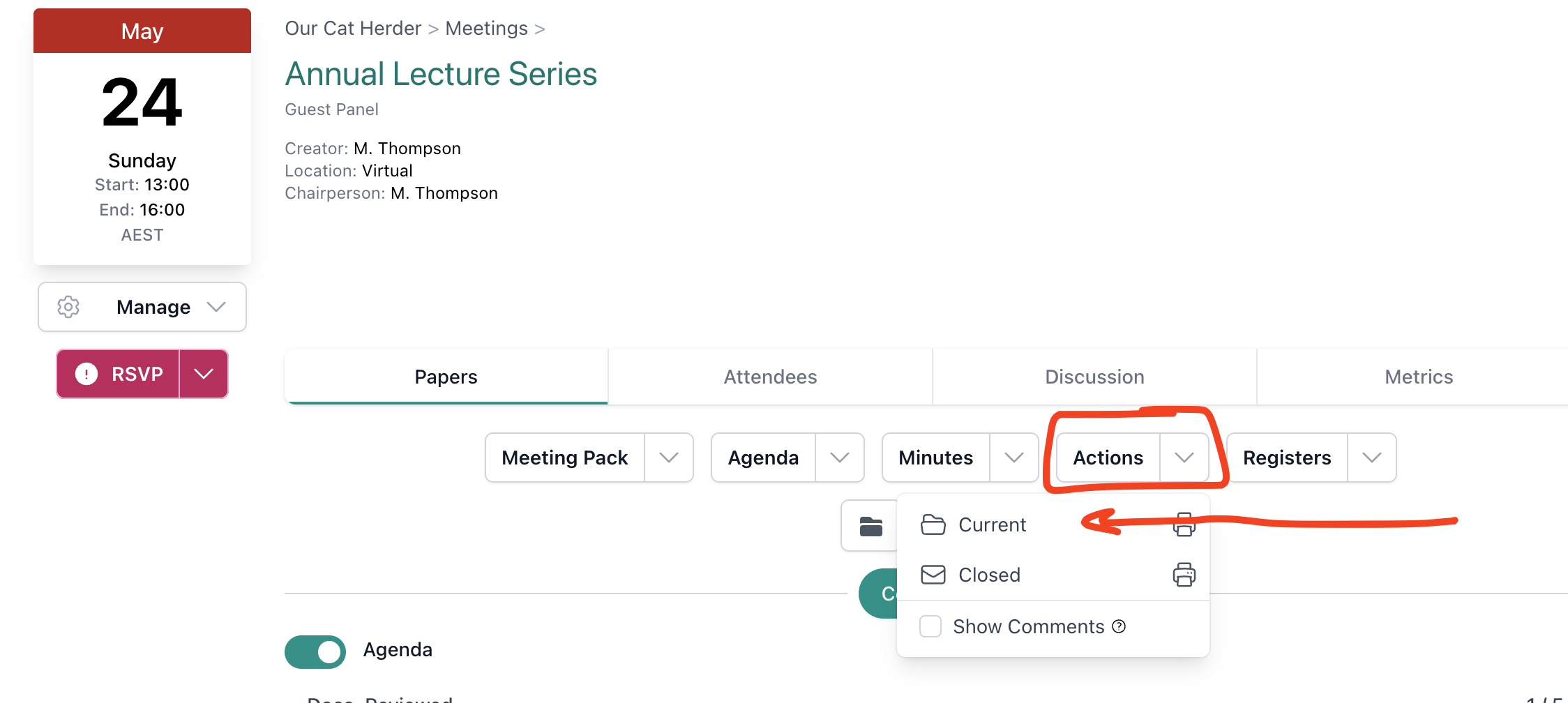
The Actions tab on the meeting shows outstanding actions for this meeting type. During the meeting, this gives you a quick view of what is still open from previous meetings.
If your minute taker is recording new actions during the meeting, these will appear in the actions area once they are saved.
Check Attendees
If you need to confirm who is present during the meeting:
- Click the Attendees tab.
- Review the list of attendees, their RSVP status, and their roles (attendee, minute taker, viewer).
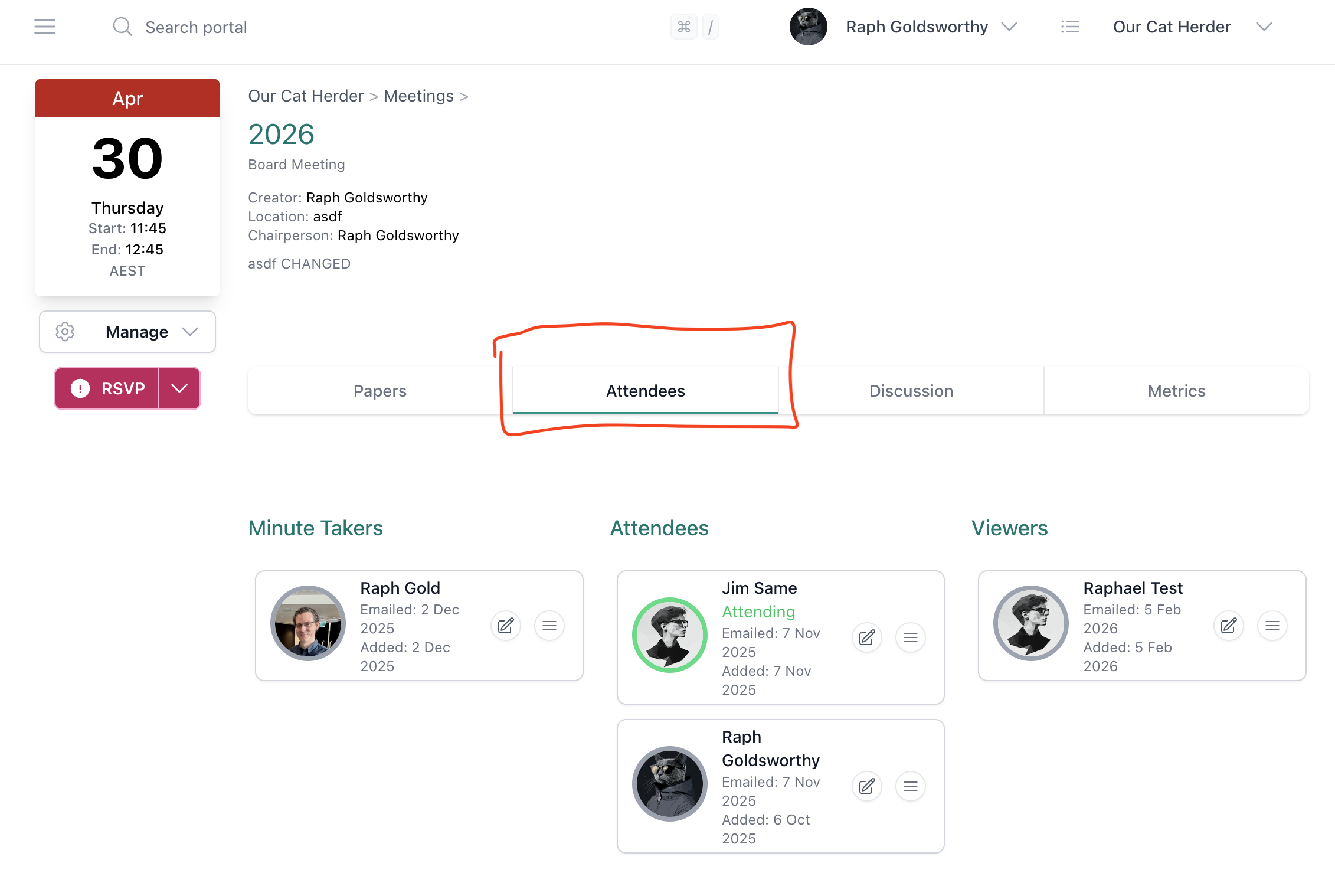
This is useful when confirming quorum at the start of the meeting or recording apologies.