Appearance
How to View Board Papers and Meeting Attachments
When your Admin or meeting organiser has prepared the agenda and uploaded board papers for a meeting, you can view them directly in Our Cat Herder. This guide covers the different ways to access and read meeting documents.
Video Guide
Opening a Meeting
- Click Meetings in the left menu.
- Find the meeting in the Upcoming Meetings or Past Meetings tab.
- Click on the meeting to open the Meeting Details page.
The Meeting Details page opens on the Papers tab by default — this is where all board papers and attachments for the meeting are displayed.
Viewing Attachments from the Expanded Agenda
The Papers tab shows the expanded agenda by default, with attachments listed under each agenda item.
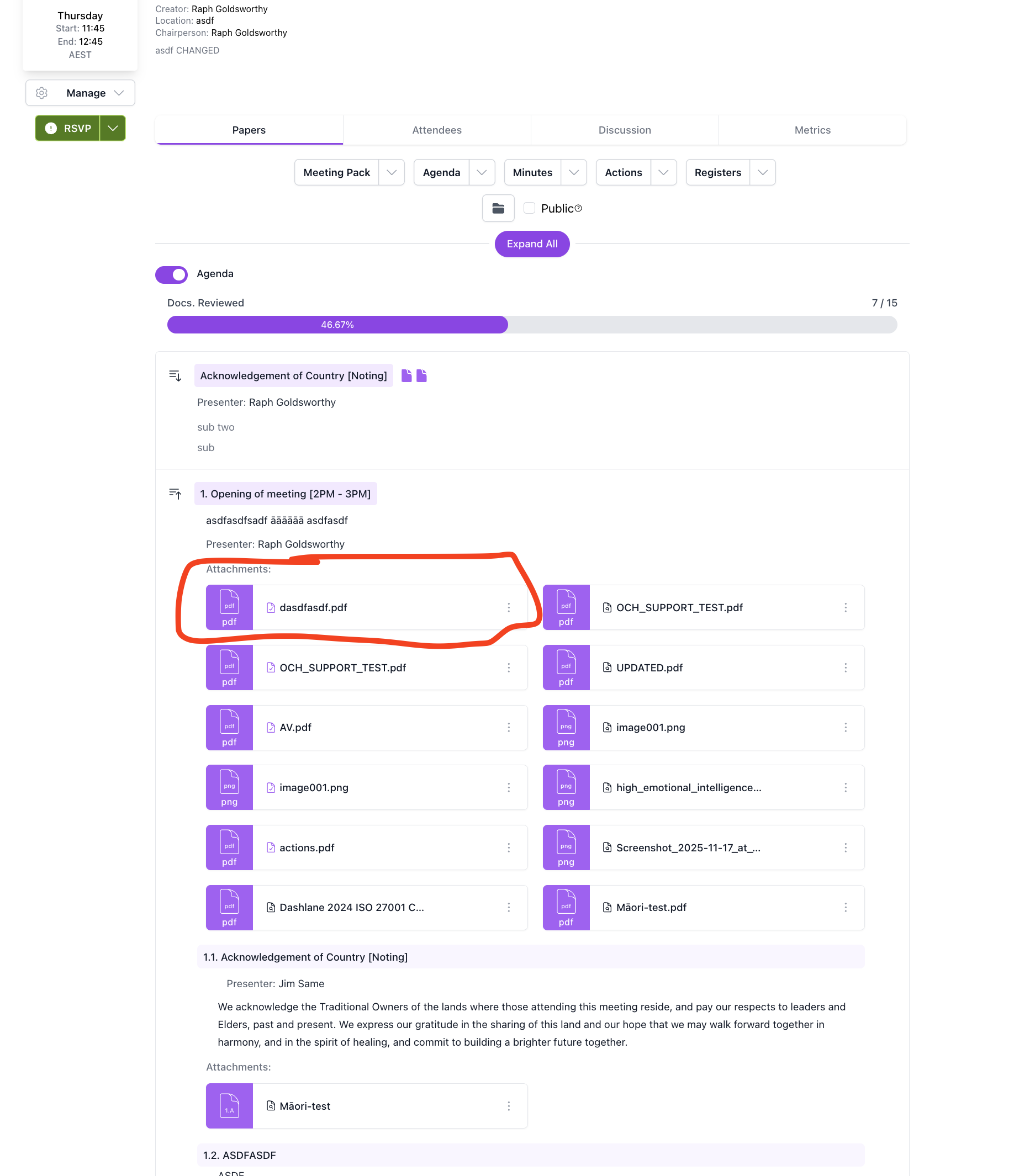
- Scroll down through the expanded agenda to find the agenda item you are interested in.
- Hover over an attachment and click it — the document will open in a side panel where you can read it without leaving the meeting page.
- Close the side panel to return to the agenda.
You can also click on an attachment listed directly on an agenda item row to open it individually.
Mark Documents as Read
Opening an attachment marks it as read for you. Your Admin and the meeting chairperson can see overall read progress, so reviewing your documents before the meeting helps everyone stay on track.
Viewing Documents in the Meeting Pack
The Meeting Pack combines the agenda and all documents together in a single scrollable view — similar to a traditional board pack.
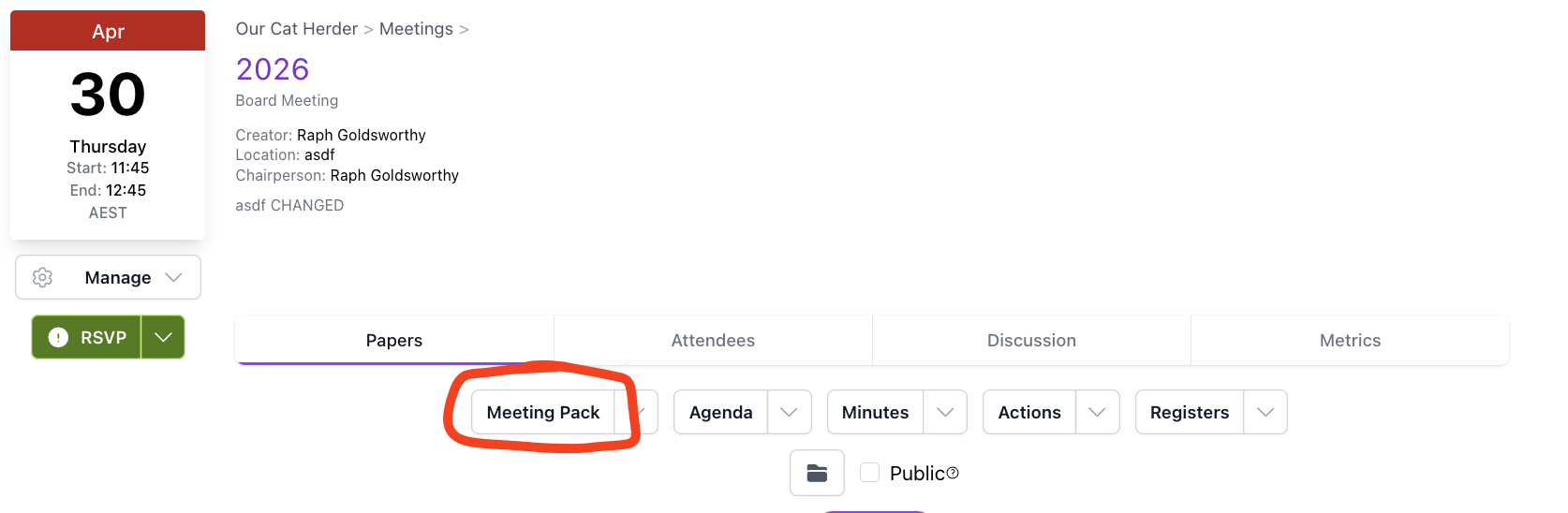
- On the Papers tab, click Meeting Pack.
- Wait for the meeting pack to load — for larger meetings with many documents, this can take a moment.
- Scroll through or use the navigation to jump to a specific agenda item and its attached documents.
You can also take notes in the Meeting Pack view.
Meeting Pack Notes
When taking notes in the Meeting Pack view, remember to click Submit to save them. Notes are not saved automatically.
Other Viewing Options
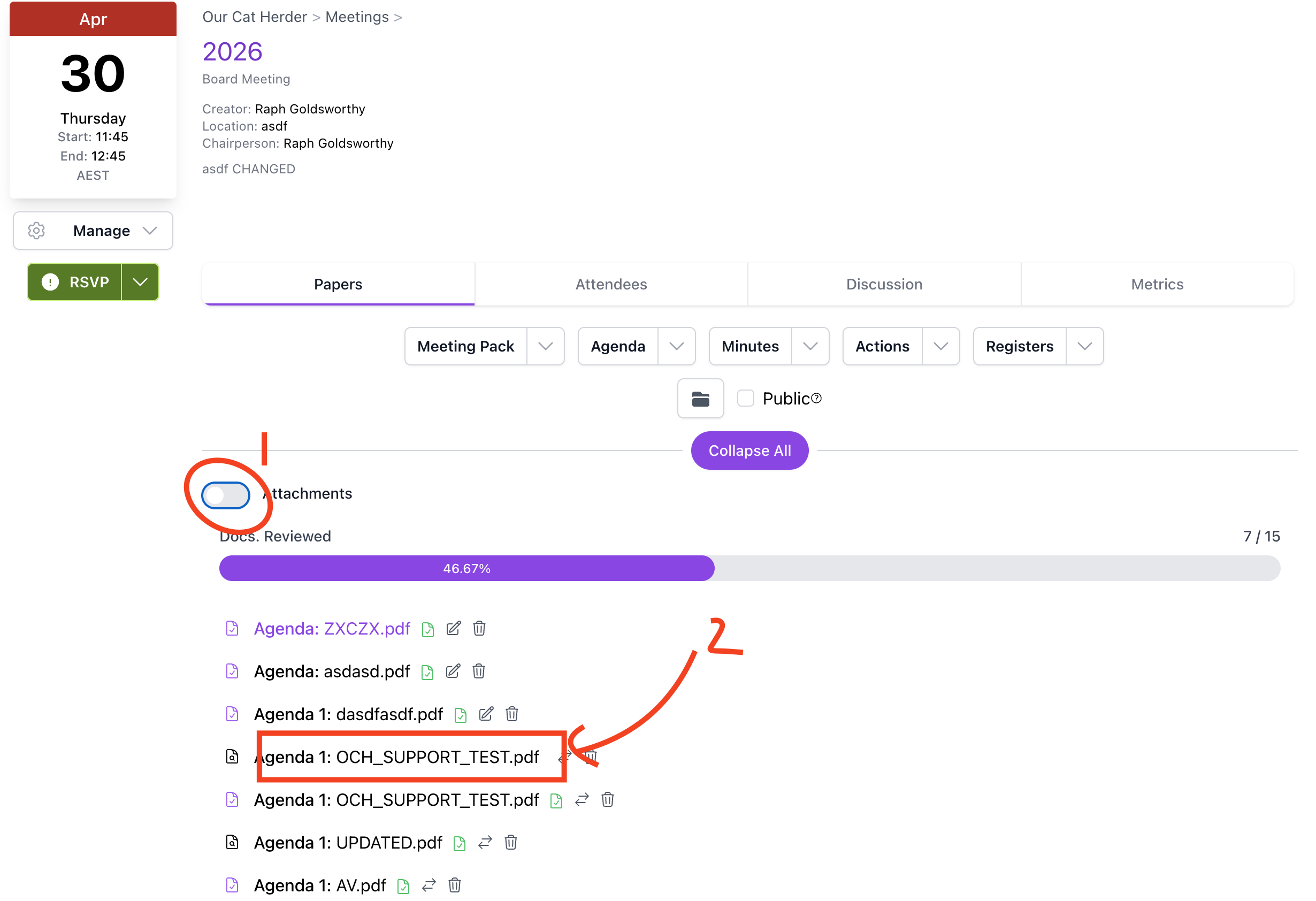
- Document List — Toggle from Agenda to Attachments to see a simplified list of all attached documents across the entire meeting, without the agenda structure. Use this when you want to quickly find a specific document. Click on any document in the list to open it.
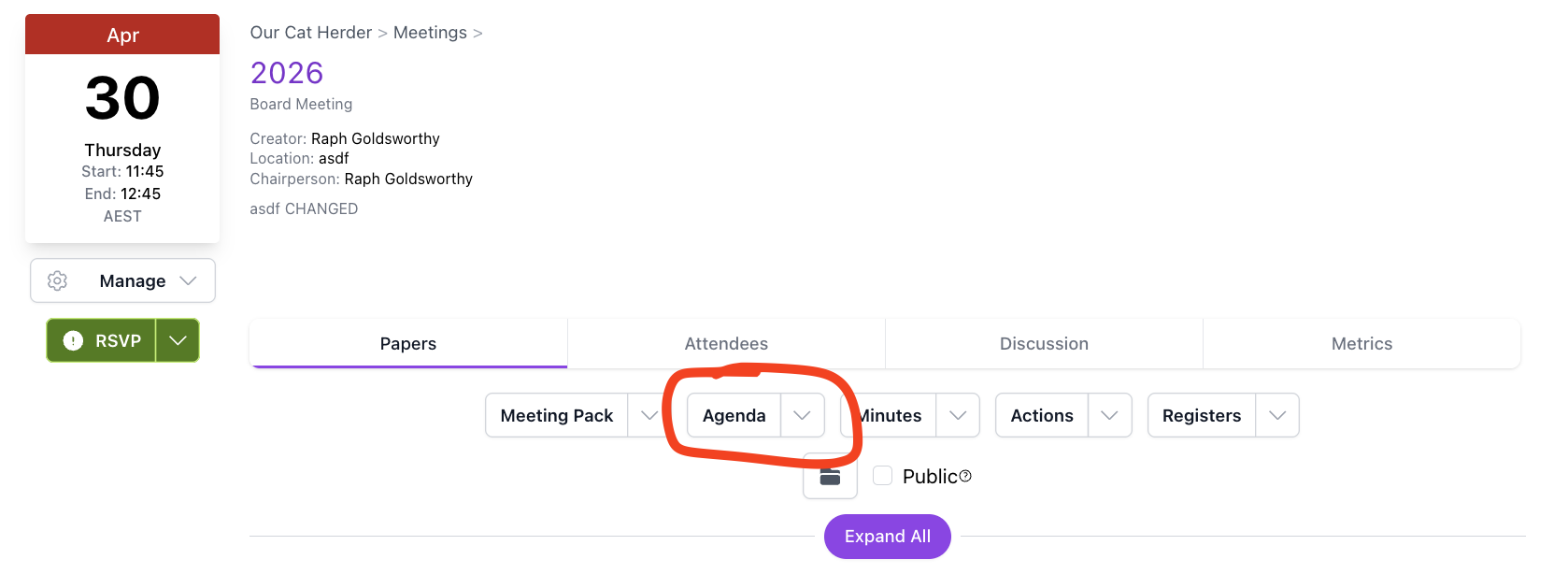
- Agenda PDF — If your Admin has enabled this option, you can view, print, or download the agenda as a PDF. Click the Agenda dropdown on the Papers tab.
Download Not Available?
If you cannot see a download or print option, your portal Admin may have disabled document downloads. Contact your Admin if you need this functionality.
Viewing Documents from the Meeting Folder
Every meeting has a folder in the Documents area where attachments are stored as files.
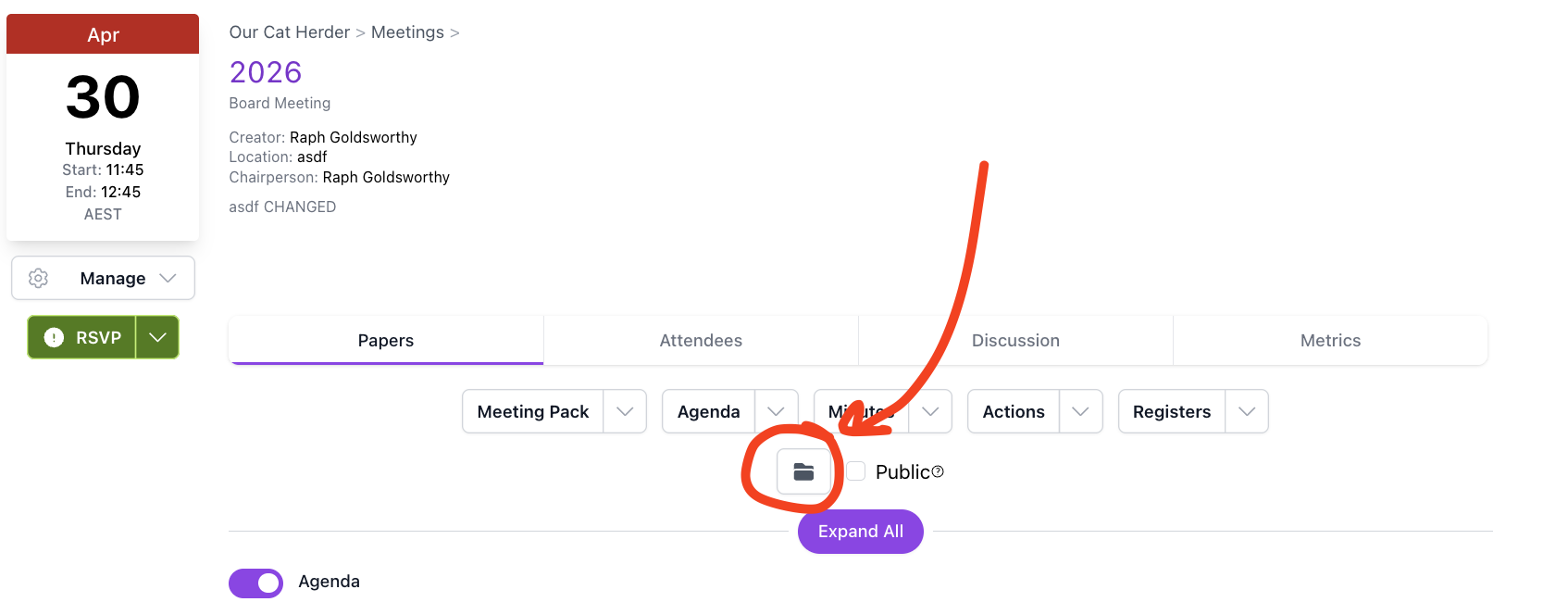
- On the Meeting Details page, click the folder icon to open the meeting's folder in Documents.
- Navigate to Meeting Attachments within that folder.
- Find and click the document you want to view.
Some Attachments May Not Appear in the Folder
If a document was attached from elsewhere in the portal (using "Choose Internal File"), it will remain in its original location in Documents rather than appearing in the meeting's attachment folder.
Related
- Meetings Overview — Full guide to the Meeting Details page, RSVP, and meeting features
- Documents — How to find and download documents in the Documents area