Appearance
Before the Meeting
As the chairperson, Our Cat Herder gives you everything you need to prepare for the meeting and check that your attendees are ready too.
Review Board Papers and Attachments
Once your Admin or meeting organiser has built the agenda and uploaded board papers, you should review them before the meeting. If you are also responsible for preparing the meeting yourself, see the Admin Meetings guide for how to build agendas, upload papers, and manage meeting settings.
- Click Meetings in the left menu and open the meeting.
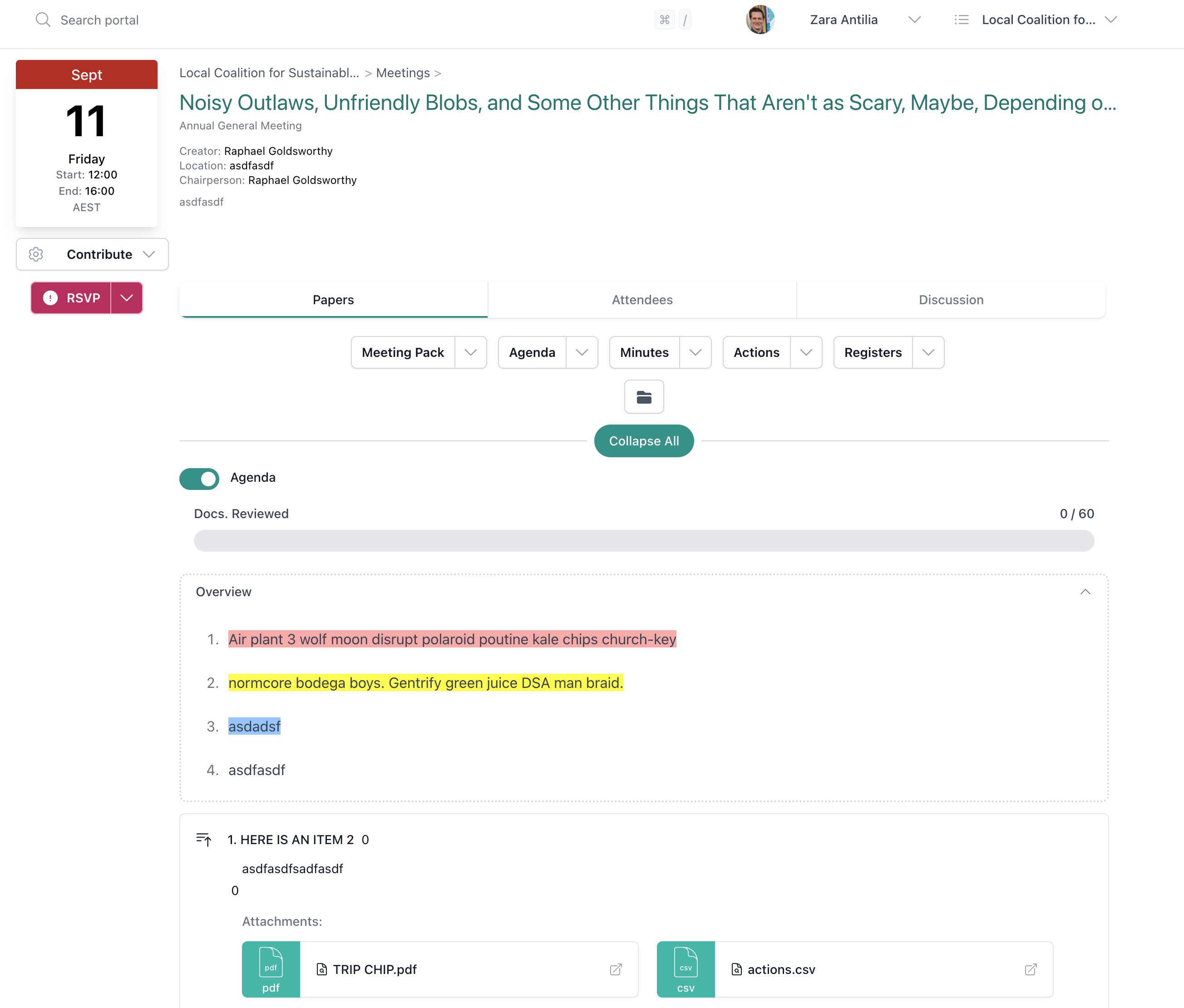
- The Papers tab is the default view. Expand agenda items to see descriptions and attachments.
- Click on any attachment to open it in the side panel.
- As you review each document, mark it as read. The Docs Reviewed progress bar tracks your progress.
Three Ways to Read
You can review documents in different ways depending on your preference:
- Agenda view — the default, showing documents grouped under agenda items
- Document list — toggle from Agenda to Attachments for a flat list of all documents
- Meeting Pack — click Meeting Pack for a single integrated view of the agenda and all documents together
See How to View Board Papers and Meeting Attachments for a detailed walkthrough.
Use the Meeting Pack for Deep Reading
The Meeting Pack is especially useful for pre-meeting preparation. It presents the full agenda with all documents inline, so you can read through everything in order — just like a traditional board pack.
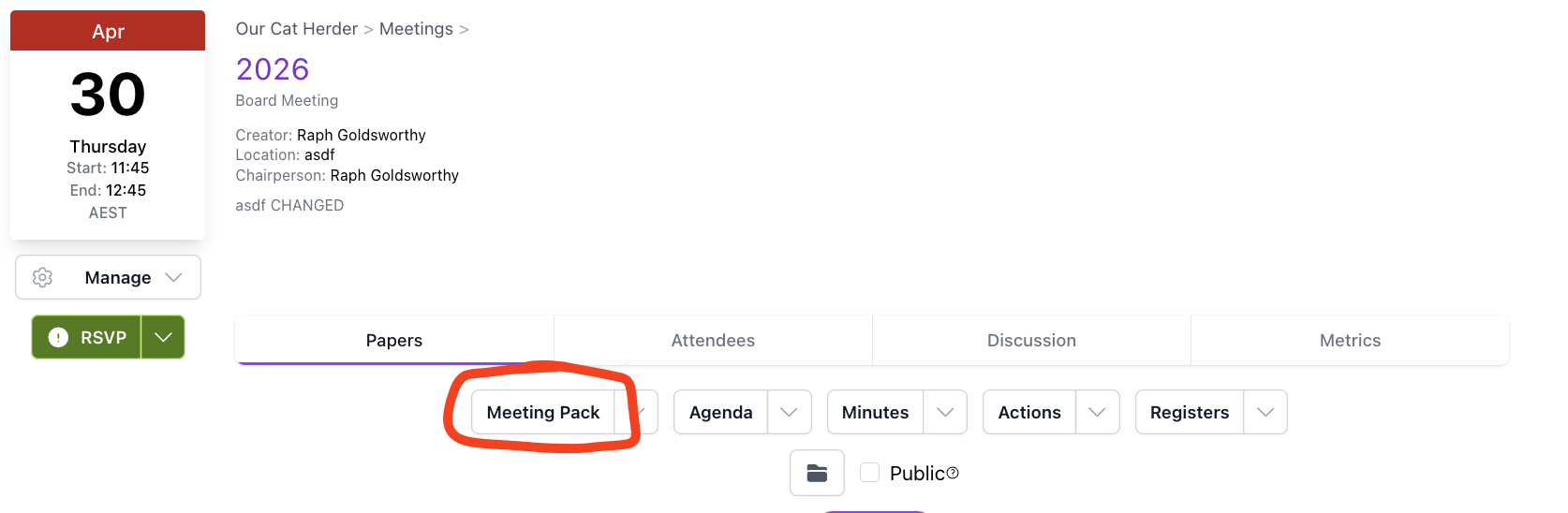
- On the Papers tab, click Meeting Pack.
- Scroll through or jump to specific agenda items.
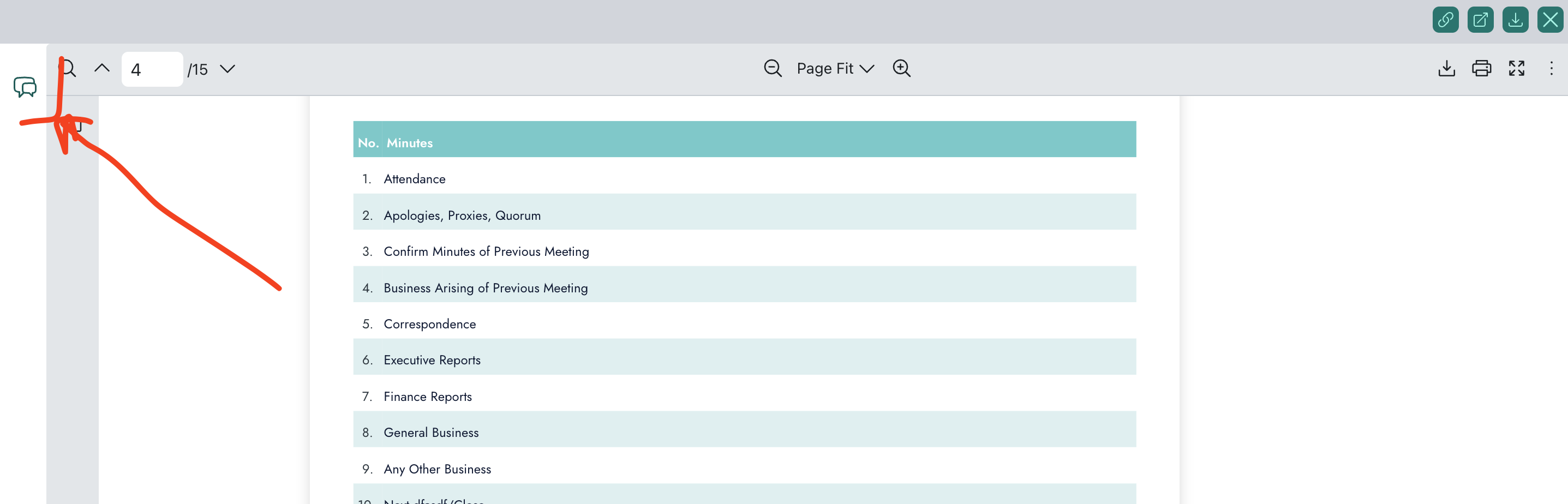
- To take notes, click the speech bubble icon on the left side of the meeting pack to open the notes panel.
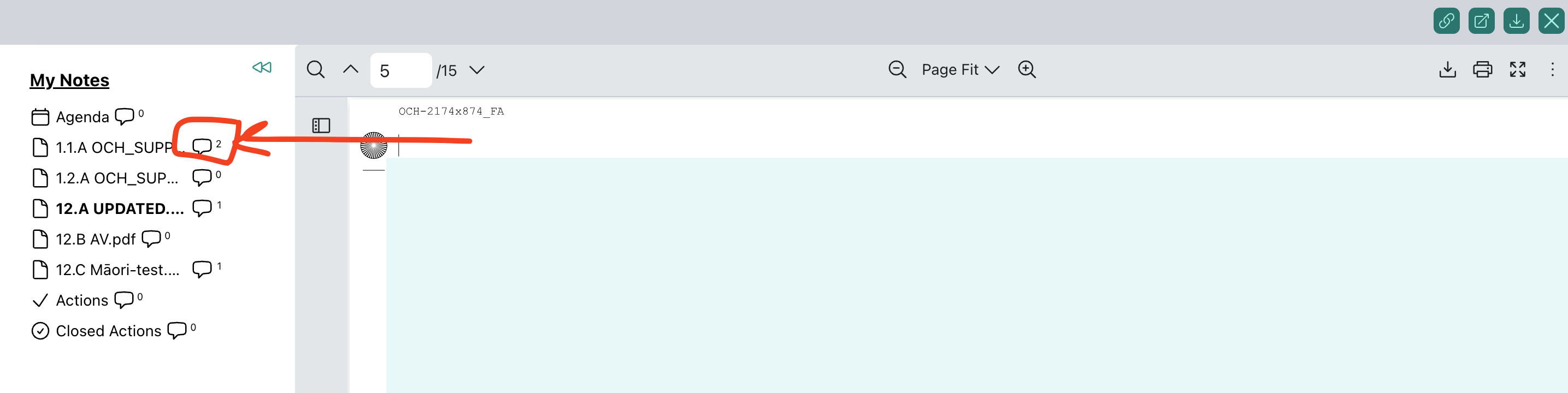
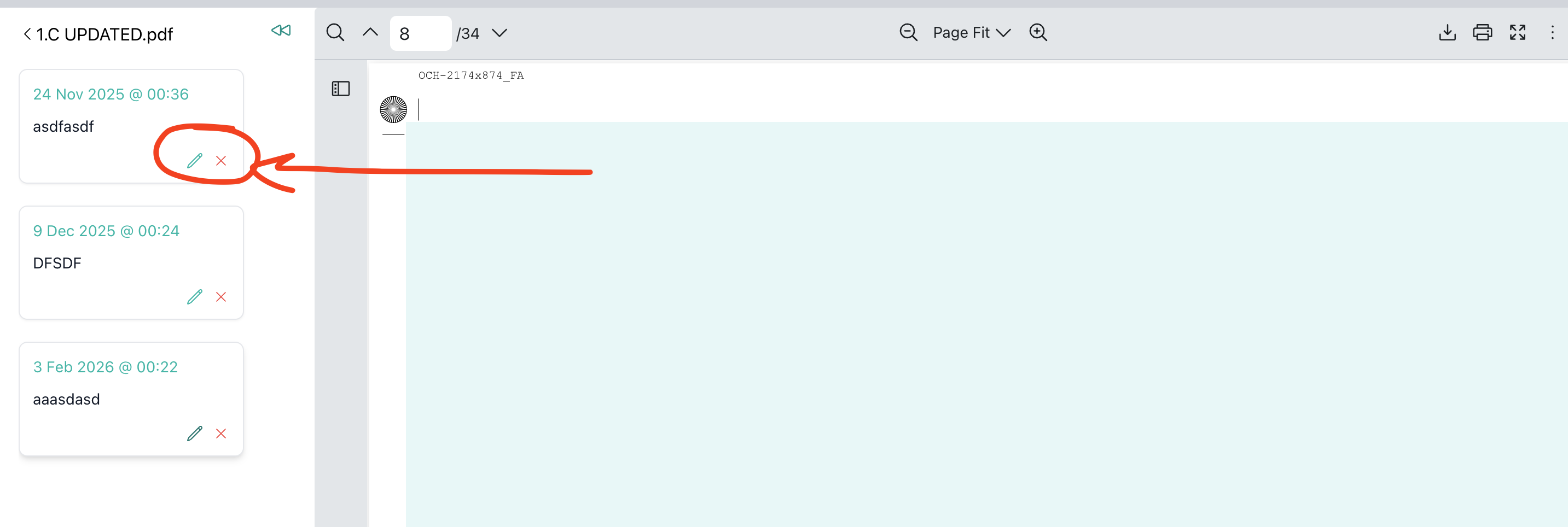
- Next to the document name, click the speech bubble icon to open the notes area for that document. Type your notes and click Submit to save.
You can edit or delete individual notes using the pencil and cross icons on each note.
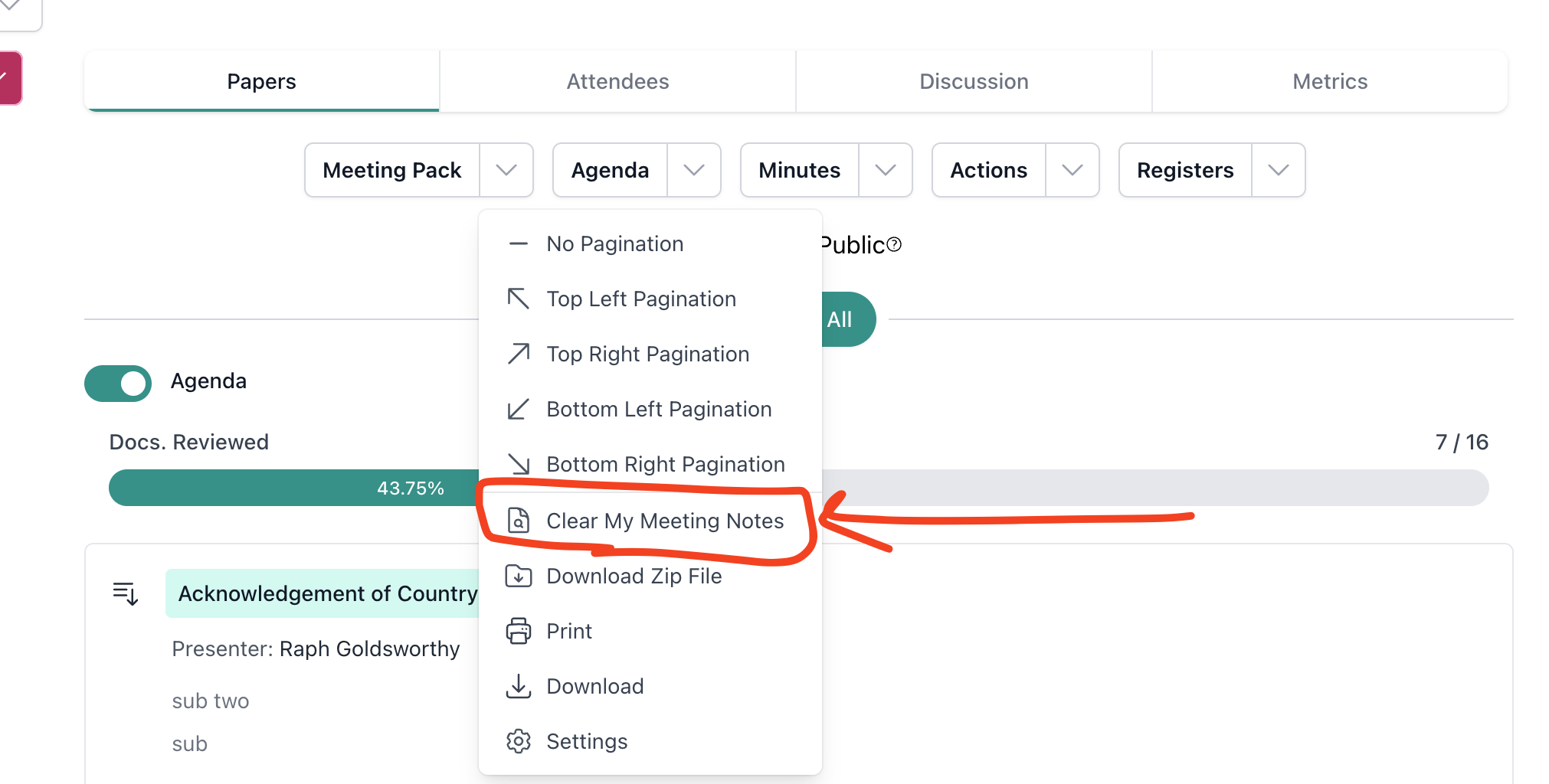
To clear all your meeting notes at once, click the Meeting Pack dropdown and select Clear My Meeting Notes.
Your notes are private and saved against the meeting for your reference.
Check Attendee RSVPs
Knowing who will be at the meeting helps you plan the agenda and ensure quorum.
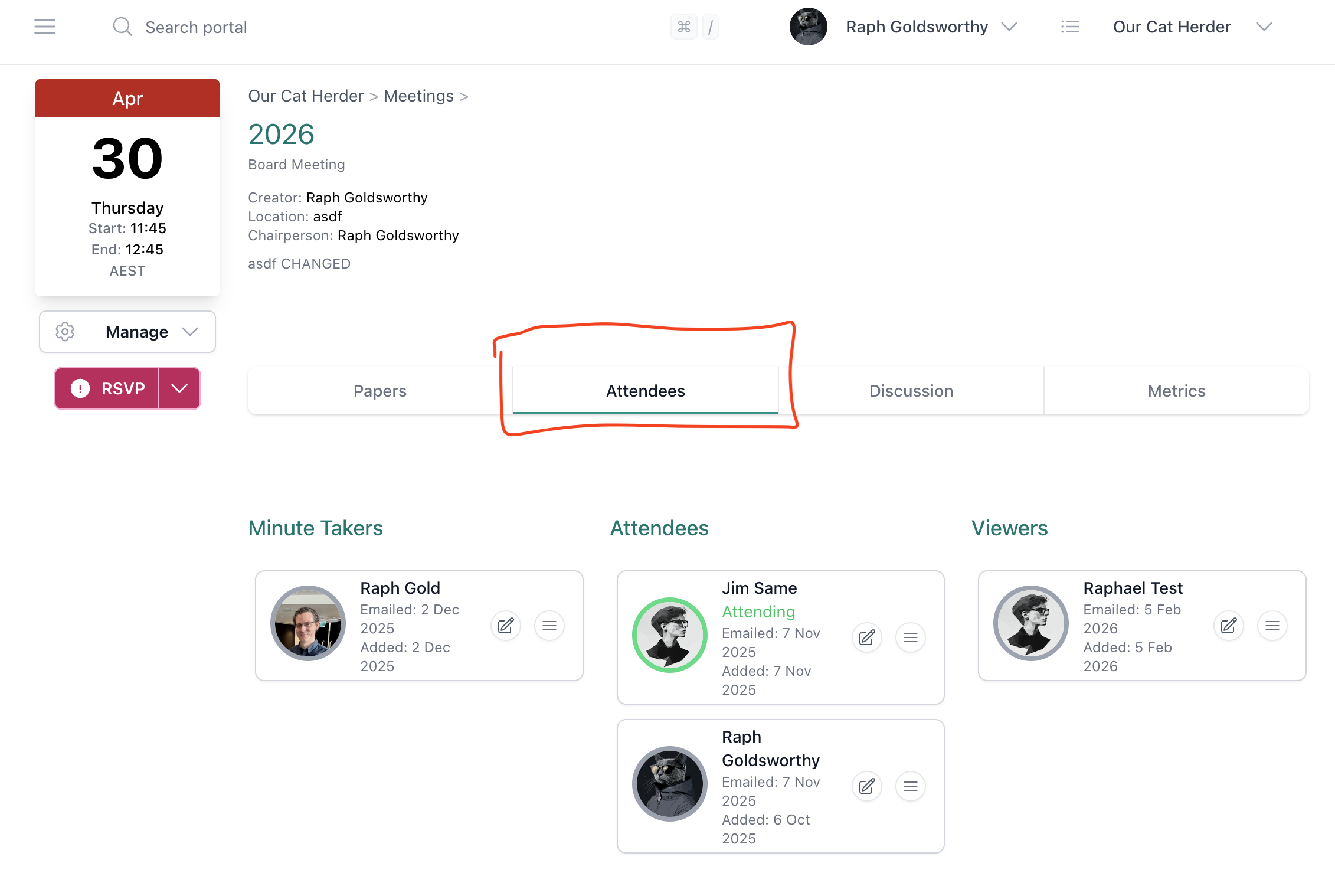
- Click the Attendees tab on the meeting.
- Review who has accepted, sent apologies, or not yet responded.
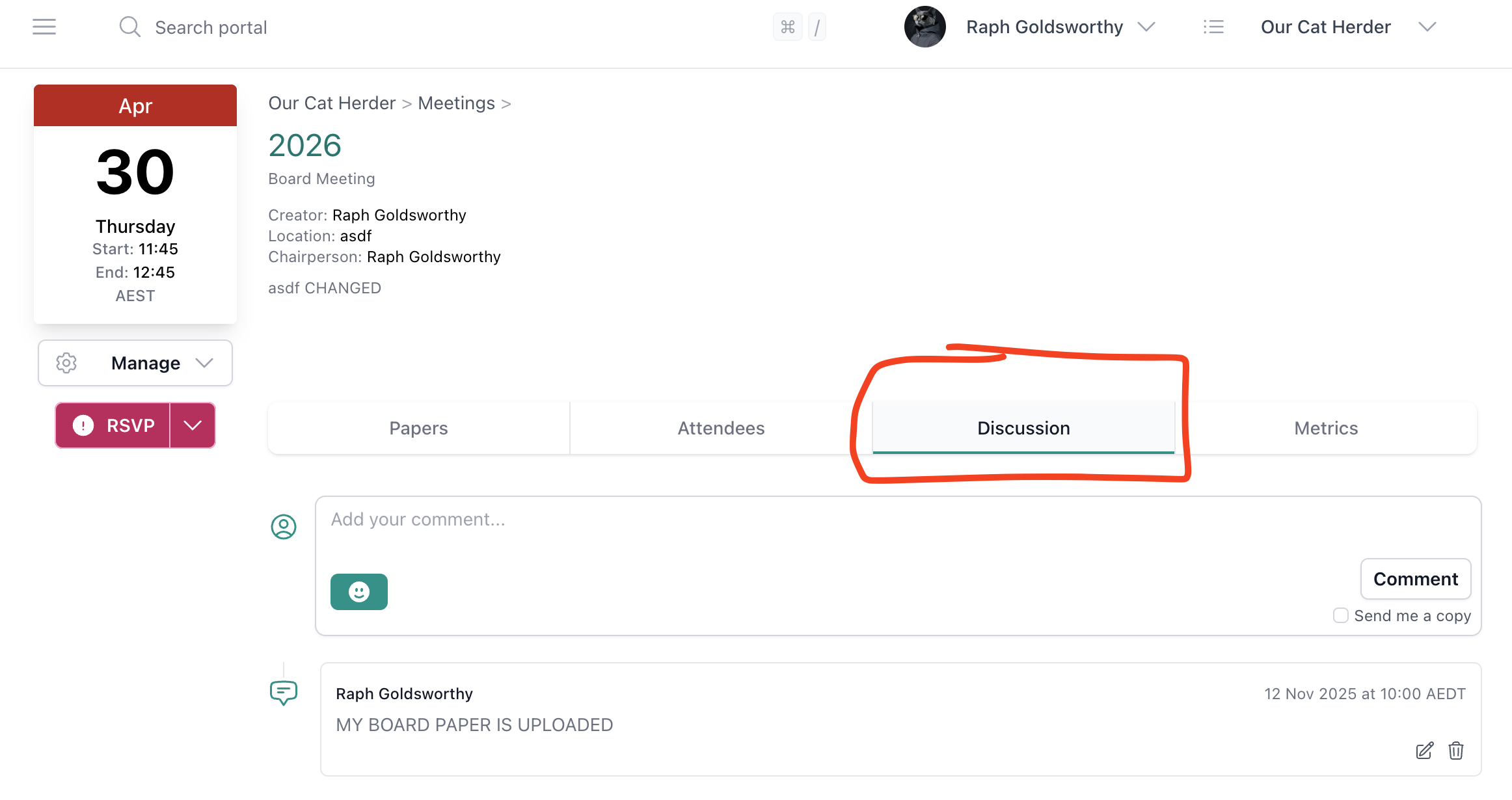
- If key attendees have not responded, consider posting a reminder on the Discussion tab.
Communicate with Attendees Before the Meeting
Use the Discussion tab to communicate with all meeting attendees. Any comment posted there sends a notification to everyone invited.
Common uses before a meeting:
- Let attendees know the agenda and papers are ready for review
- Highlight specific papers that need attention or pre-reading
- Ask attendees to review and come prepared to discuss a particular item
- Post a reminder about outstanding RSVPs
Create a Meeting Paper
If you need to contribute a board paper yourself — such as a chairperson's report — you can create one using the built-in meeting paper creator.
- Click Manage on the meeting.
- Click Create Meeting Paper.
- Select the agenda item, add a title, and fill in the sections (executive summary, background, analysis, recommendations).
- Click Create.
See How to Create a Meeting Paper for the full step-by-step guide.
Check the Agenda Structure
As chairperson, you can review the agenda to make sure the structure, ordering, and time allocations are correct. If anything needs adjusting, you can edit the agenda directly or ask your Admin to make changes.
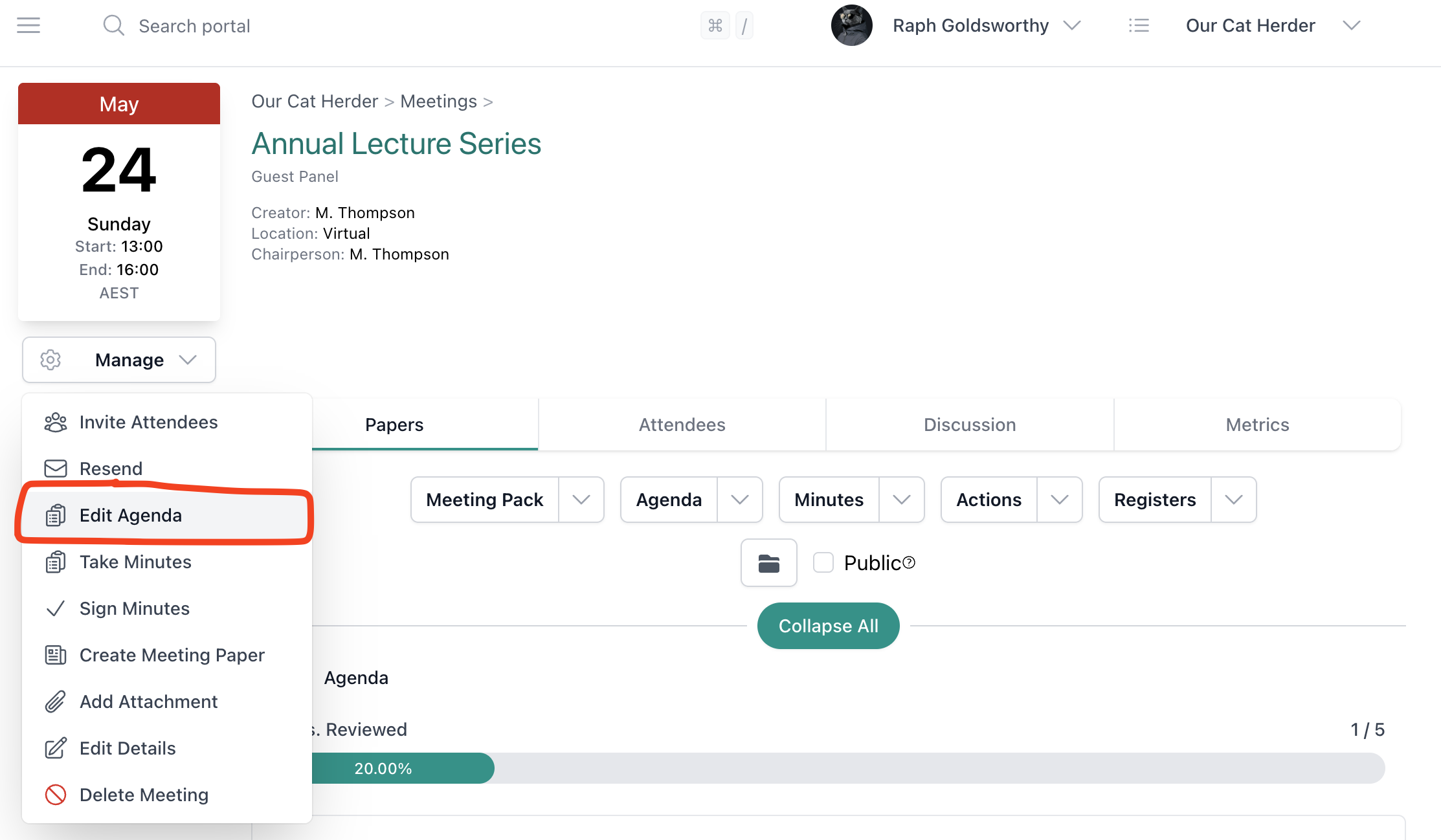
- Click Manage > Edit Agenda to open the agenda builder.
- Review items, sub-items, time allocations, and descriptions.
- Check that all necessary attachments have been uploaded to each agenda item.
Pre-Meeting Checklist
- Reviewed all board papers and attachments
- Checked attendee RSVPs — quorum will be met
- Agenda structure and ordering are correct
- Notified attendees that papers are ready (via Discussion tab)
- Uploaded any papers you are personally contributing