Appearance
How to Create a Meeting Paper
Any meeting attendee can create a meeting paper using the built-in meeting paper creator. This lets you contribute structured board papers — with an executive summary, background information, analysis, recommendations, and attachments — directly within Our Cat Herder.
Video Guide
Steps
- Open the meeting from the Meetings page.
- Click the Contribute button below the date area. If you are an Admin, chairperson, or minute taker, this button will say Manage instead.
- Click Create Meeting Paper.
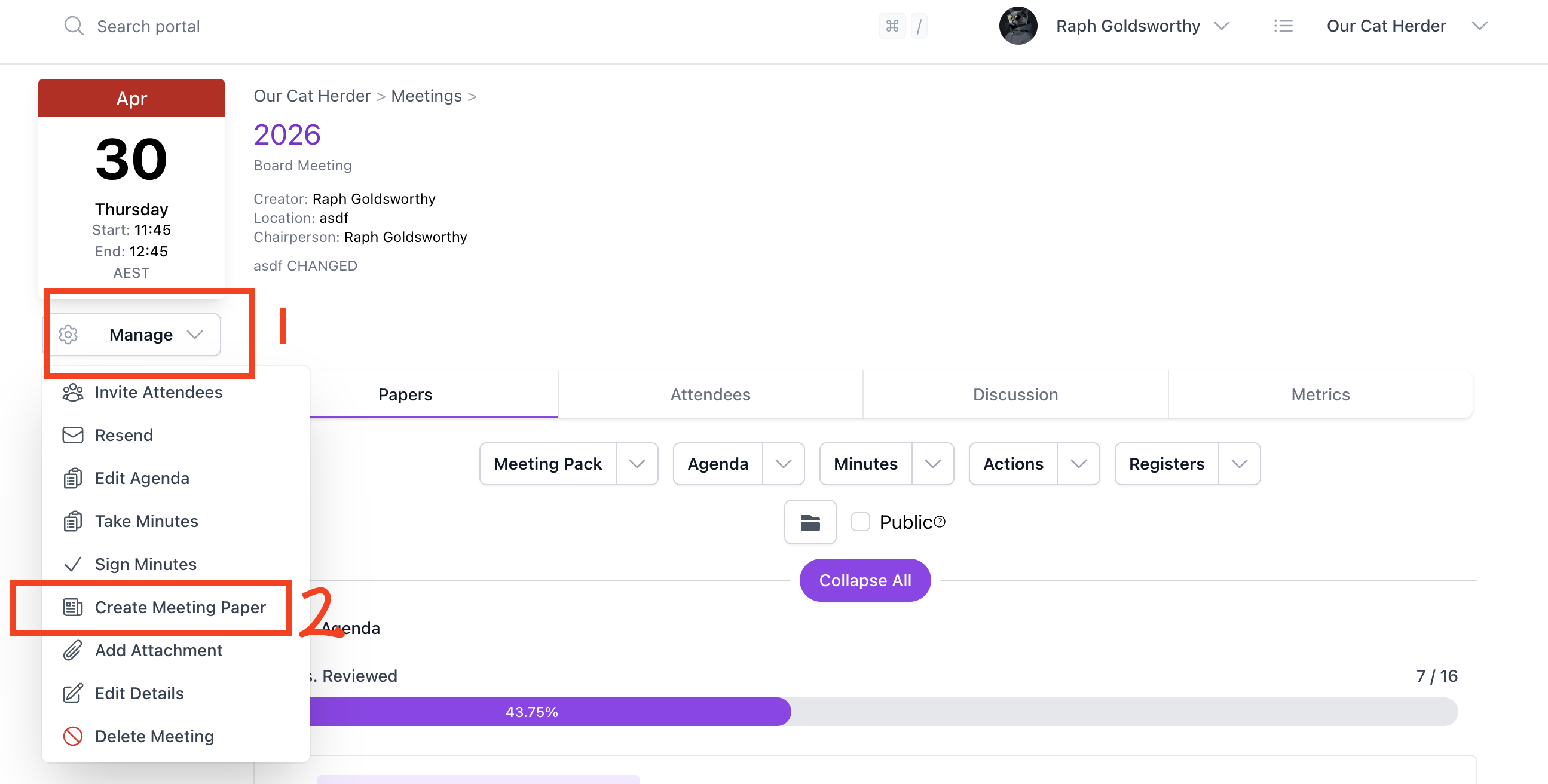 4. Select the agenda item to attach the paper to. Meeting papers can only be attached to main agenda items at this time, not sub-items. 5. Enter a title for the meeting paper (up to 100 characters). 6. Fill in the sections as needed:
- Executive Summary
- Background Information
- Analysis and Discussion
- Recommendations
Each section has a formatting toolbar that you can show or hide as you work through them.
- Optionally, click Add Attachments to include supporting files. You can drag and drop files or browse using the internal file picker.
- Click Create.
The meeting paper will appear as an attachment on the agenda item you selected.
Editing a Meeting Paper
Unlike regular attachments, meeting papers can be edited after they are created.
- Open the meeting and find the agenda item the paper is attached to.
- Click the three dots (⋮) to the right of the meeting paper attachment.
- Select Edit from the menu.
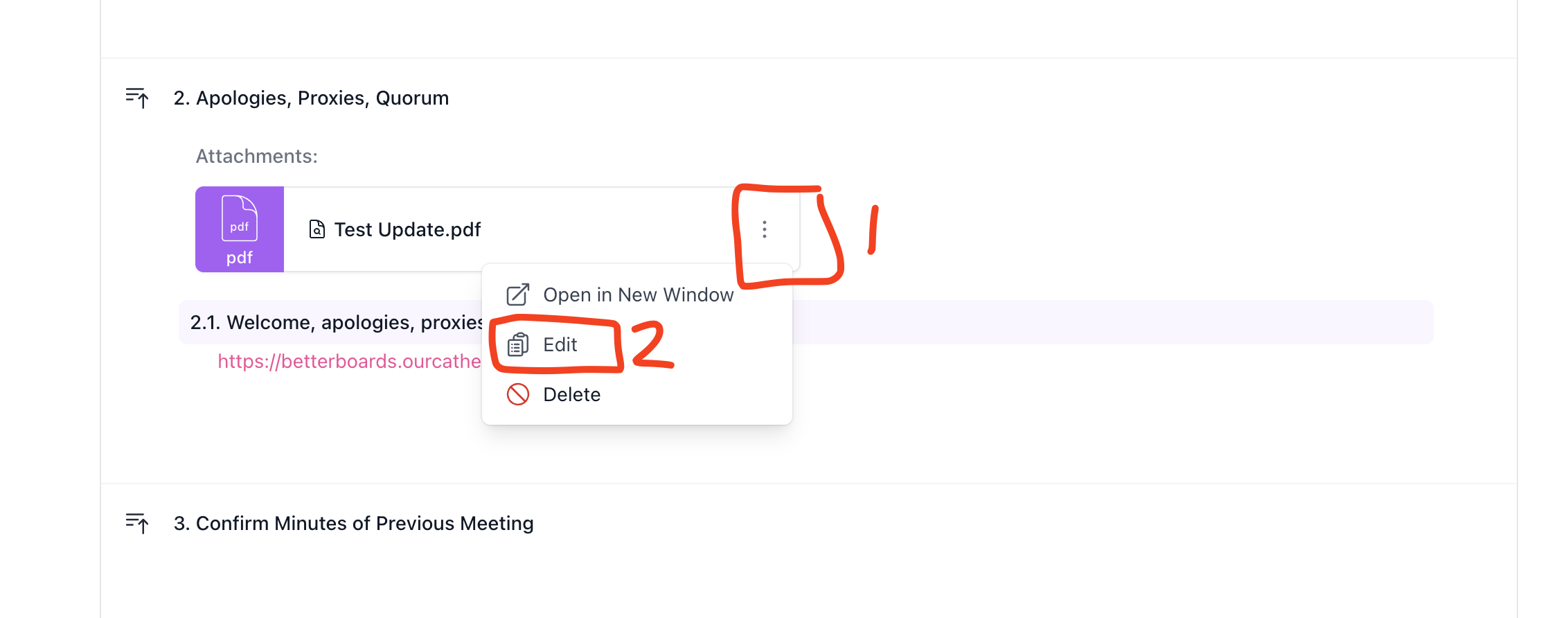
- Make your changes to any of the sections or attachments.
- Click Update to save.
Who Can Create Meeting Papers?
Any portal member who is invited to the meeting as an attendee or minute taker can create a meeting paper. Viewers cannot create meeting papers.
Related
- View Board Papers and Meeting Attachments — How to view documents attached to a meeting
- How To: Meetings — More meeting how-to guides
- Discover Meetings — Video guides on managing meetings