Appearance
Admin Troubleshooting
Common issues that portal admins may need to help resolve for their members.
A member is having trouble activating their account or logging in
If a member is unable to complete account activation or is having trouble logging in, you can direct them to the Account Activation Troubleshooting guide. It covers the most common issues including activation codes not working, password reset emails not arriving, browser cookie problems and more.
As an admin, there are a few things you can do on your end:
- Confirm the email address — check the Members area to verify the exact email you added for them. Even small differences (such as a missing dot or the wrong domain) will prevent them from logging in.
- Send a password reset — from the Members area of the portal, you can trigger a password reset email for the member.
- Check they are still listed — if the member was removed from the portal after the invitation was sent, they will not be able to see the portal even if they can log in.
Minutes sign-off is going to the wrong chairperson
When minutes are sent for sign-off, they are sent to the meeting chairperson — the person set as chairperson in the meeting details. This is not controlled by the Chair role assigned in the Members area.
Assigning someone the Chair role in Members gives them Chair-level permissions across the portal, but it does not automatically make them the chairperson of any meeting. Each meeting has its own chairperson field that must be updated individually.
To update the chairperson on a meeting:
- Navigate to the meeting in question
- Click Manage > Edit Details
- Change the Chairperson field to the correct person
- Save
The minutes sign-off request will now go to the newly assigned chairperson.
Admin Sign-Off
Alternatively, an Admin can sign off minutes directly without waiting for the chairperson. This is useful if you need to resolve the sign-off quickly, or if you do not want to change the meeting chairperson as that updates the meeting record. See Minutes Approval/Sign Off for details.
My members can't see meetings
This is almost always because members with the Member (or similar) role need to be explicitly invited to each meeting before they can see it. Find out more.
My members can't see documents or files
This is almost always because the member has not been granted access to the folder containing the files. In Our Cat Herder, permissions are set at the folder level — members can only see files in folders they have been given access to. Find out more.
My members can't see decisions
Members need to be invited to a decision as either a voter or viewer before they can see it. If a member can see a decision but can't vote, they've been added as a viewer rather than a voter. Find out more.
My members can't see registers
Members need to be invited to a register with a role — Manager, Contributor, or Viewer — before they can see it. Admins have access to all registers automatically. Find out more.
Why can't members download or print documents? The options are greyed out.
If the download and print options are greyed out in the document menu (or are not visible at all), this means the portal admin has enabled the "Disable Documents Download" setting.
To fix this:
- Go to Settings from the left-hand menu
- Click on Features from the row of options
- Find the Disable Documents Download toggle and turn it off (grey)
When this setting is on (green), all users are prevented from downloading or printing documents from the portal. Turning it off will restore download and print functionality for all users.
A member's Minutes tab is greyed out
This is most likely because the meeting has the "Show 'Minutes this Meeting' button only to Meeting Creator, Admin, Meeting Chair & Minute Takers" setting enabled. When this is turned on, regular attendees cannot see the Minutes tab.
To fix this:
- Navigate to the meeting in question
- Click Manage > Edit Details
- Find the "Show Minutes this Meeting" setting and update it to allow all attendees to view minutes
The member should then be able to see the Minutes tab. Note that the member must also be registered as an attendee of the meeting.
A member is having trouble uploading documents
The most common cause of upload failures is that the member is selecting or dragging files from a network drive, mapped drive, or SharePoint/OneDrive synced folder rather than from their local device. Browsers cannot reliably access files from network locations due to security restrictions.
Ask the member to copy the file to their Desktop or Downloads folder first, then upload from there. For more detail, direct them to the Document Upload Troubleshooting section of the Documents guide.
How do I delete an attachment from an agenda item?
In the agenda builder, click the three dots (⋮) to the right of the attachment and select Delete. If you can't see the attachment, click Expand All first to reveal all agenda items and sub-items. Find out more.
A member has duplicate accounts
If a member has two separate Our Cat Herder accounts (for example, one with a work email and one with a personal email), see the Duplicate Accounts guide for how to resolve this. Accounts cannot be merged, but there are straightforward steps to consolidate to a single account.
The Meeting Pack is not generating
If the Meeting Pack does not generate, or it keeps loading and never finishes, a document on the meeting has most likely failed to convert. This is usually a Word or Excel file. PowerPoint and other non-PDF files can do the same.
Check each document attached to the meeting. Save or export the problem file as a PDF from Word, Excel, or whichever application created it, then upload the PDF in its place. Find out more.
Documents not looking right in the Meeting Pack
If documents in the Meeting Pack have formatting issues — wrong fonts, misaligned tables, broken page breaks, or headers and footers being added or removed — this is caused by the server-side conversion from Word to PDF. The fix is to save the document as a PDF from Word (or whichever application created it) before uploading it to Our Cat Herder. Find out more.
A member is not receiving meeting invite emails
If an attendee reports they have not received the email invite for an upcoming meeting — and the email is not in their spam folder — there are a few possible causes. The first thing to check is whether an invite has actually been sent for the current state of the meeting.
Step 1 — Check the Attendees tab on the meeting
Open the meeting and click the Attendees tab. The list shows each attendee with their current invite status.
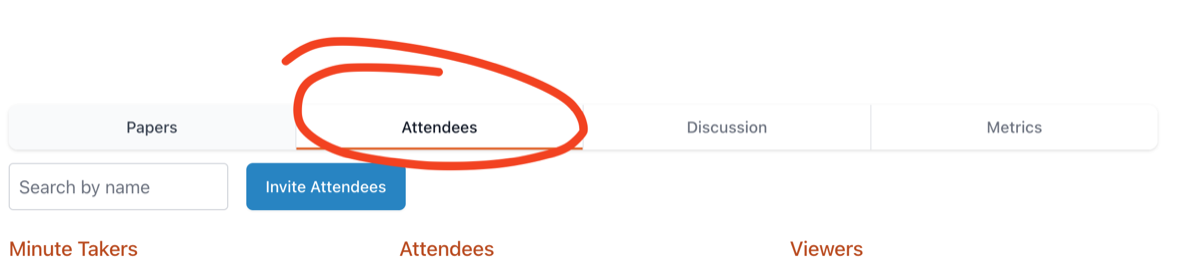
If the list shows "Invite Not Sent" against the attendee (or against everyone), no invite has been sent. This usually happens because the "Don't email invite(s)" checkbox was ticked when the meeting was created or last saved — when that box is ticked, invites are not sent automatically and must be triggered manually.
Step 2 — Manually trigger the invites
- Navigate to the meeting
- Click Manage
- Choose Resend
This sends the invite email (with the calendar .ics attachment) to all attendees, regardless of the "Don't email invite(s)" setting.
Other possible causes if the invite shows as sent
If the Attendees tab shows the invite as sent but the member still says they haven't received it, consider the following:
- They were invited earlier, but later meeting changes weren't re-notified. When an attendee is first added to a meeting they receive an invite, but Our Cat Herder does not send a fresh notification for every subsequent change to the meeting (unless "Don't email invite(s)" is unticked and Meeting Details is saved). The member may be looking for a newer email that was never sent.
- The email was sent but didn't reach their inbox. This can happen at the receiving end — the recipient's email configuration, organisation firewall or spam filtering rules, a full inbox, or the message being blocked before it arrives. Ask the member to check spam/junk and any mail rules, confirm the address recorded in the Members area is correct, and if needed ask their IT team to whitelist the Our Cat Herder sending domain.
See Multiple Meeting Notifications for more on how the "Don't email invite(s)" checkbox behaves.
Members receiving too many notifications
If members are receiving duplicate or excessive email notifications, see the Multiple Notifications guide for how to adjust notification settings.