Appearance
How to Unlock Signed-Off Meeting Minutes
Once the chair has signed off the minutes, they are locked. If you spot a correction later (a typo, a misrecorded vote, a missed action), you can unlock the minutes and edit them again. Every change made while unlocked is recorded in the unlock log.
There are two ways to unlock signed-off minutes, depending on who is available to approve the request.
Which unlock path should I use?
| Path | Who requests | Who approves | When to use |
|---|---|---|---|
| Chair-approved | Admin, meeting creator, or minute taker | Chair | The default. Keeps the chair as the official signatory. |
| Admin-approved | Admin | Admin (self-approve) | When the chair is unavailable, or when the admin needs to make a correction directly. |
Path A: Chair-approved unlock
Use this path when the chair is available and you want them to stay as the official signatory.
1. Open the meeting
Go to Meetings from the left-hand menu and open the meeting whose minutes need unlocking.
2. Open the minutes view
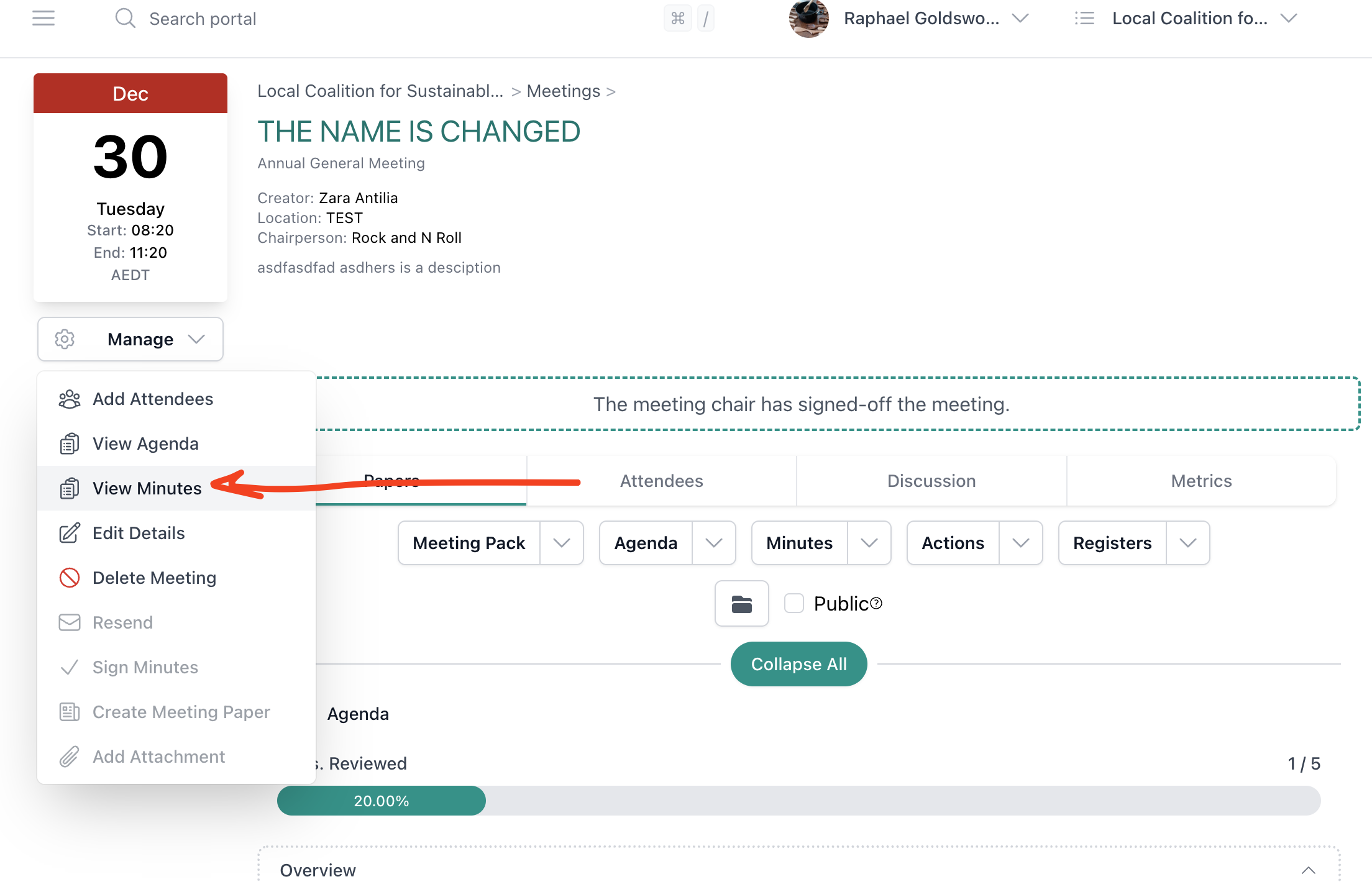
Click Manage then View Minutes. This opens the minutes view for the meeting, which shows the signed-off status and the unlock options.
3. Request the unlock
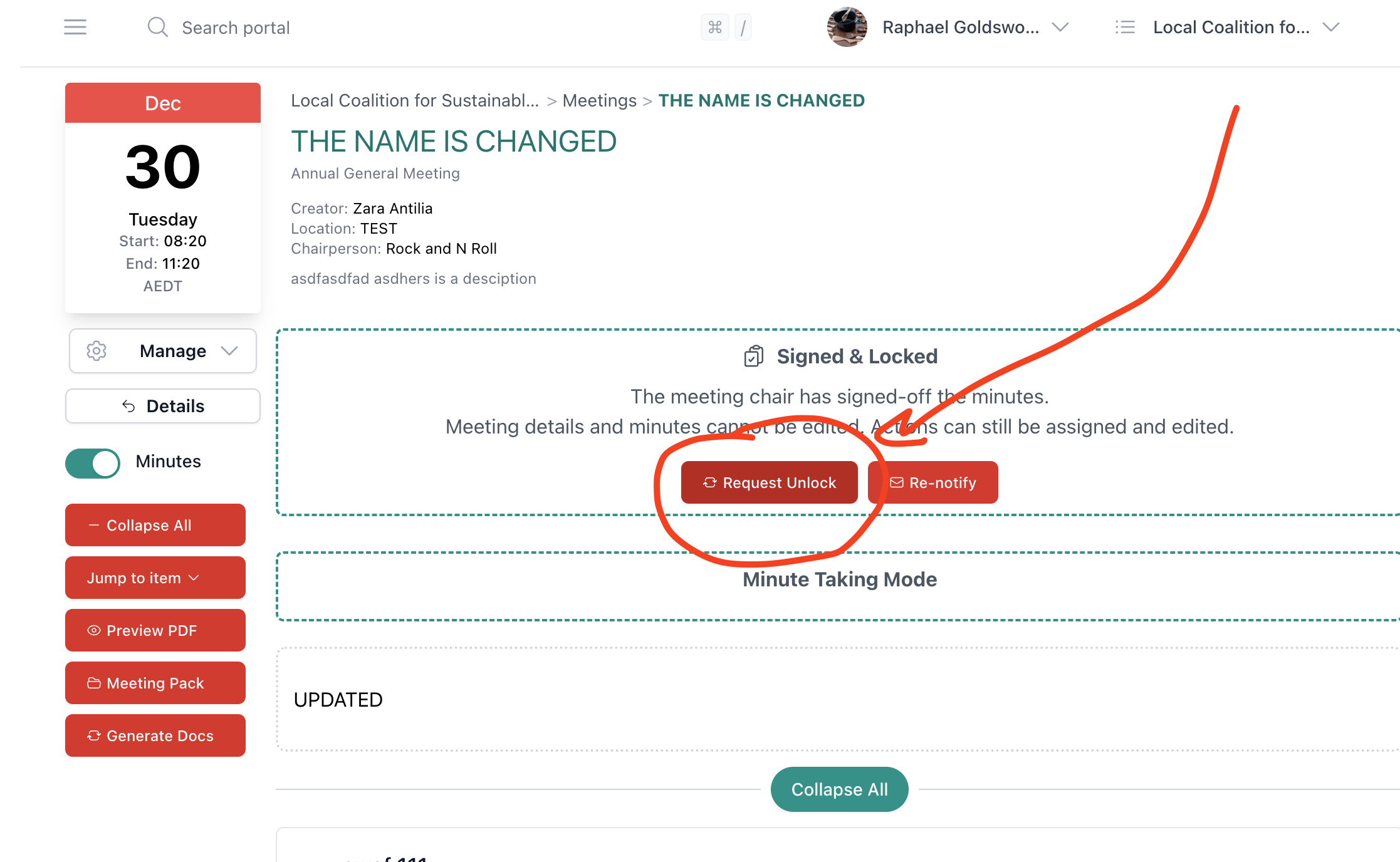
On a signed-off meeting, the minutes panel shows a Signed & Locked banner with a Request Unlock button. Click Request Unlock.
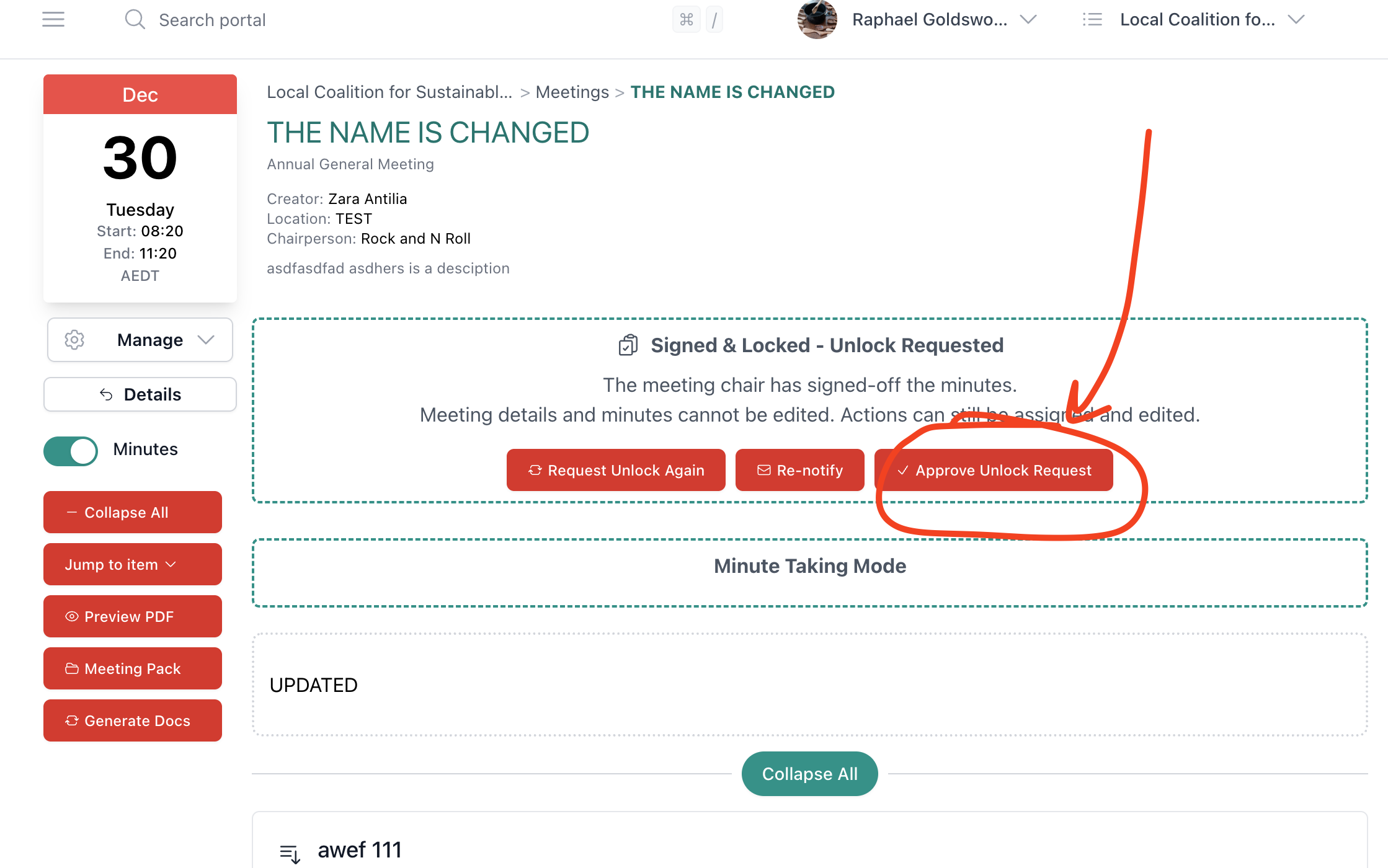
The chair gets an email about the unlock request. The banner also updates to Signed & Locked - Unlock Requested so anyone viewing the meeting can see a request is pending.
4. Chair approves the request
The chair opens the meeting (from the email link or by navigating directly) and clicks Approve Unlock Request.
5. Edit the minutes
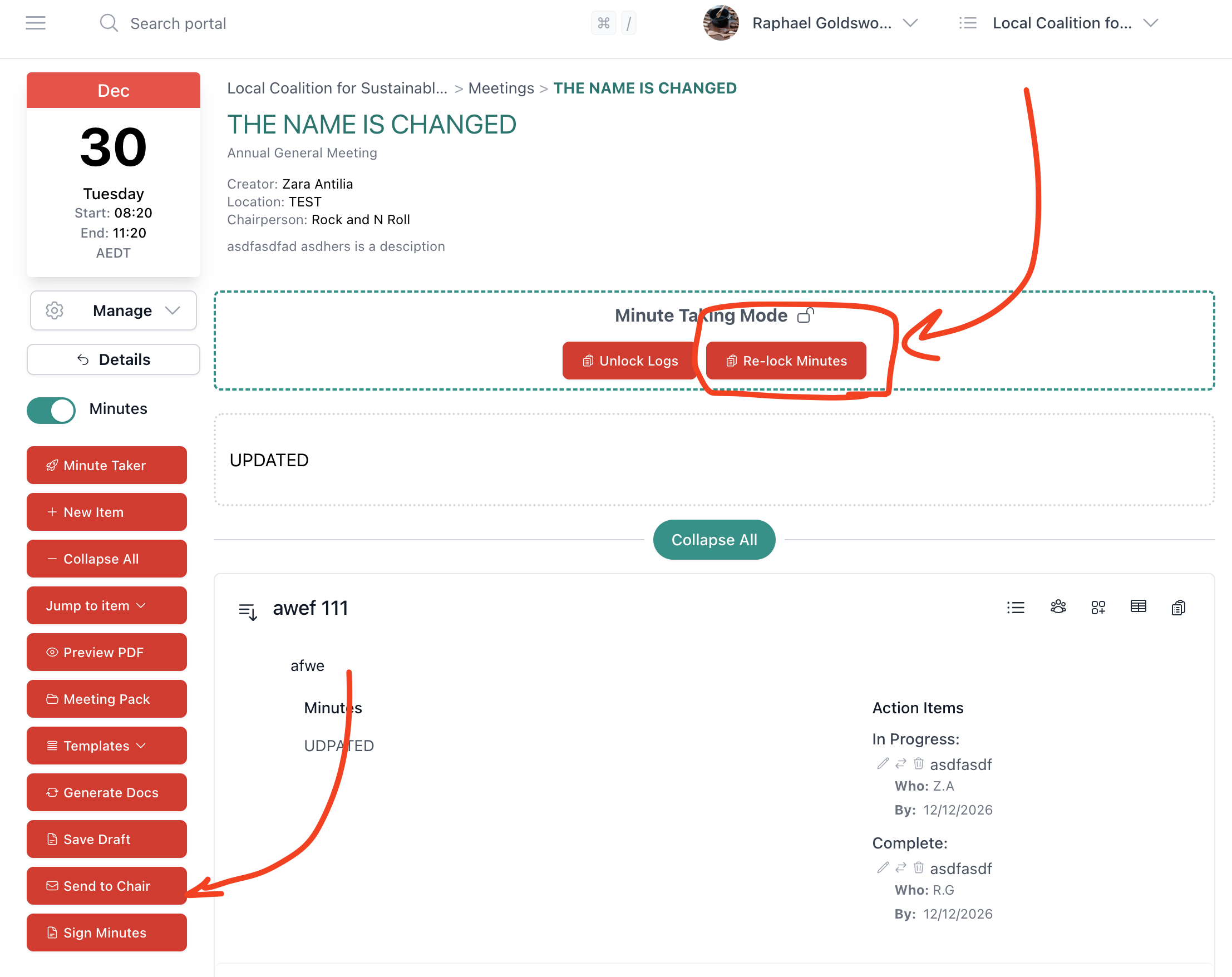
Once approved, the minutes switch to Minute Taking Mode (shown with an unlocked icon). Edit as normal using the minute taker tools on the left, then save.
6. Relock the minutes
When you are done editing, click Re-lock Minutes to restore the signed-off status. Or use Send to Chair to send the updated minutes back to the chair for a fresh sign-off.
Re-lock captures whoever clicks it as the signatory
When you click Re-lock Minutes, the portal records you as the person who signed off the minutes, not the original chair. If the official record needs to show the chair as the signatory, use Send to Chair instead so the chair can re-sign after your edits.
Path B: Admin-approved unlock
Use this path when the chair is unavailable, or when an admin needs to make a correction directly without waiting for the chair.
1. Admin requests the unlock
As an admin, go to Manage → View Minutes on the signed-off meeting. Click Request Unlock on the Signed & Locked banner.
2. Admin approves the unlock
The banner updates to Signed & Locked - Unlock Requested. As the admin, you can click Approve Unlock Request straight away. There is no need to wait for the chair, because admins can approve without the chair acting.
The chair is still notified
Even when the admin self-approves, the chair still gets the unlock request email. That way the chair always knows their signed-off minutes are being unlocked, even if their approval isn't needed for the unlock to go ahead.
3. Edit the minutes
The minutes are now in Minute Taking Mode and can be edited. Make your changes and save.
4. Relock or re-sign
When you are done, click Re-lock Minutes to restore the signed-off status, or use Send to Chair to send the updated minutes back to the chair for a fresh sign-off.
Re-lock captures whoever clicks it as the signatory
When you click Re-lock Minutes, the portal records you (the admin) as the person who signed off the minutes, not the original chair. If the official record needs to show the chair as the signatory, use Send to Chair instead so the chair can re-sign after your edits.
Best practice: who should sign off after editing?
Because Re-lock Minutes captures the clicker as the signatory (not the chair), pick the right option for your situation:
| Situation | Recommended option |
|---|---|
| Chair is available | Send to Chair. The chair re-signs and stays the official signatory. Best option. |
| Chair is unavailable, away, or no longer with the organisation | Re-lock Minutes. The admin becomes the recorded signatory. Only use when a chair sign-off isn't possible. |
| An admin accidentally clicked Re-lock and is now the recorded signatory | Request the unlock again, make any remaining edits, and use Send to Chair so the chair can sign off correctly. |
In short: wait for the chair to re-sign whenever you can. Admin re-lock is a fallback for when that isn't possible.
The unlock log
Every unlock, edit, and relock is recorded in the unlock log. While the minutes are in Minute Taking Mode, you'll see an Unlock Logs button next to Re-lock Minutes. Click it to view the changes made during this unlock session.
The log stays available after the minutes are re-locked, so you can always see what was changed, by whom, and when.
Why it works this way
Signed-off minutes are the official record of a meeting. Locking them stops accidental or unauthorised changes after the chair has signed off. But sometimes a correction is genuinely needed, and the chair isn't always available right away.
The two paths cover both cases:
- The chair-approved path keeps the chair as the official signatory.
- The admin-approved path lets corrections go ahead when the chair can't.
Either way, the unlock log records every change made after sign-off.
Related
- Administrator - Minutes Sign-Off. How to request and complete the initial sign-off.
- Signing Off Minutes Video Guide. Video walkthrough of the full sign-off flow, including unlocking.
- Take Minutes. How to write and save minutes before sign-off.
- Activity Log. Portal-wide change tracking.