Appearance
Portal Settings
Admin users can configure portal-wide settings via Settings in the left-hand menu. Settings is divided into several sections: Org. Details, Settings, Theme, and Bulk Extract.
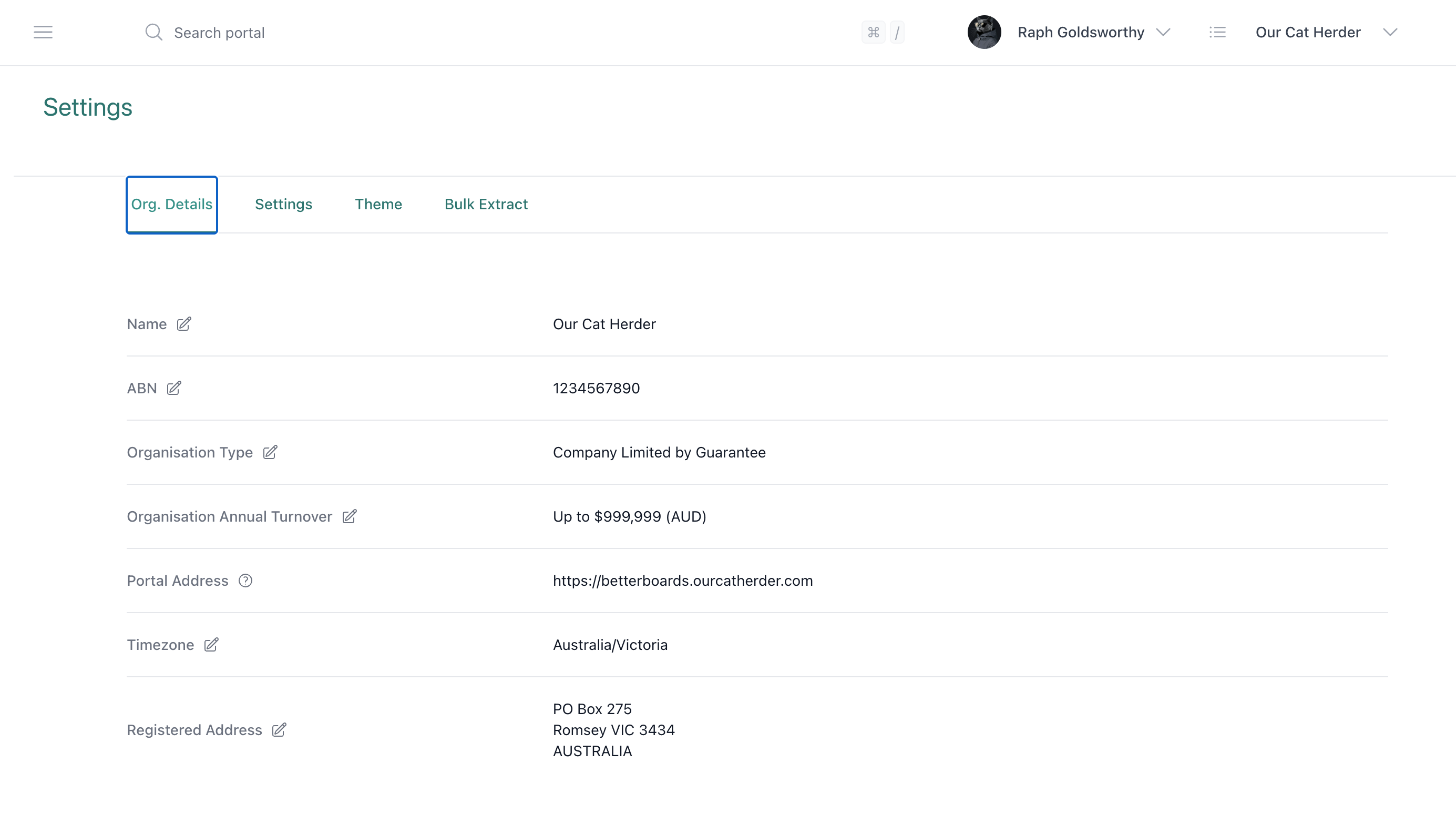
Organisation Details
Set your organisation's basic information:
- Organisation name
- ABN / registration number
- Organisation type
- Organisation annual turnover
- Portal address (your portal's URL, e.g. https://orgname.ourcatherder.com)
- Timezone
- Registered address
Portal Options
Delete Confirmation
On by default. When enabled, deleting items throughout the portal (meetings, documents, members, etc.) requires you to type "confirm" before the deletion proceeds.
You can turn this off if you prefer quicker deletions, but be aware that items can then be accidentally deleted much more easily. Some deleted data may be irretrievable.
WARNING
We recommend leaving Delete Confirmation on. Accidental deletions can result in permanent data loss.
Disable Documents Download
When enabled, this prevents portal members from downloading or printing documents from the portal. Useful for organisations that want to restrict document distribution.
Show Action Numbers
When enabled, each action created in the portal is automatically assigned a unique action number. This can be useful for referencing and tracking actions. Turn it off if you don't need numbered actions.
Theme / Customisation
Customise your portal's branding, colours, and logos. See the dedicated Portal Customisation guide for full details.
Bulk Extract
Export all your portal data in one go. See the dedicated Bulk Extract guide for full details.