Appearance
How to Request Minutes Approval/Sign-Off from Meeting Chairperson
The meeting creator, admin or minute taker can send a request to the chair to sign off the minutes.
Video
Steps
1. Open the Meeting
- Navigate to the meeting in the 'Meetings' section.
2. Manage Meeting Minutes
- Click on 'Manage'.
- Select 'Take Minutes'.
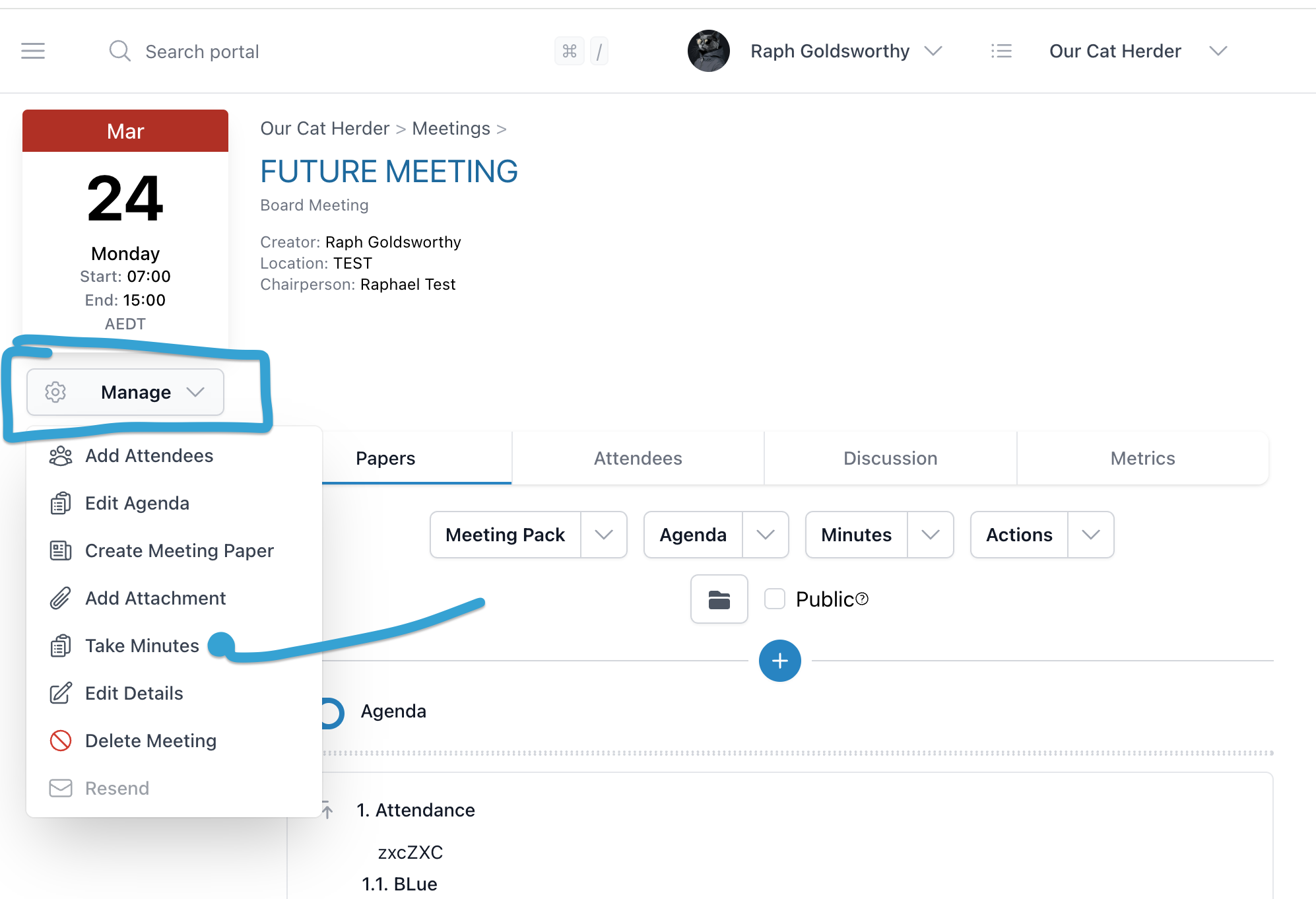
3. Send Minutes to Chair
- Click the 'Send to Chair' button.
- Confirm that the Chair is invited to the meeting before sending.
4. Sign Off & Notify Attendees
When the chair clicks Sign Off Minutes, a dialog appears allowing them to select which attendees should be notified by email that the minutes have been finalised.
- Use Select All Attendees to notify everyone, or select individual attendees.
- Click Sign Off & Notify to sign off the minutes and send the email notification.
5. Re-notify Attendees
If the chair chose not to notify attendees during sign-off, or if attendees need to be notified again, use the Re-notify button on the meeting page.
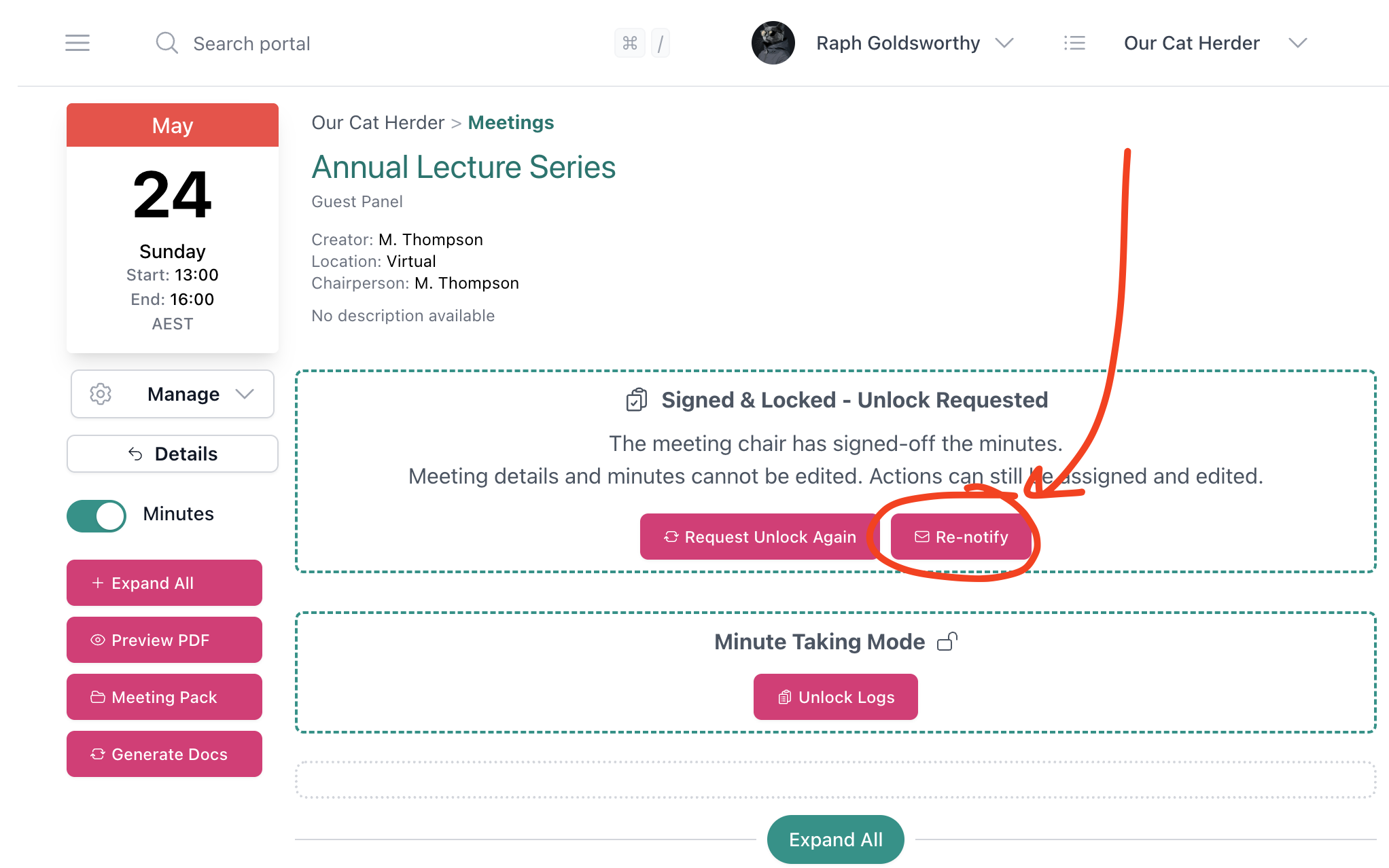
6. Unlocking Signed-Off Minutes
If corrections are needed after sign-off, the minutes can be unlocked. There are two paths: the chair can approve the unlock request, or an admin can approve it directly when the chair is unavailable.
See the dedicated step-by-step guide: How to Unlock Signed-Off Minutes.
All unlock, edit, and relock actions are recorded in the unlock log, which becomes available once the minutes are relocked.
Ways to Notify Attendees About Minutes
There are several ways to notify attendees that minutes are available:
| Method | Who can use it | When to use it |
|---|---|---|
| Sign Off & Notify | Chair (during sign-off) | To send finalised, signed-off minutes to attendees |
| Re-notify | Chair or admin (after sign-off) | To re-send the notification if attendees were not notified during sign-off |
| Save Draft | Minute taker, admin, or meeting creator | To share draft minutes for review before formal sign-off |
| Discussion tab | Anyone invited to the meeting | To notify attendees with additional context or commentary alongside the minutes |