Appearance
How to Delete a Meeting
If a meeting was created in error or is no longer needed, you can delete it. You must be the meeting creator, the chairperson, or a portal Admin to delete a meeting.
Steps
There are two ways to delete a meeting:
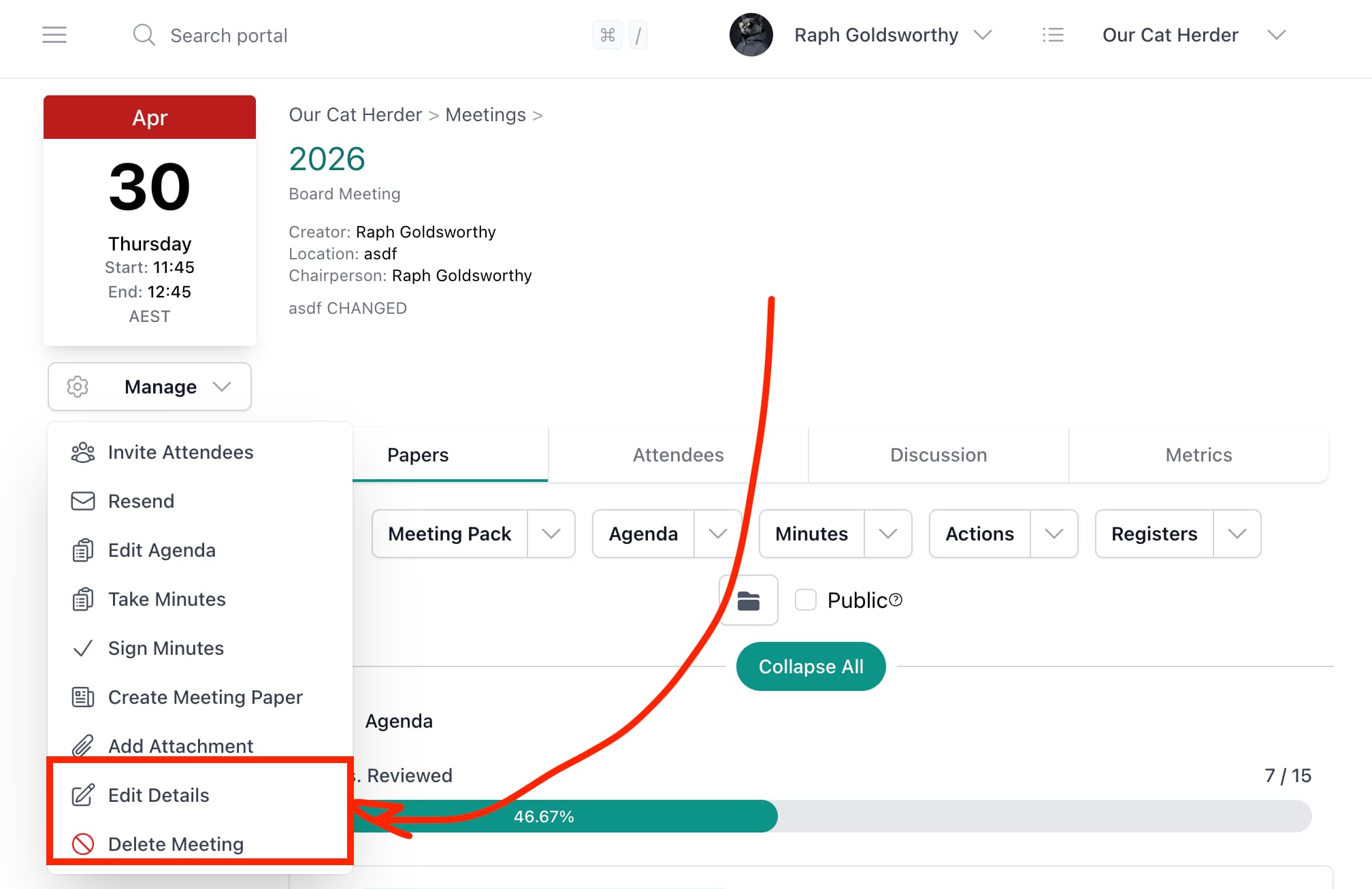
From the Meeting Details page:
- Open the meeting from the Meetings page.
- Click Manage in the top right of the Meeting Details page.
- Click Delete Meeting.
- Confirm the deletion when prompted.
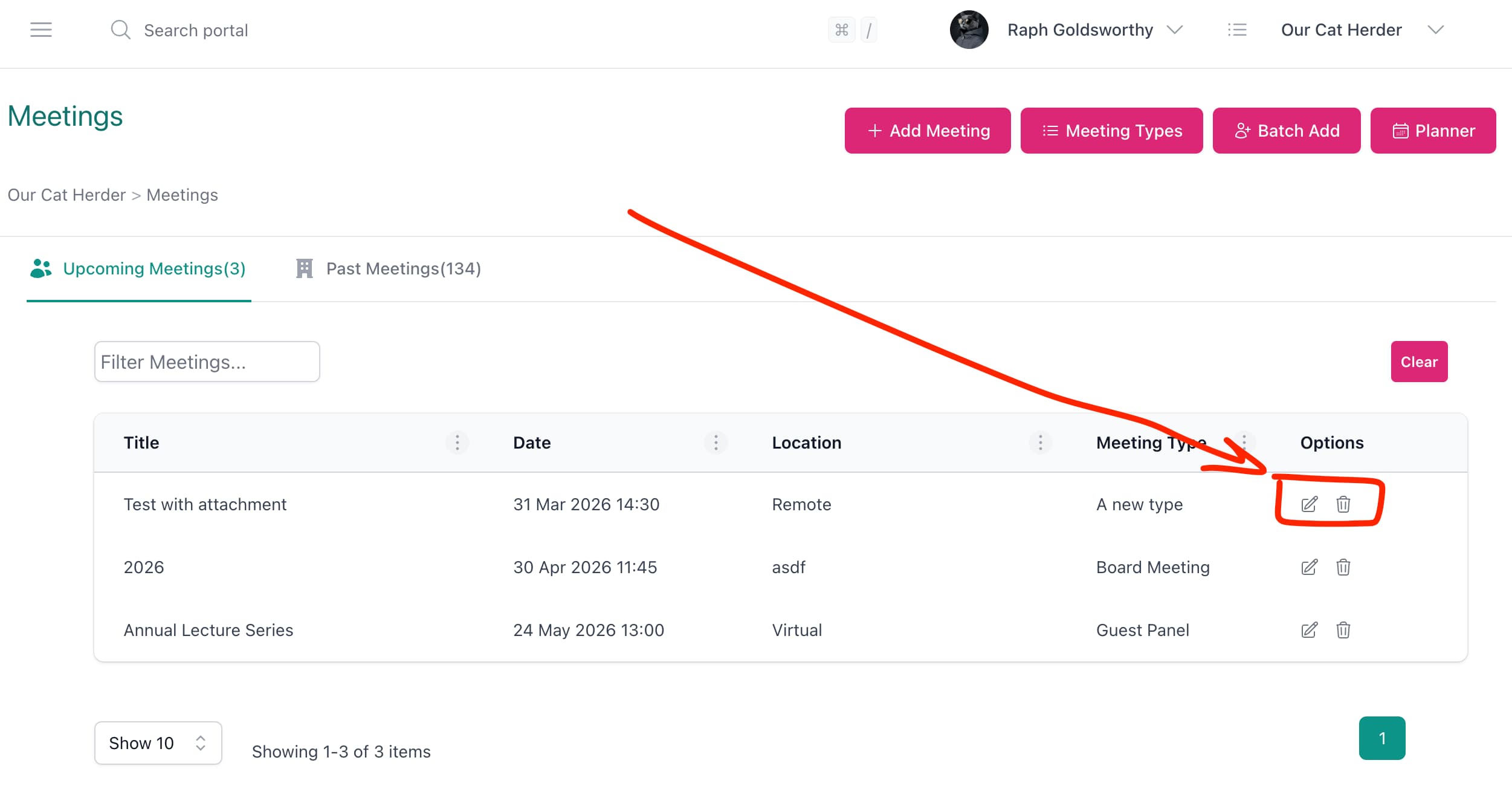
From the Meetings list:
- On the Meetings page, find the meeting in the list.
- Click the trash icon (delete) in the Options column on the far right of the meeting row.
- Confirm the deletion when prompted.
Deleting a Meeting Cannot Be Undone
Once a meeting is deleted, it cannot be recovered. Any agenda items, attachments, and meeting papers associated with the meeting will also be removed.
Who Can Delete a Meeting?
- The person who created the meeting
- The meeting chairperson
- Portal Admins
Regular members and viewers cannot delete meetings. If you need a meeting removed, ask the meeting creator or your Admin.
Related
- How to Edit a Meeting — Change the date, time, location, or other details of a meeting
- Meetings Overview Video Guide — Video covering meeting creation and editing
- Meetings Page (General Users) — Overview of the meetings page and meeting details