Appearance
How to Edit a Meeting
If you need to change the date, time, location, or other details of a meeting, you can do this from the Meeting Details page. You must be the meeting creator, the chairperson, or a portal Admin to edit a meeting.
Steps
There are two ways to edit a meeting:
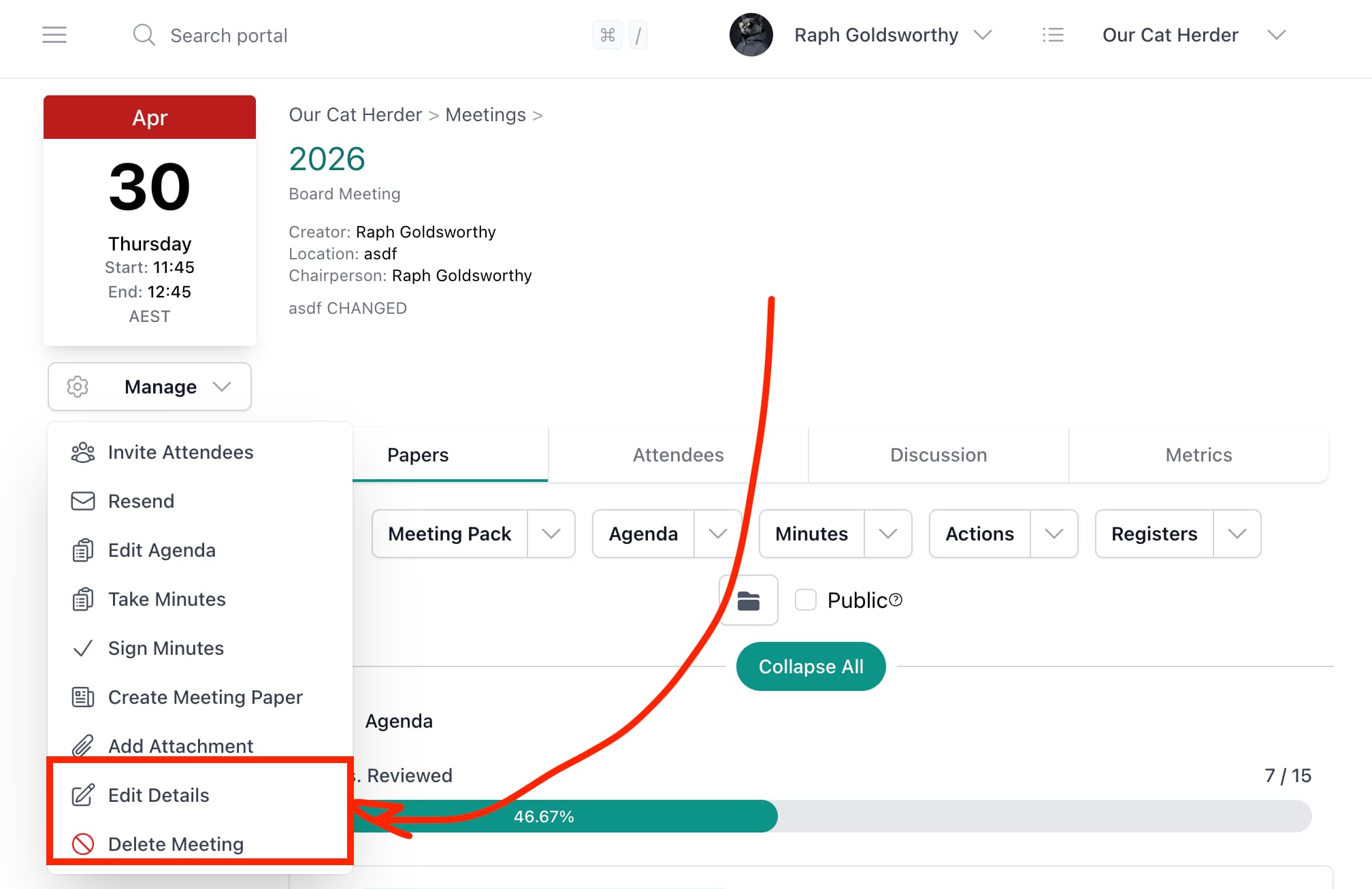
From the Meeting Details page:
- Open the meeting from the Meetings page.
- Click Manage in the top right of the Meeting Details page.
- Click Edit Details.
- Update the fields you need to change — such as the date, start time, end time, location, or description.
- Click Save.
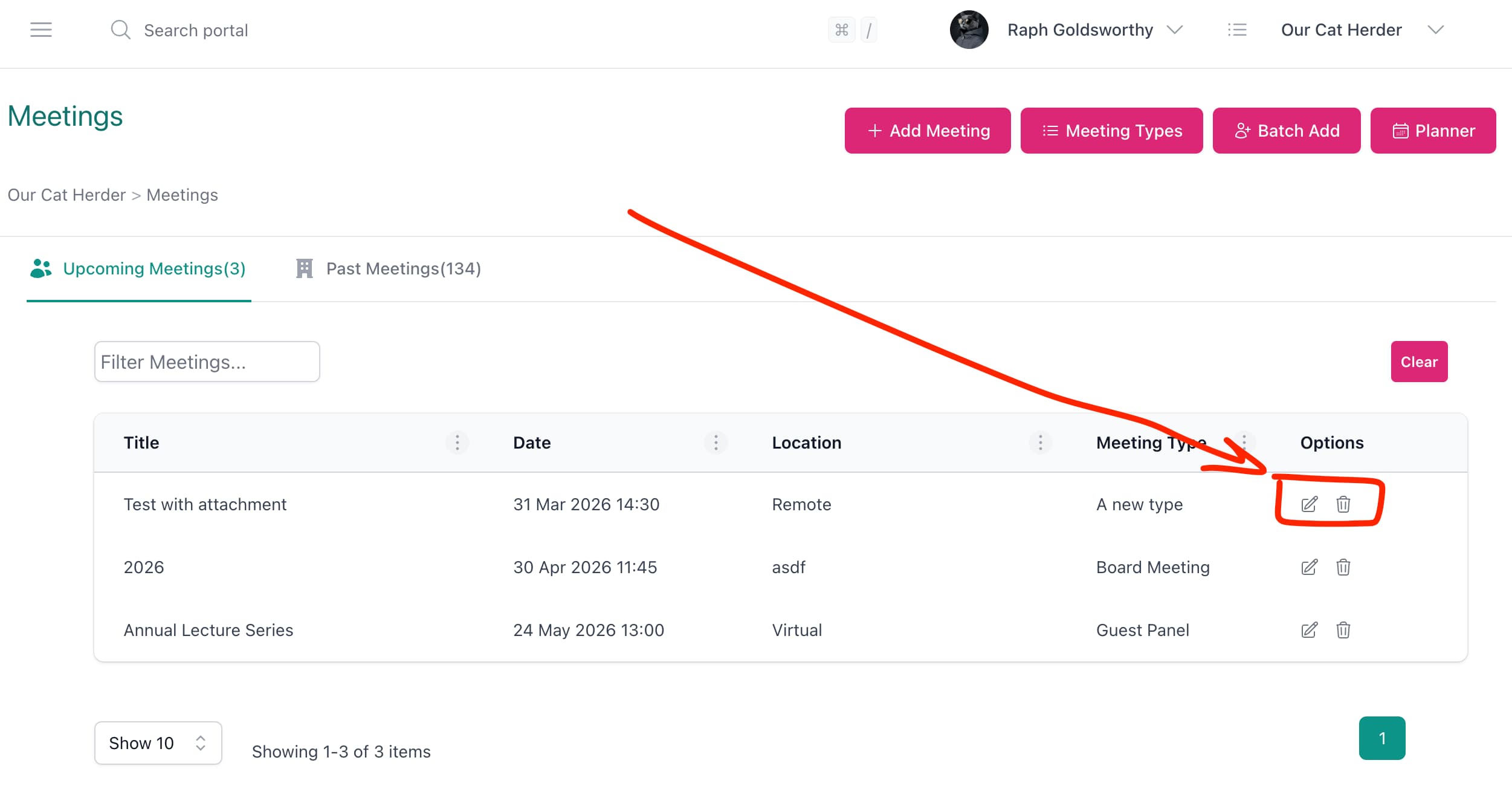
From the Meetings list:
- On the Meetings page, find the meeting in the list.
- Click the pencil icon (edit) in the Options column on the far right of the meeting row.
- Update the fields you need to change.
- Click Save.
The meeting details are updated immediately.
Will Attendees Be Notified?
Whether attendees are notified depends on the Do not email invites setting on the meeting. If this is unchecked, attendees will receive a new meeting invite with the updated details. If it is checked, no notification is sent — in that case, go to the Discussion tab and post a comment letting attendees know about the change. See How to Distribute Your Agenda for more on using the Discussion tab for notifications.
Who Can Edit a Meeting?
- The person who created the meeting
- The meeting chairperson
- Portal Admins
Regular members and viewers cannot edit meeting details. If you need a change made and do not have permission, ask the meeting creator or your Admin.
Related
- Meetings Overview Video Guide — Video covering meeting creation and editing
- Meetings Page (General Users) — Overview of the meetings page and meeting details