Appearance
How to Set Up Meeting Agenda Templates Using Meeting Types
Meeting types are how you create reusable agenda templates in Our Cat Herder. When you create a new meeting and select a meeting type, the agenda from that type is automatically applied — so you always start with a consistent structure without having to rebuild it each time.
Meeting types also connect related meetings together across time, allowing Our Cat Herder to automatically pull through last meeting minutes, outstanding actions, and organise your documents in the Meetings Archive.
Creating a New Meeting Type
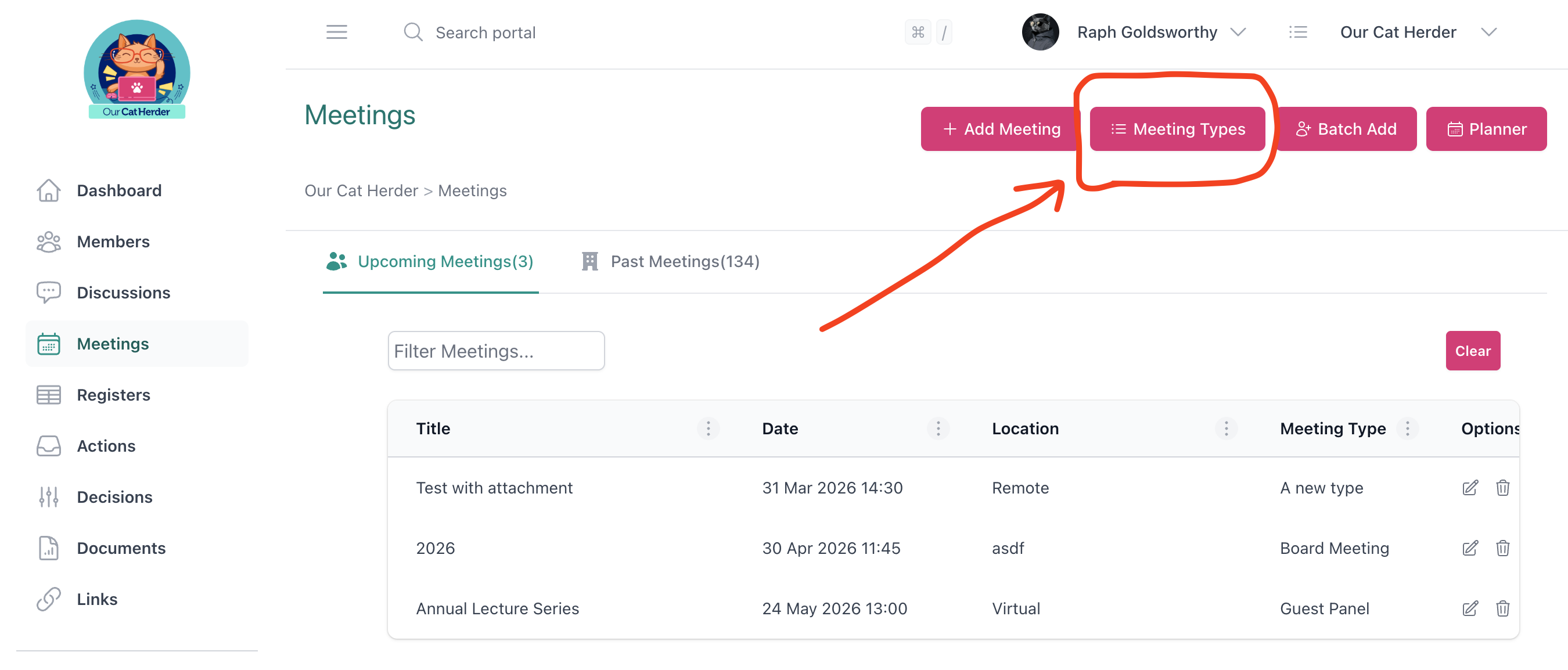
- Go to Meetings and click the Meeting Types button.
- Select an existing meeting type to edit, or click New Meeting Type to create a new one.
- If creating a new type, enter a name (e.g. "Recruitment", "Board Meeting", "Finance Committee") and click Save.
A default agenda is created automatically for new meeting types. You can then edit this agenda to match your needs.
Editing the Agenda Template
- Go to Meetings → Meeting Types.
- Click on the meeting type you want to edit.
- From here you can:
- Rename the meeting type
- Add, remove, or reorder agenda items
- Add sub-items under agenda items
- Add descriptions to agenda items
- Save your changes.
Changes Only Affect Future Meetings
When you update a meeting type's agenda template, only meetings created after the change will use the new template. Existing meetings are not modified — this prevents accidental changes to meetings that are already in progress or have been held.
How Meeting Types Connect Information
Beyond agenda templates, meeting types serve several important functions:
- Last meeting minutes — Our Cat Herder automatically finds the most recent past meeting of the same type and pulls its minutes into the current meeting and the meeting pack.
- Outstanding actions — Actions assigned against agenda items in past meetings of the same type are automatically pulled into an outstanding actions document.
- Closed actions — Similarly, closed actions from past meetings of the same type are tracked.
- Registers — If a register is connected to a meeting type, its data is automatically pulled across meetings of that type.
- Documents filing — Past meetings are automatically filed in the Meetings Archive folder under Documents, organised by meeting type.
- Filtering and grouping — On the Meetings page, you can filter and group meetings by type to quickly find what you need.
Fixing Incorrect Last Meeting Minutes
If a meeting is pulling through minutes from the wrong previous meeting, the most likely cause is that the meeting type is set incorrectly. To fix this:
- Open the affected meeting.
- Click Manage → Edit Details.
- Update the Meeting Type to the correct one.
- Save.
The correct last meeting minutes will now be pulled through.
Editing vs Deleting Meeting Types
We recommend editing meeting types rather than deleting them. Meeting types maintain linkages to all past meetings that used them — if you delete a meeting type and create a new one with the same name, the new type will not have those historical connections.
If you need to retire a meeting type:
- Preferred: Rename it to something like "Outdated — Board Meeting" and create a new meeting type with the current name.
- Alternative: Edit the existing meeting type's name and agenda to reflect the new structure — this preserves all historical linkages.
You can delete meeting types if you are certain they are no longer needed, but existing meetings that used the deleted type will lose their type-based linkages.
Related
- Meeting Types Video Guide — In-depth video walkthrough of meeting types
- Agenda Builder Video Guide — How to build your meeting agenda
- Meetings Overview — Overview of the meetings page for all users